
How to copy a template to another shop
You can copy a template from one shop to another, even when the other shop is on a different team. Agencies use this to reuse a design across their clients instead of building it again.
The copy brings the whole template: its 4:5 and 9:16 formats, the internal fields it uses, and its custom fonts and uploaded images. Before anything is copied, Feedr shows you what the other shop is missing and lets you decide how to fill each gap.
What you need
- Access to both shops. You need to be able to view the shop you copy from, and edit the shop you copy to. That access can come from your own role on a team or from your agency's access to a client.
- A product import in the target shop. The shop you copy to must have finished at least one product import, so Feedr knows which fields it has.
Import a template into this shop
- Go to the Templates page of the shop that needs the template.
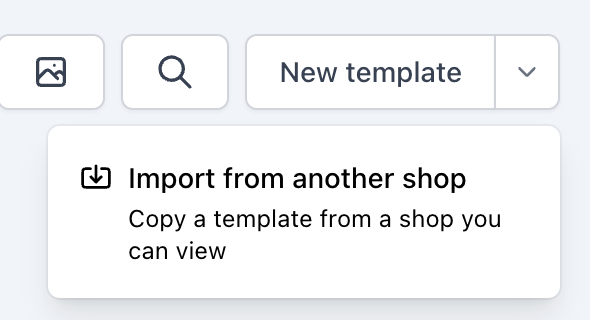
- Click the arrow next to New template, and choose Import from another shop. The arrow only shows when you have access to another shop.
- Pick the shop to copy from. Type in the search box to find a team or a shop.
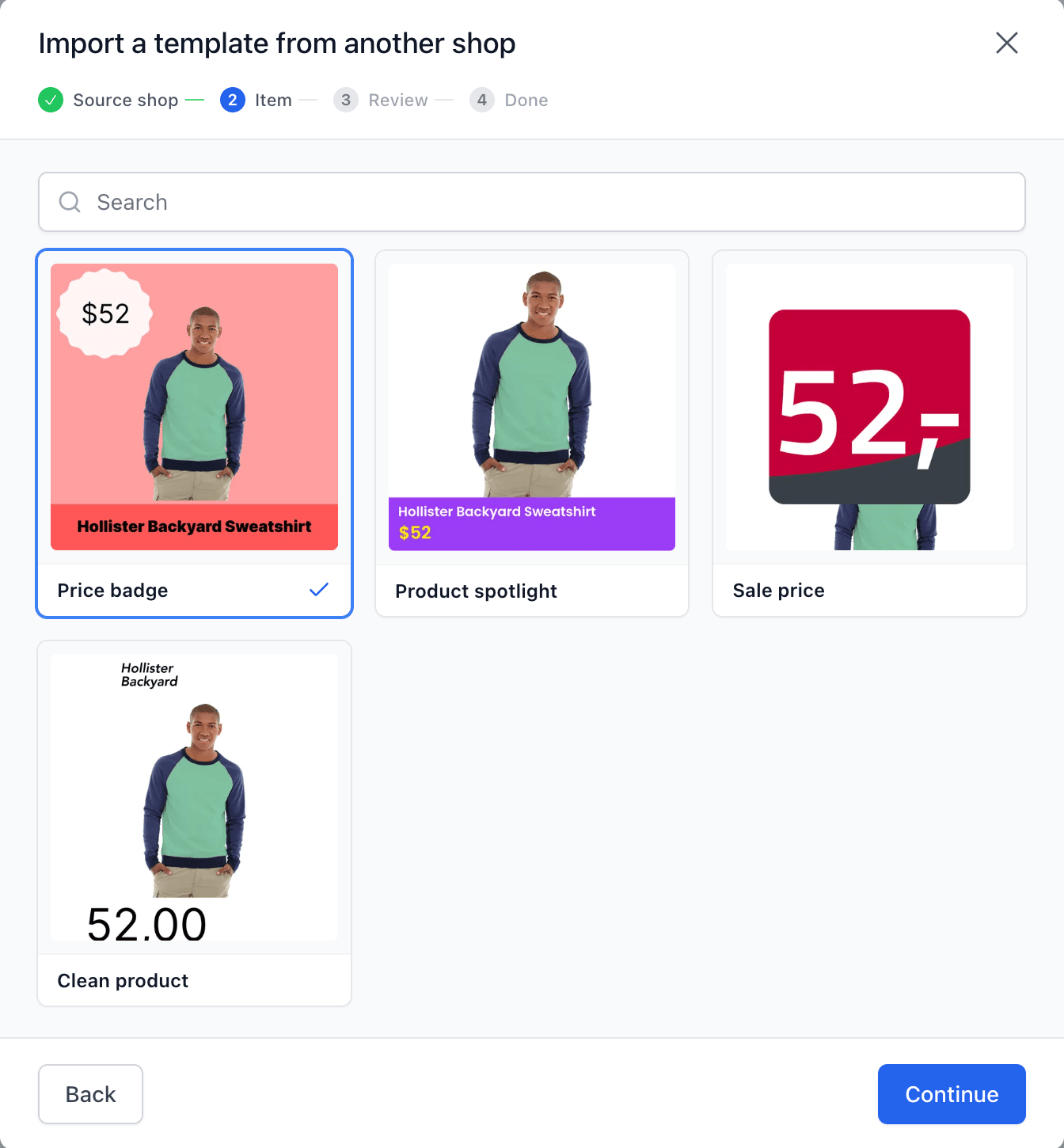
- Pick the template. Each template shows a preview, so you can see which one you pick.
Copy a template to another shop
On the Templates page, open the menu on the template you want to copy, and choose Copy to another shop. Then pick the shop to copy to.
Review the copy
The review shows what the template needs from the target shop. Work through it, then click Copy to followed by the shop's name.
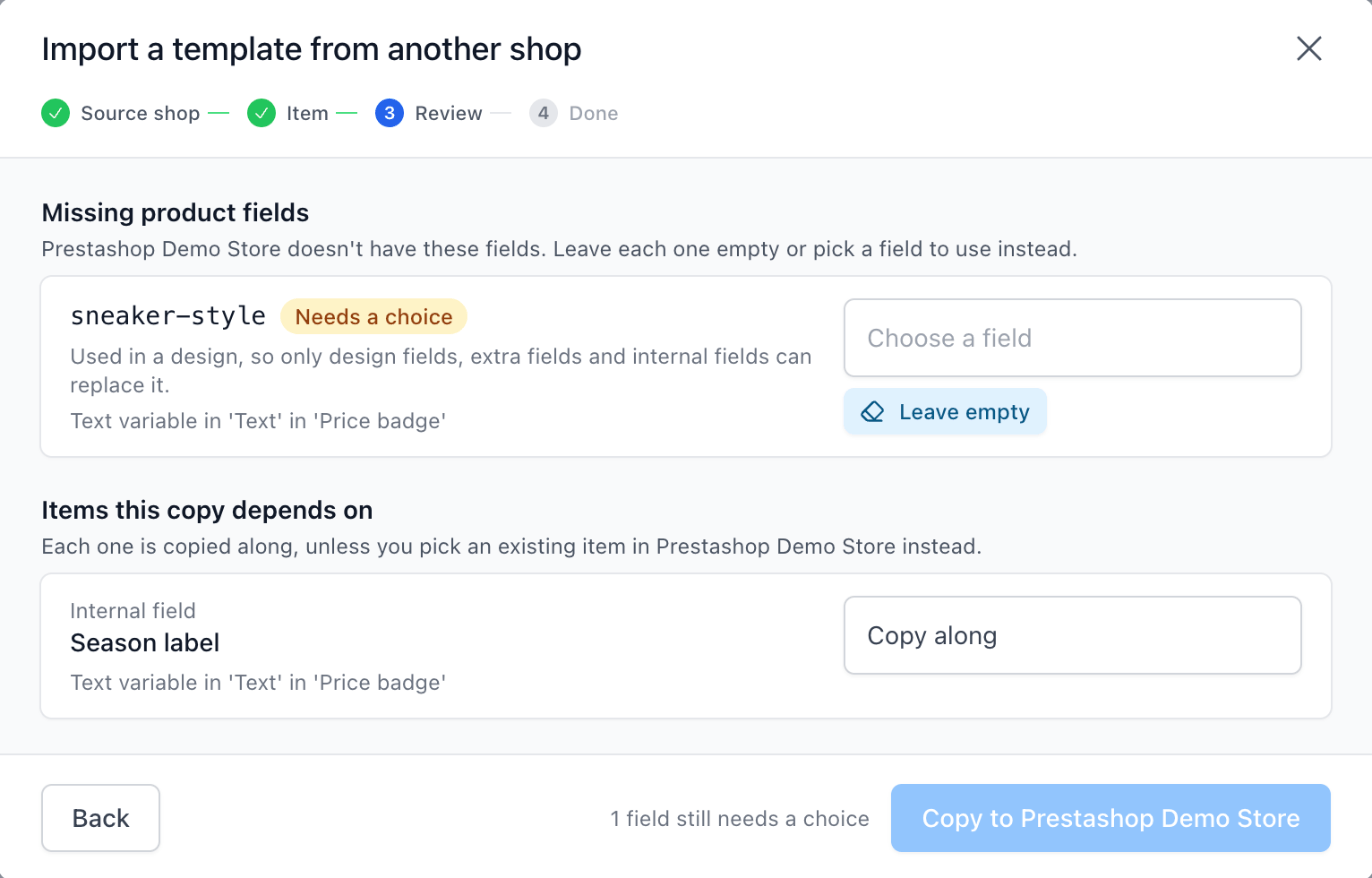
- Missing product fields. These are product fields the design uses that the target shop doesn't have, usually extra fields from the source store. Click the box to pick a field or an internal field from the target shop to use instead, or click Leave empty. A field used in a design can only be replaced by a field a template can show, an extra field or an internal field. Left empty, the template shows nothing where the field was used.
- Items this copy depends on. Internal fields the template uses are copied along by default. If the target shop already has a matching internal field, pick it instead to avoid a duplicate. You can also pick a field a template can show, or an extra field, to use in its place. When it has one with the same name, Feedr picks it for you and marks it Matched by name.
- Copied to the target team. When the target shop is on another team, the template's custom fonts and uploaded images are copied to that team automatically.
After the copy
The copy is a new template in the target shop. If that shop already has a template with the same name, the copy gets "(copy)" added to its name.
To open the copy in the template editor, click Open template after an import, or Open in followed by the shop's name after copying to another shop. If the shop is on another team, Feedr switches to that team for you.
The new template isn't used anywhere yet. To use it in a feed or for Meta Catalog ads, see how to use a template.
A copy is a one-time snapshot. Later changes to the original don't change the copy, and changes to the copy don't affect the original.
To copy internal fields, custom channels, feeds, output mappings or template variants, see how to copy setup to another shop.