
How to create your first template
A template is a design you build once - with dynamic variables like product name, price and product image - and Feedr applies it to products in your feed. One design, thousands of branded product images.
1. Create the template
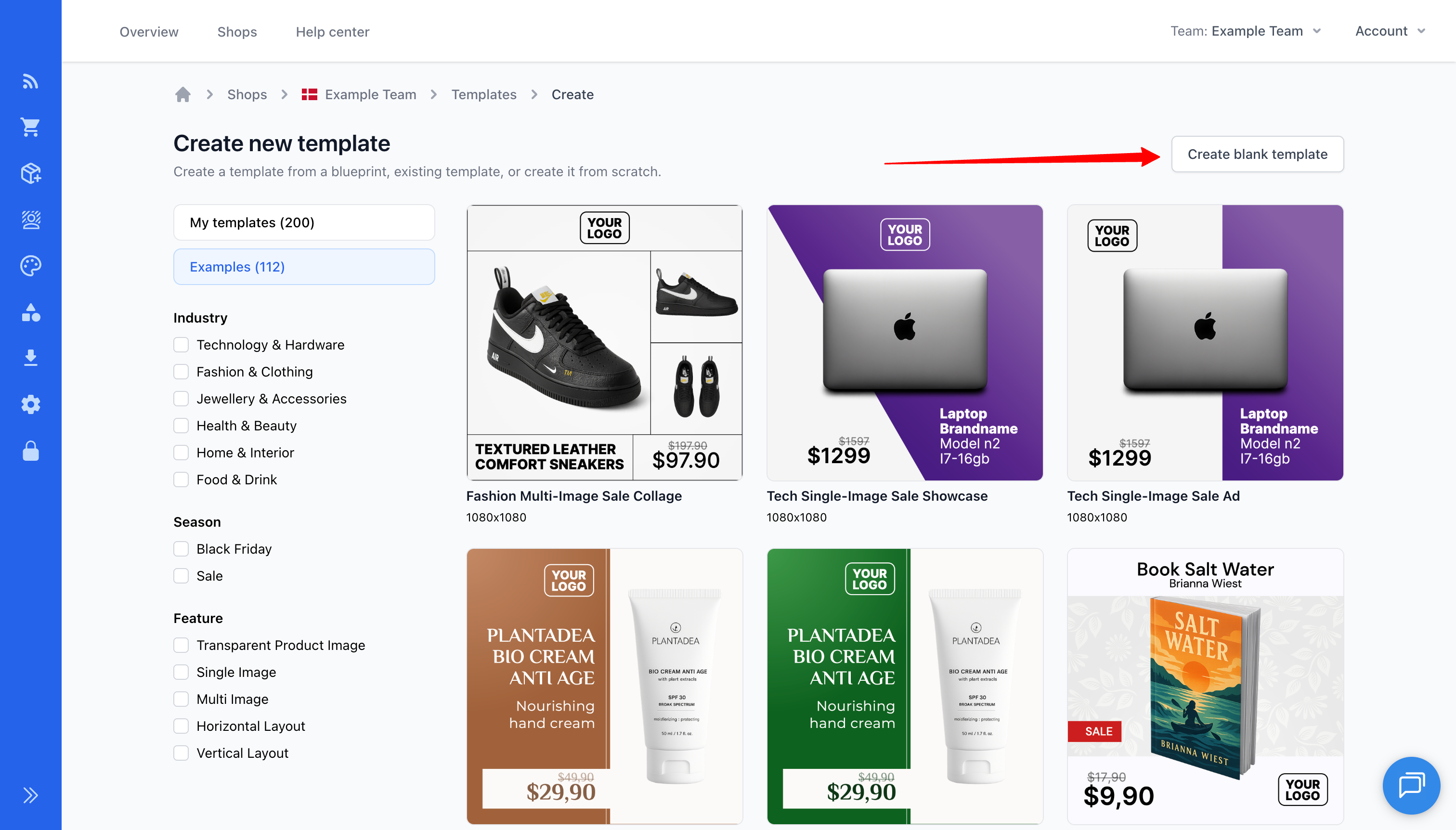
Go to the Templates page and click the New template button. When you create a new template, you have the option to use one our our blueprints or create a template from scratch.
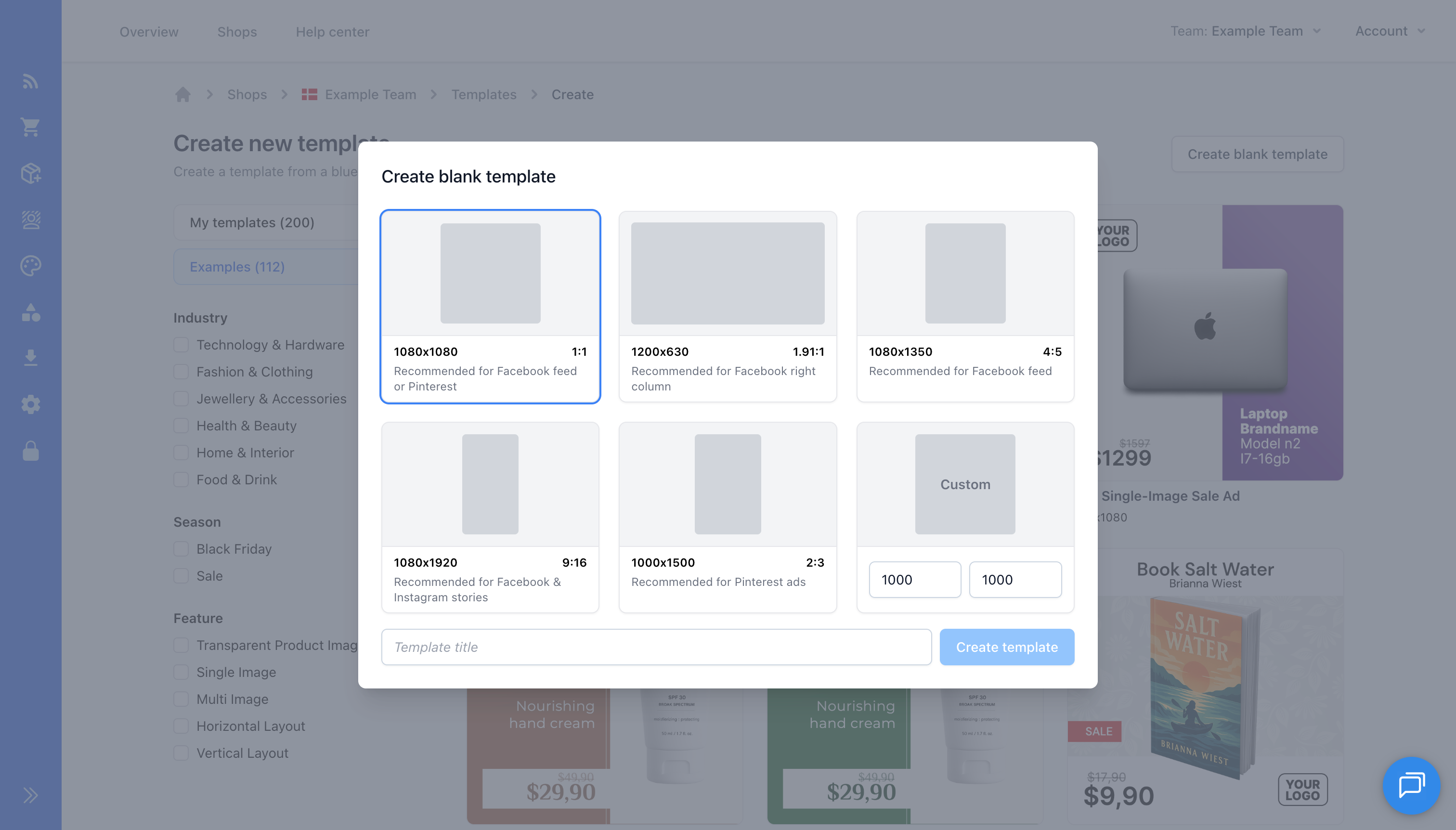
If you decide on creating a template from scratch, you need to select a format.
INFO
If you want to create a template to use in Meta Catalog Ads, then you must select 1080x1080.
If you want to learn how to design a template in multiple formats (1:1, 4:5, and 9:16), please see How to design templates in multiple formats.
2. Design it
Build your design in the editor - see How to use the template editor for a tour of the tools. A good first template:
- frames the product image with your brand colors,
- shows the price as a visible badge using the price variable,
- keeps space for campaign messaging you can change later.
If your product photos have busy backgrounds, background removal lets you place the cut-out product on your own background.
3. Apply it to your feed
A template does nothing until a feed uses it. In the feed's output mapping, map the image field to your template - follow How to apply a template.