
Appearance
How to work with localization (country & language) feeds
It's possible to use Template Variants in conjunction with language and country feeds. This means that you can use different templates for different languages and countries.
Country Feeds
Country feeds makes sure that the customer sees a localized version of your product catalog. This means that based on their location, they will see the titles, prices etc. in language and currency specific to their country.
Before you can use Template Variants in conjunction with a country feed, you need to be connected to your Meta Business portfolio in Feedr. You also need to have created a regular Facebook feed, to serve as a base for the country feeds.
When the account is connected with Meta, you can create the country feeds in the Feedr interface. Usually you would create a shop in Feedr corresponding to each language that your webshop has.
Setup in Feedr
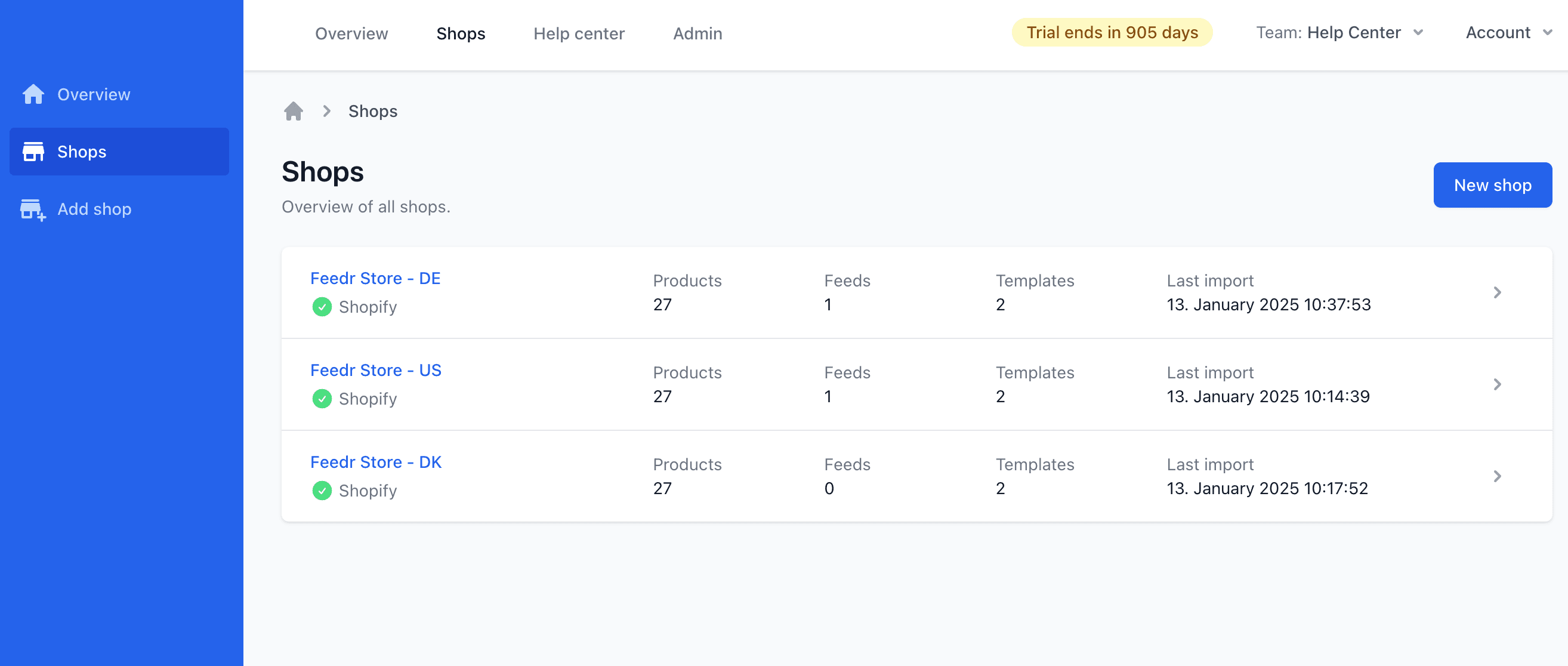
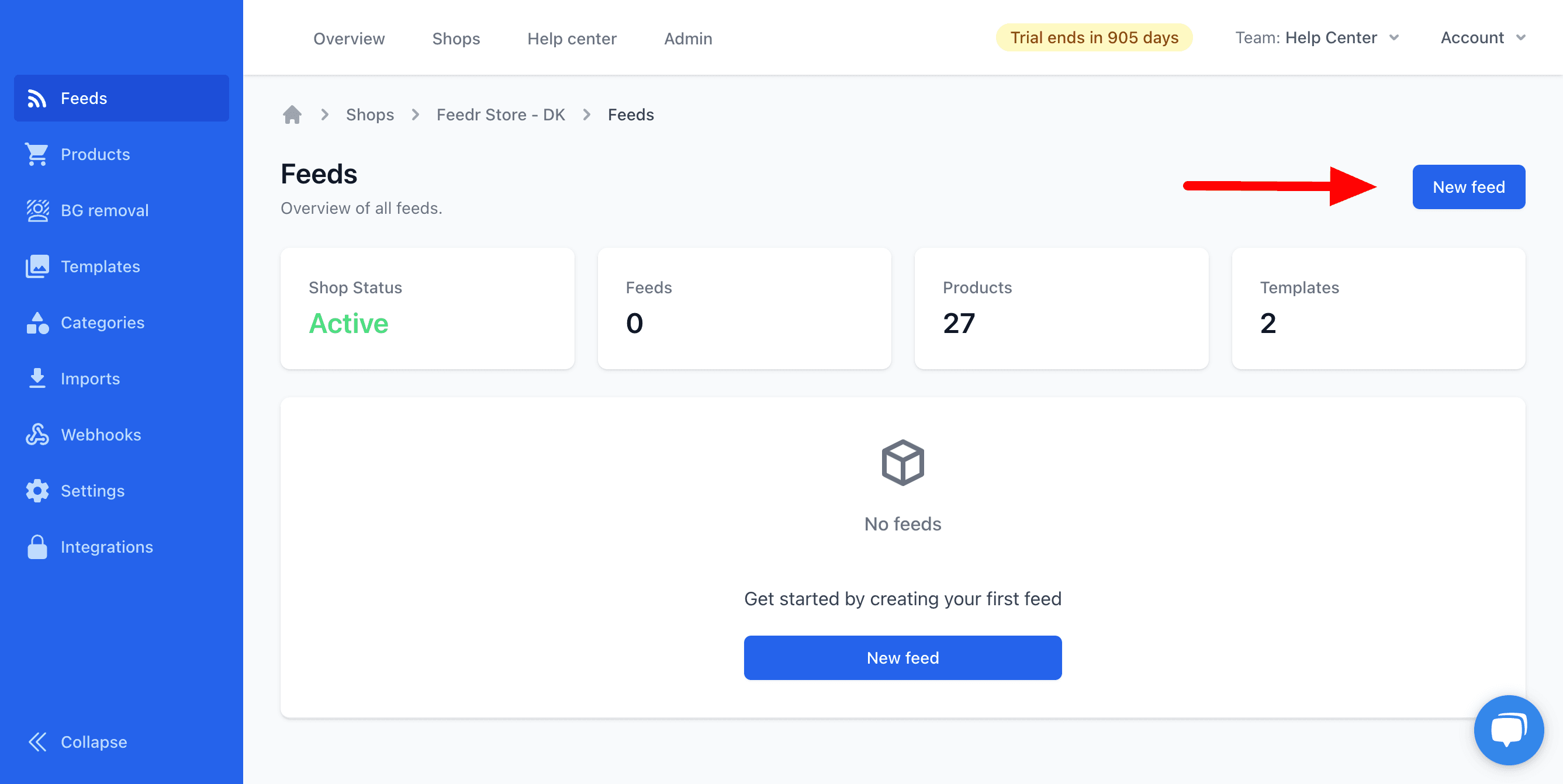
For each shop you can now create the templates that you want to use. When you have your templates you need to create a regular feed for your primary language and a country feed for each country.
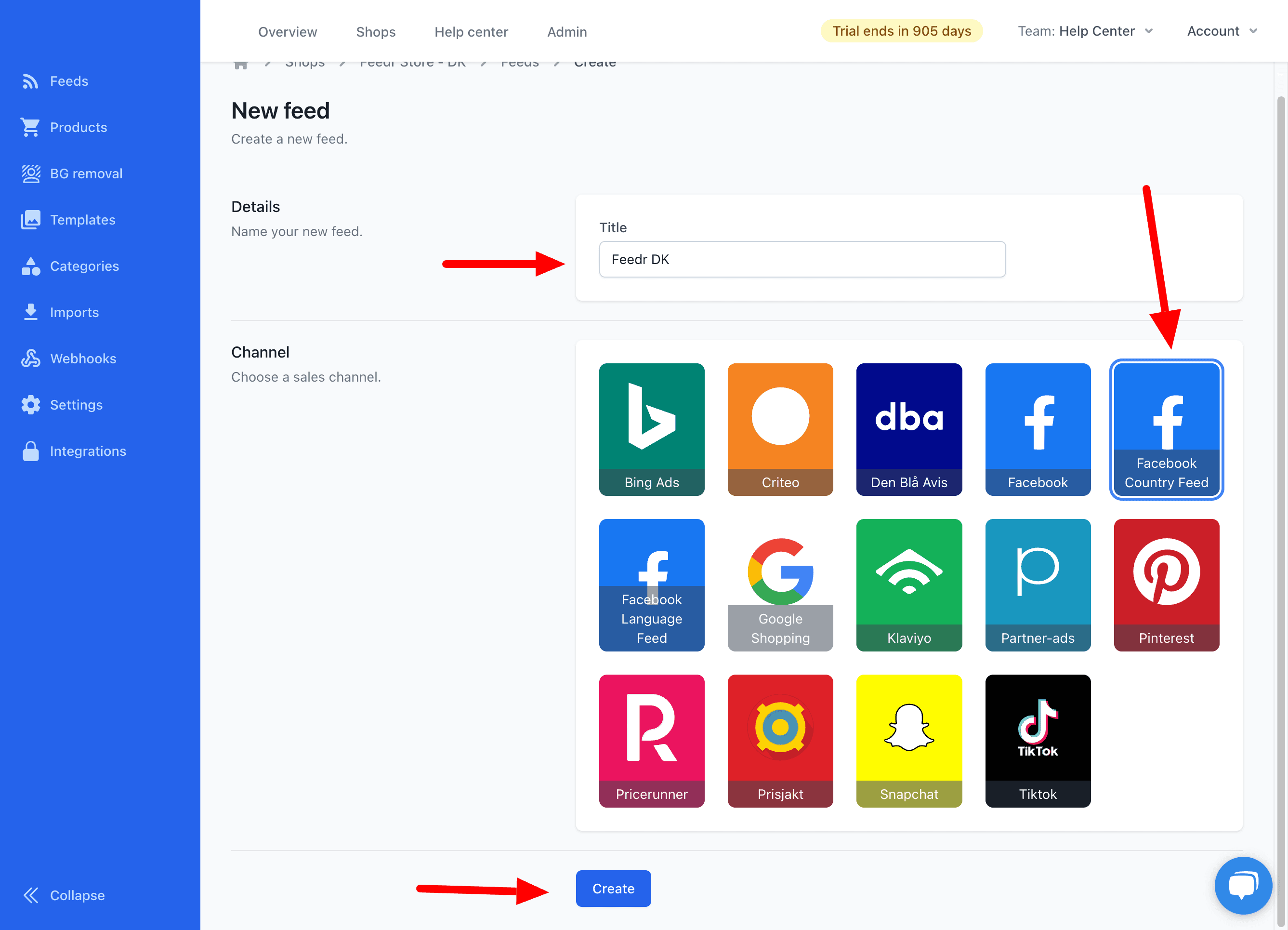
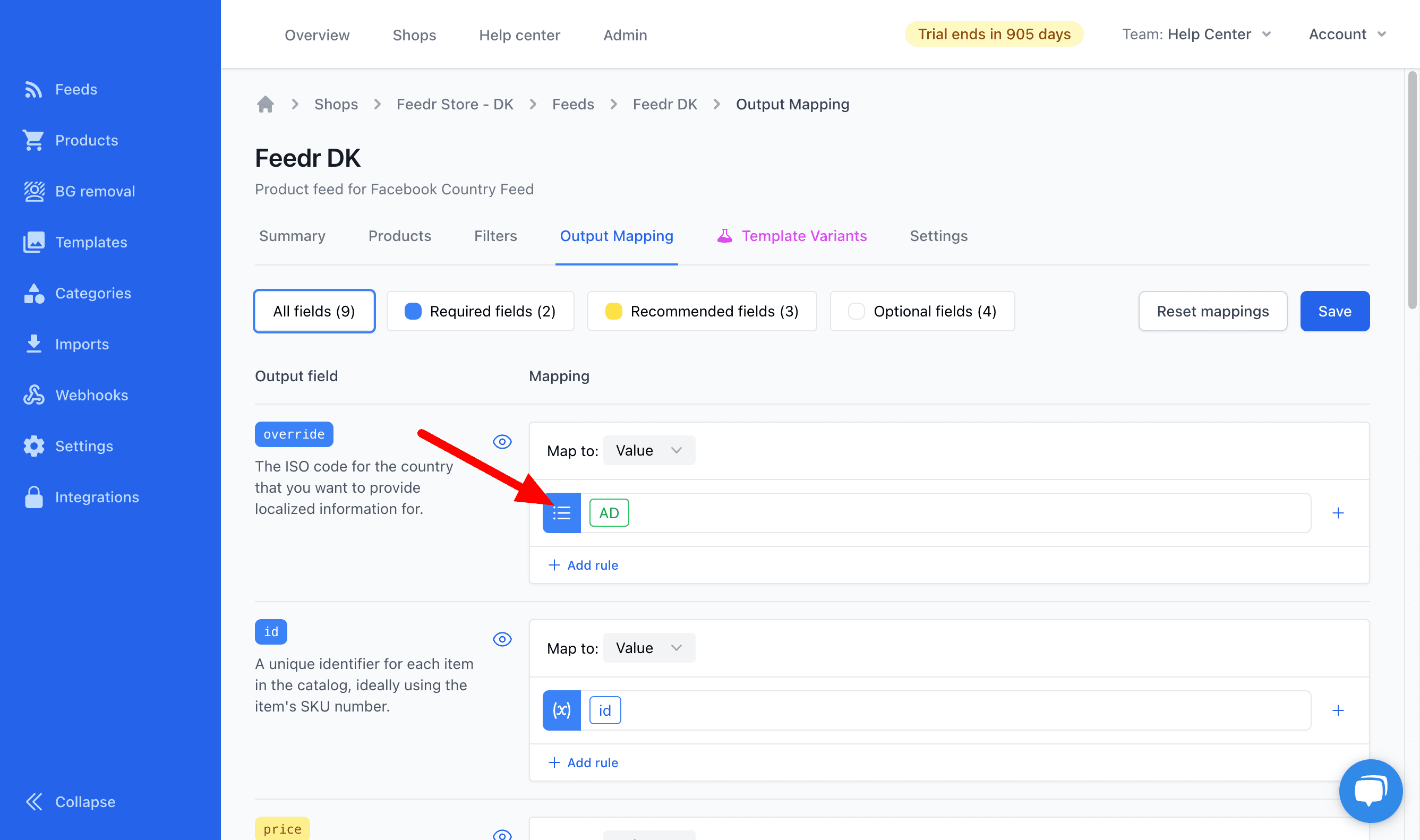
When the feed is created you need to go into the Output Mapping section and and select the country override field.
Afterwards you can setup the variants you want to use. The same variant will be used at the same time for each country. So if you decide to use Variant #2 it will use the second variant for all the feeds you have mapped, no matter which template you use. Keep that in mind while your mapping your template variants.
Setup in Meta Commerce Manager
When you have created the country feeds in Feedr, you can now use them in Meta Commerce Manager. If you do not have a catalog already, you need to create one and use your regular feed as the data source.
INFO
If you are creating a new catalog, make sure you add it to your Meta Integration in Feedr.
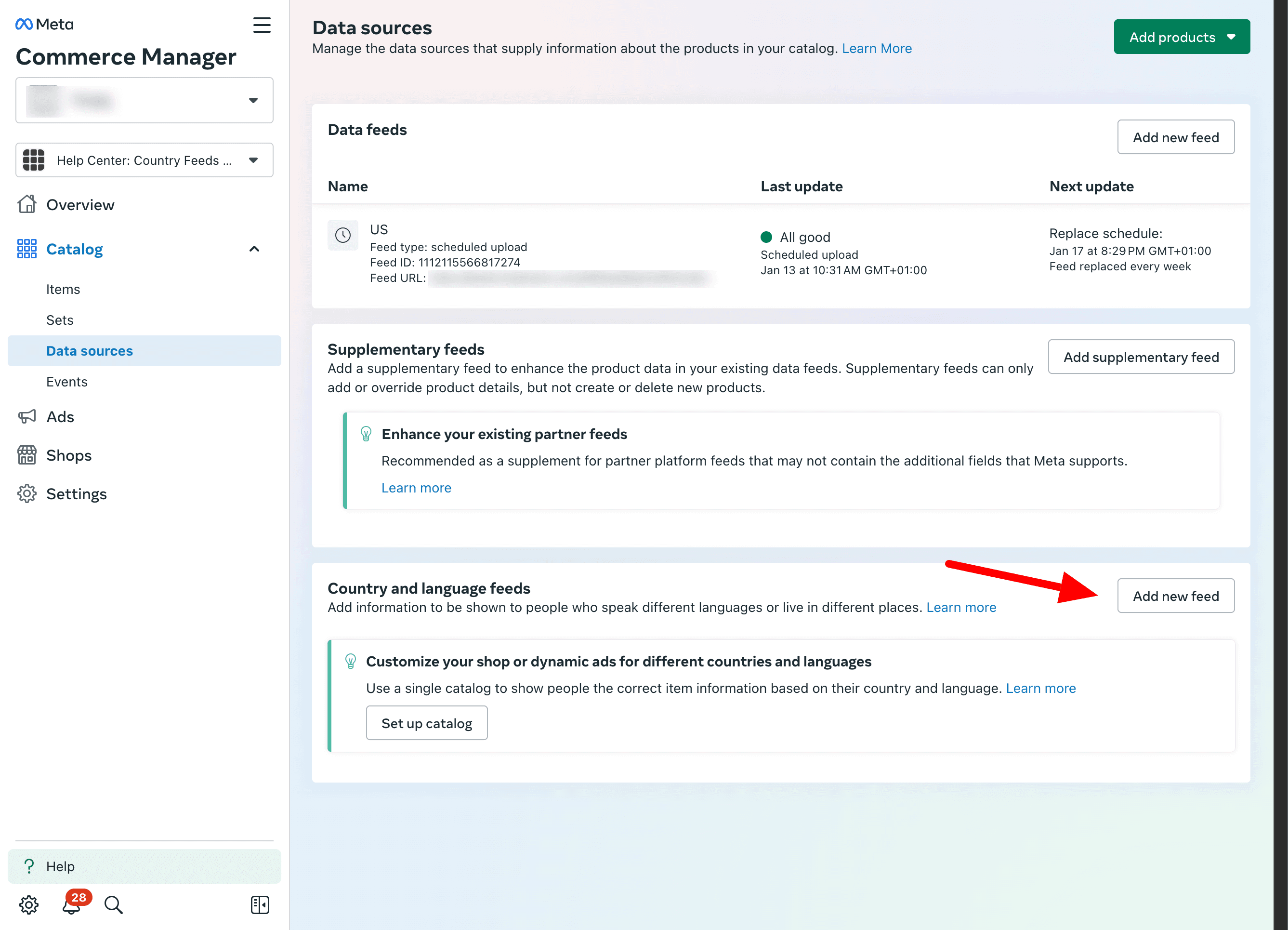
To add a new country feed, you need to click on the Add new feed button under the Country and language feeds section.
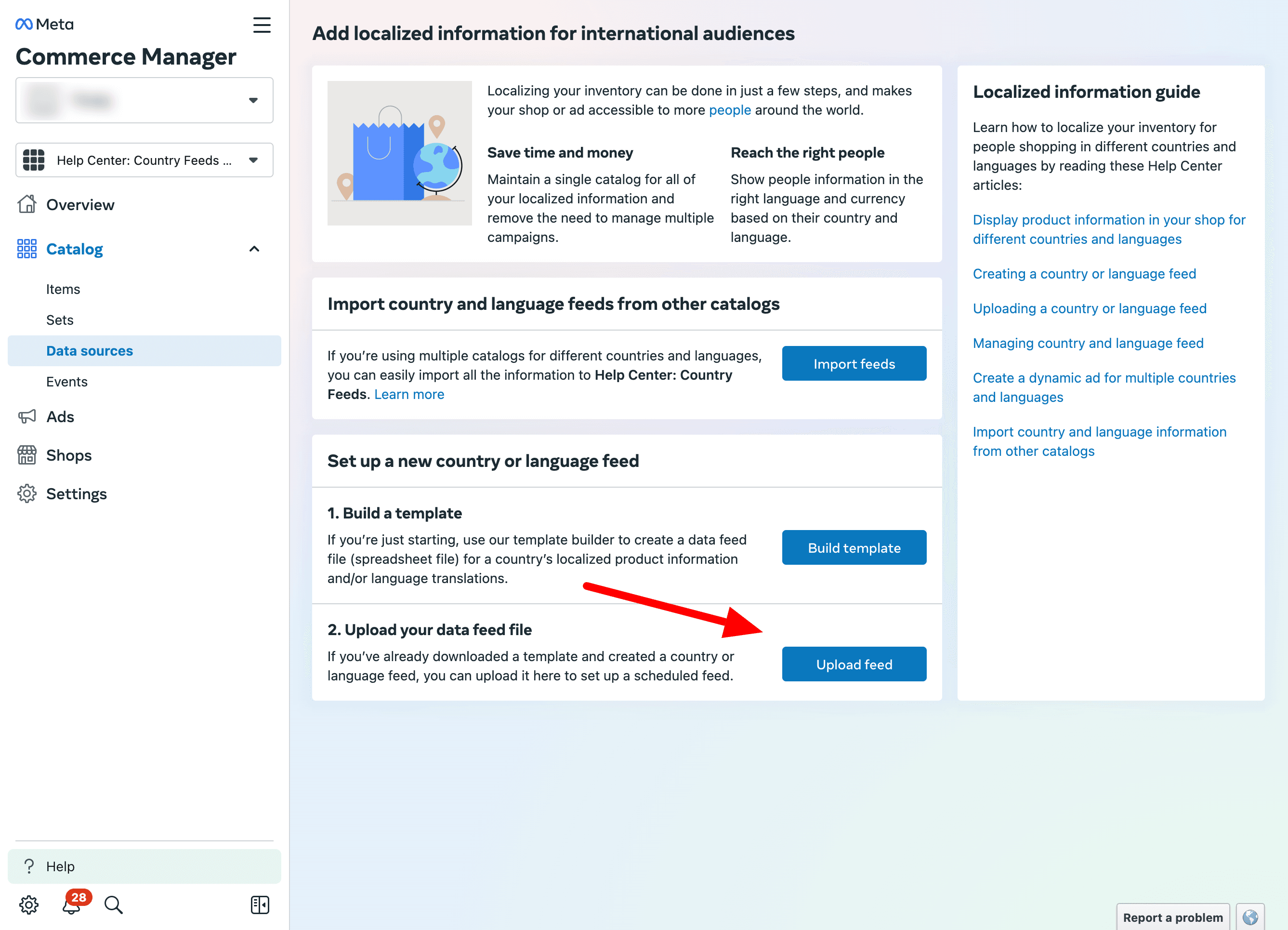
Then you need to select the Upload feed option.
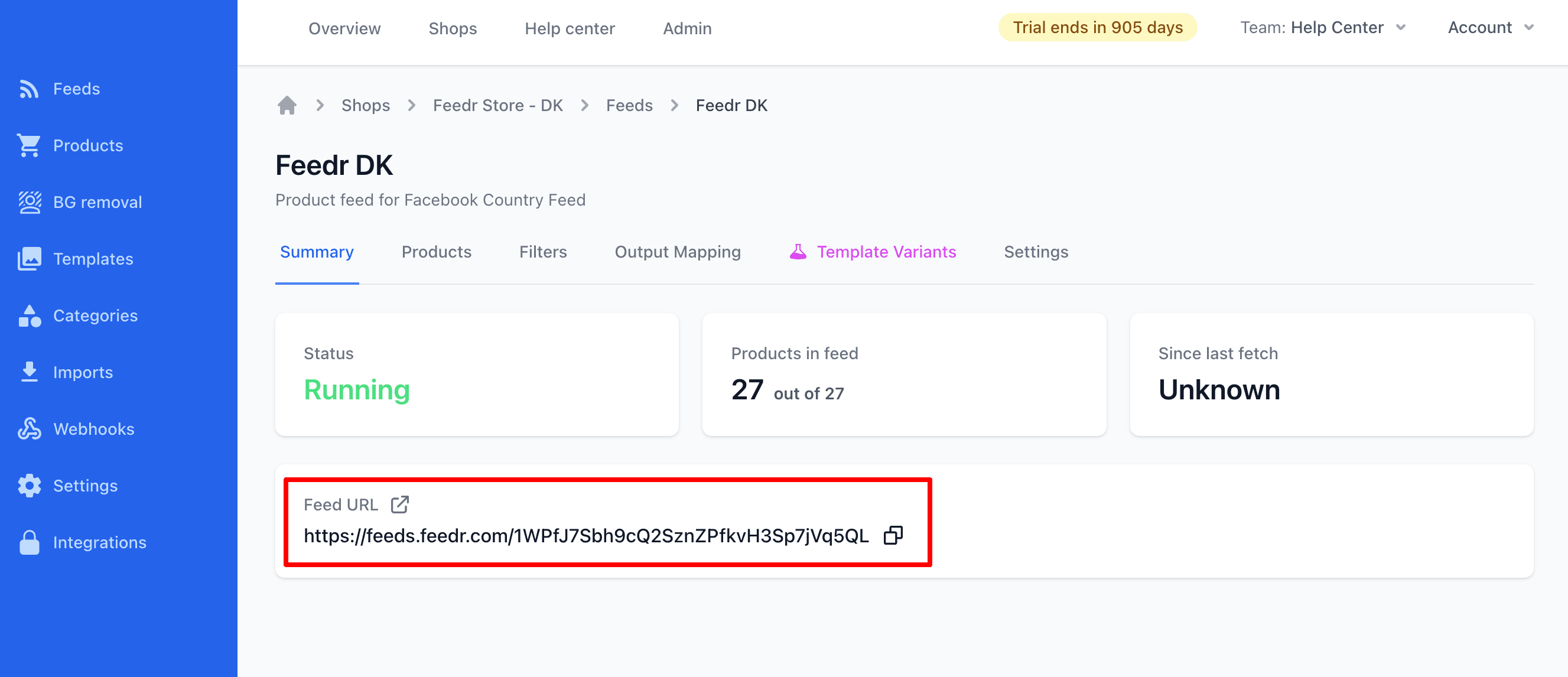
Now you need to copy the feed URL from Feedr.
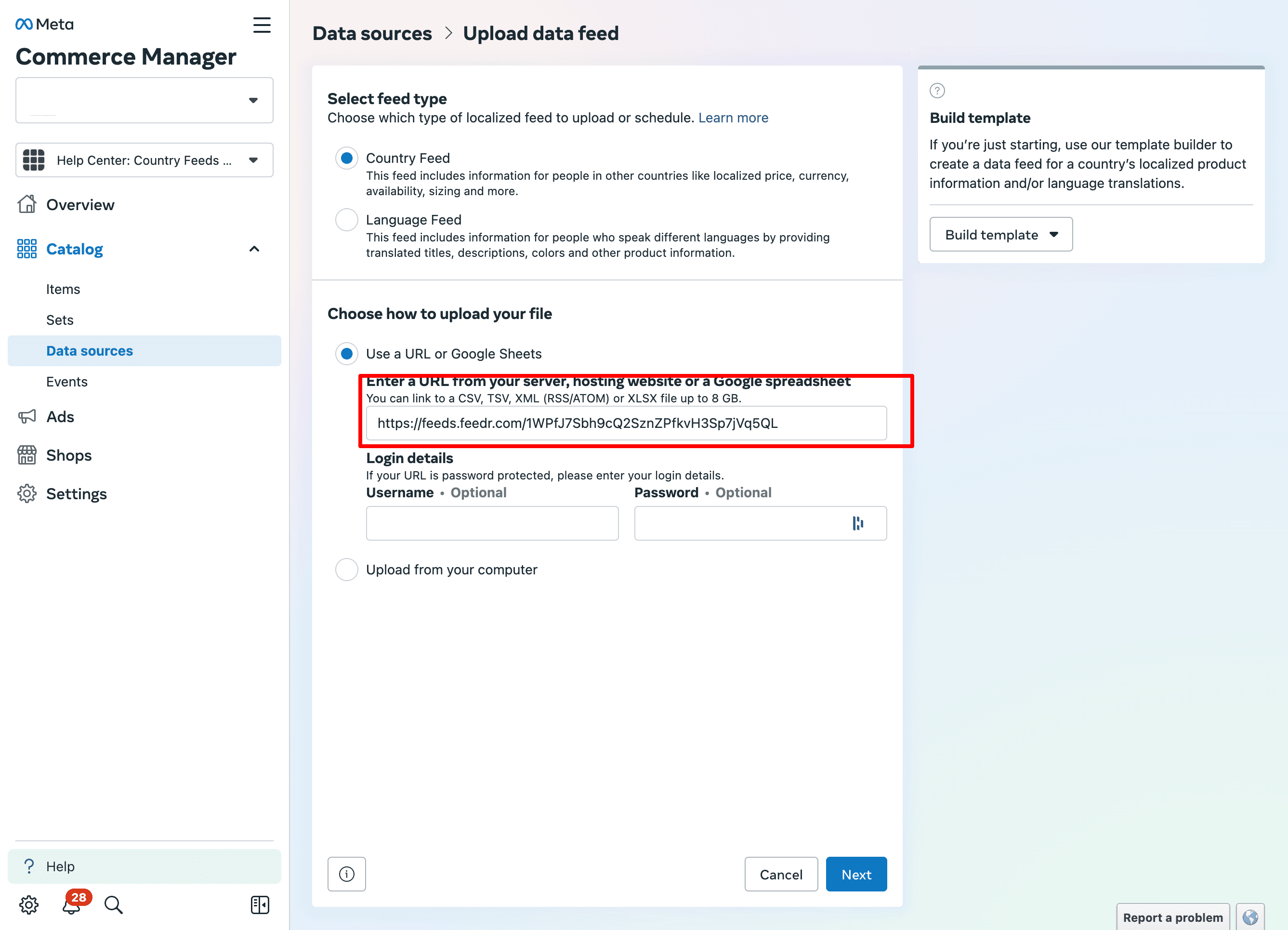
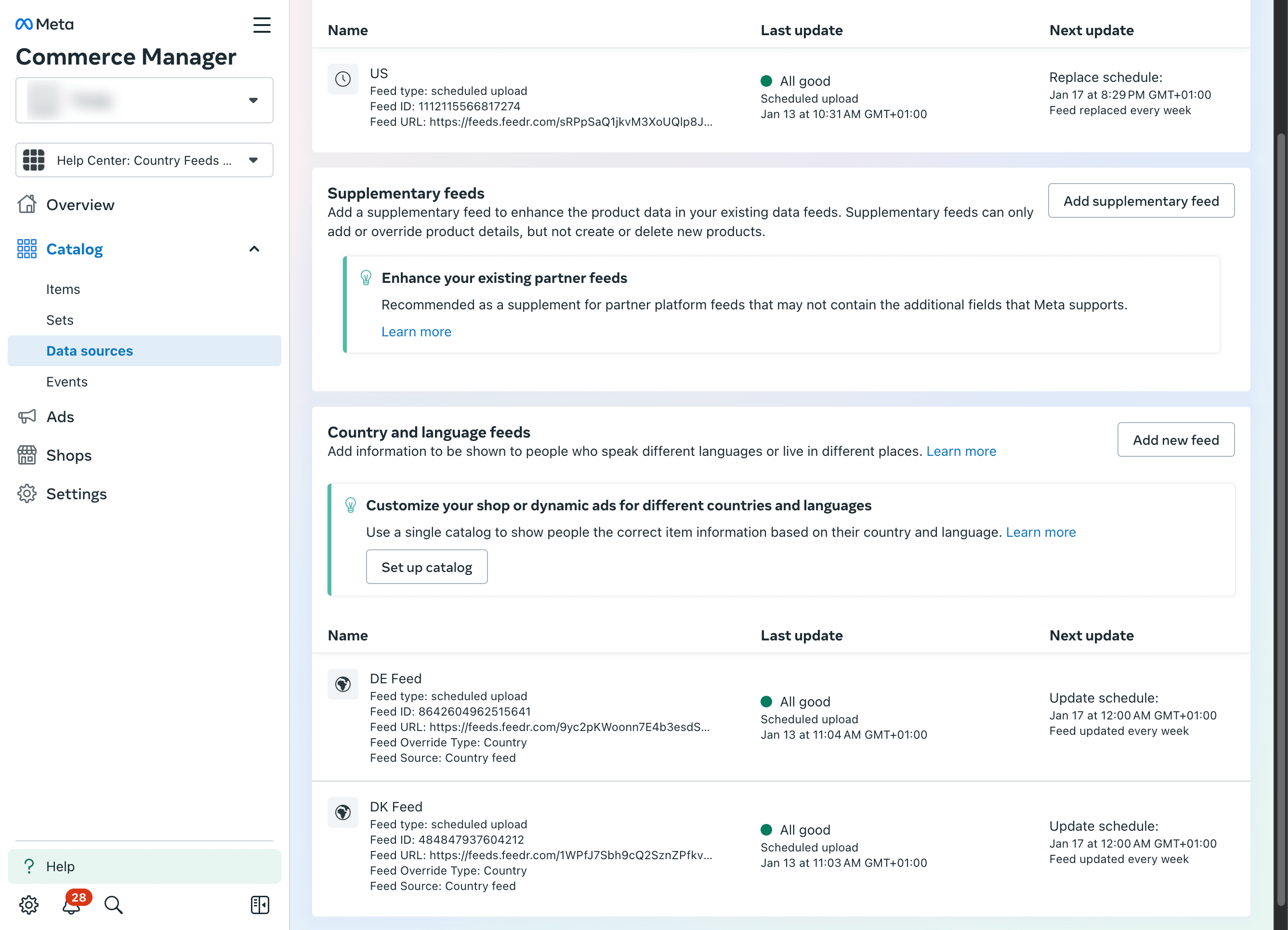
You have to repeat the above steps for each country you want to add. After you have done this you should see this in your catalog data sources overview.
You can also check that the data is being imported correctly by going to the Items section, clicking a product and go to the International coverage tab.
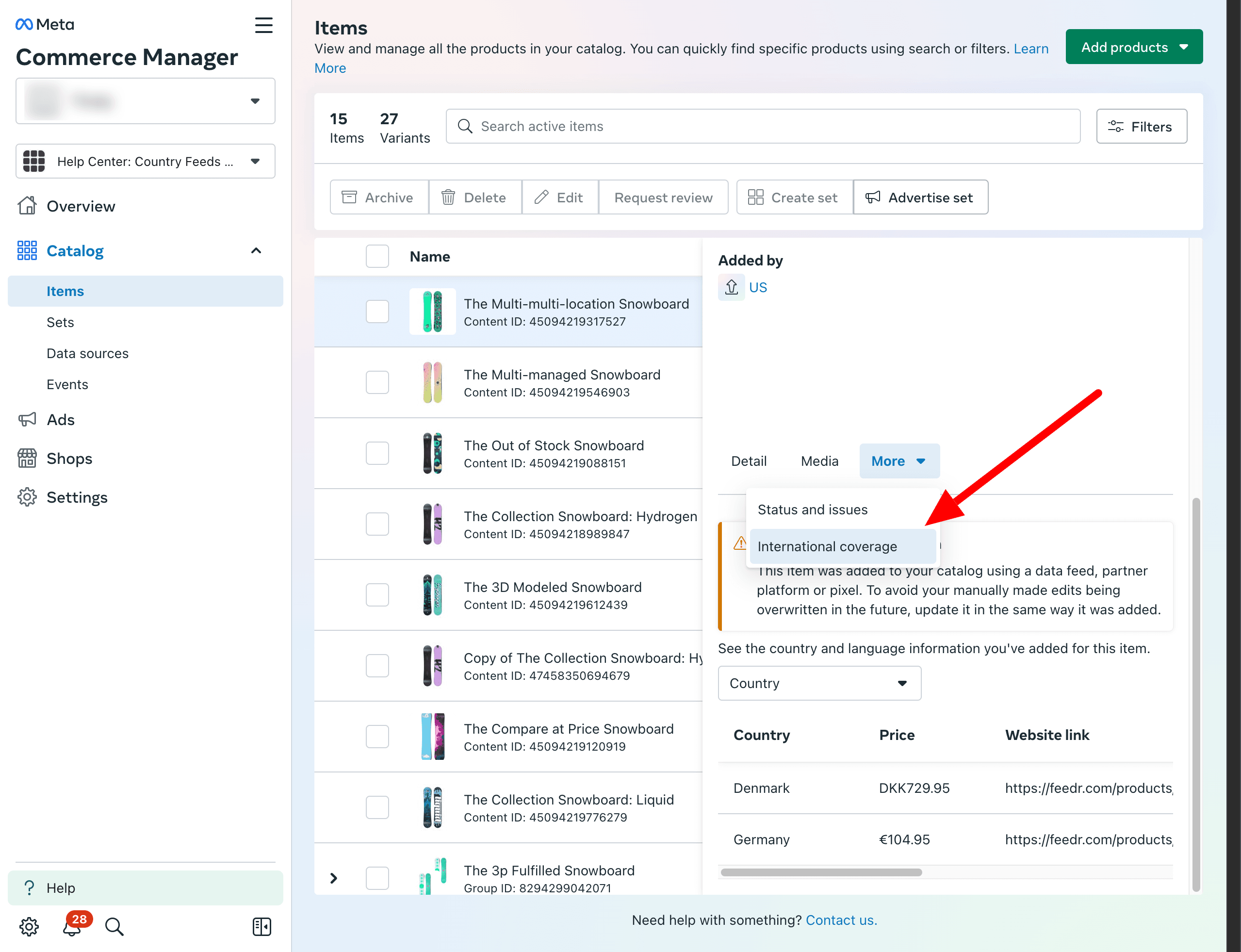
As you can see, we have data from all of our the feeds here.
Using Template Variants in a Country Feed
Once you have set up your country feeds, you can use Template Variants in conjunction with them. To do this you simply have to create your dynamic product ads as you normally would.
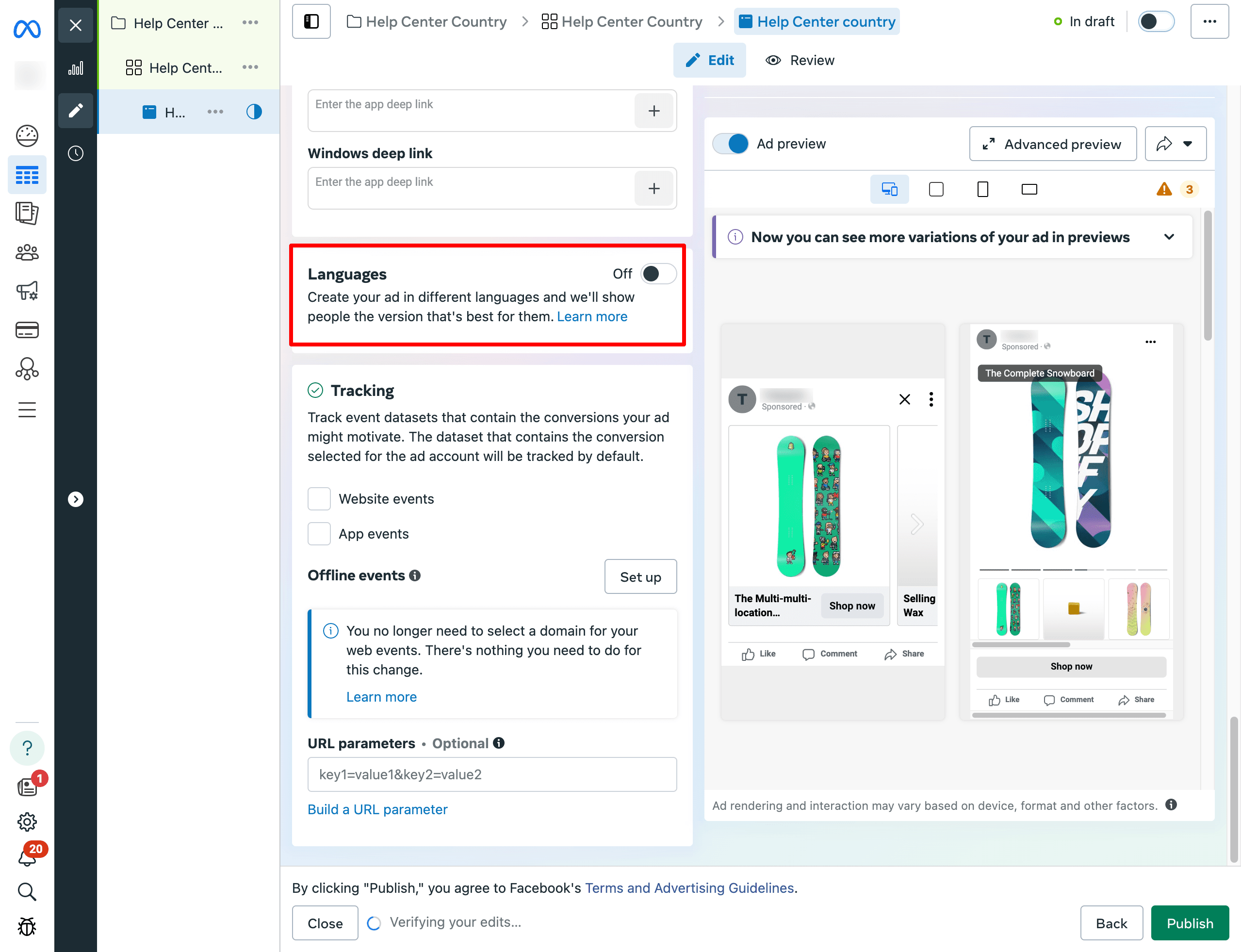
When your ad is created you can go to the Languages section and press enable. If it asks you to disable "Advantage+ creative for Catalog" you need to do that.
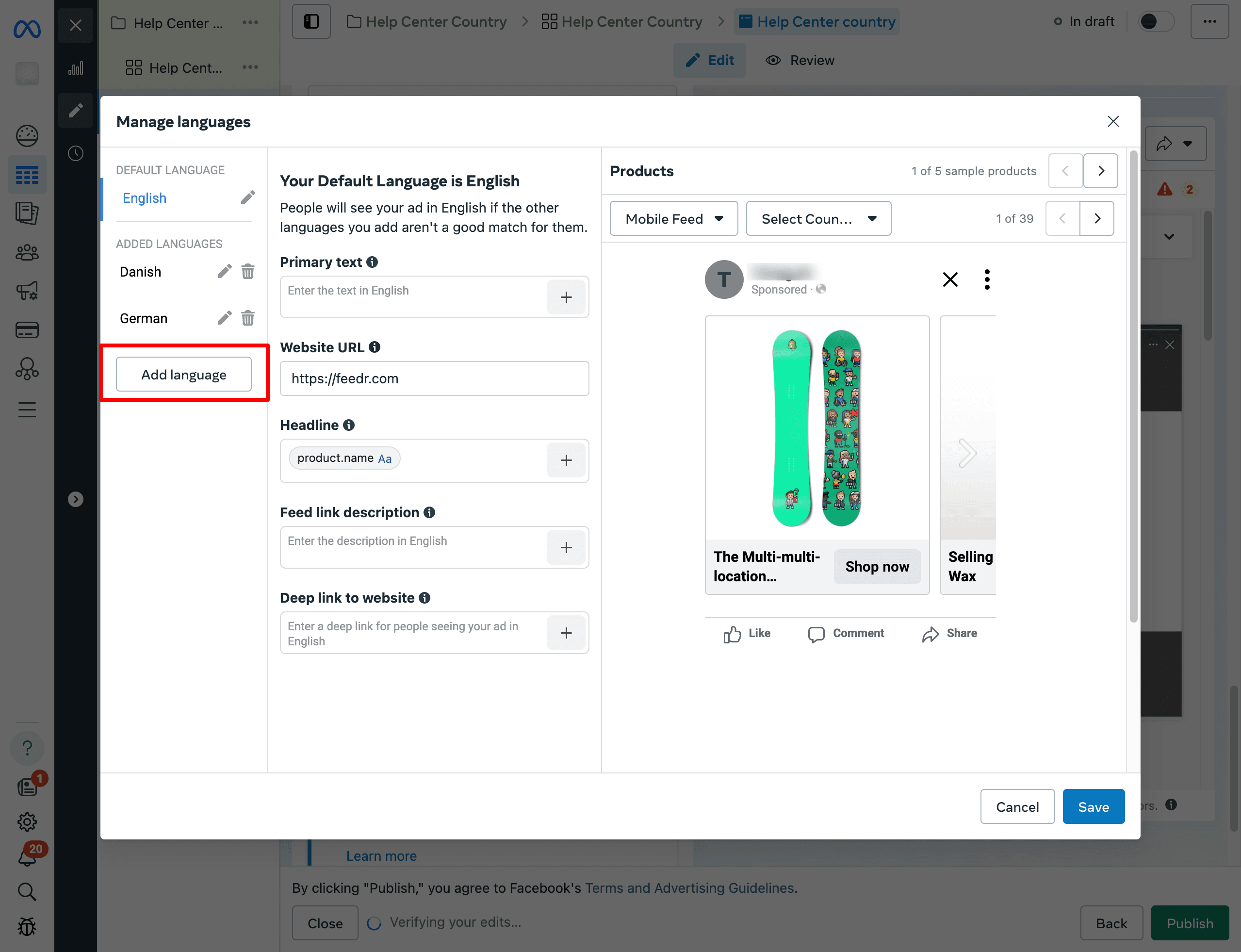
In this screen you have the options to select the languages that you want to use and fill in your ad text.
Once you are done editing the ad initially you can press publish.
When the ad is published you should be able to see the current variant in the Feedr Template Variants section. (This requires the Feedr Chrome Extension to be installed and logged in).
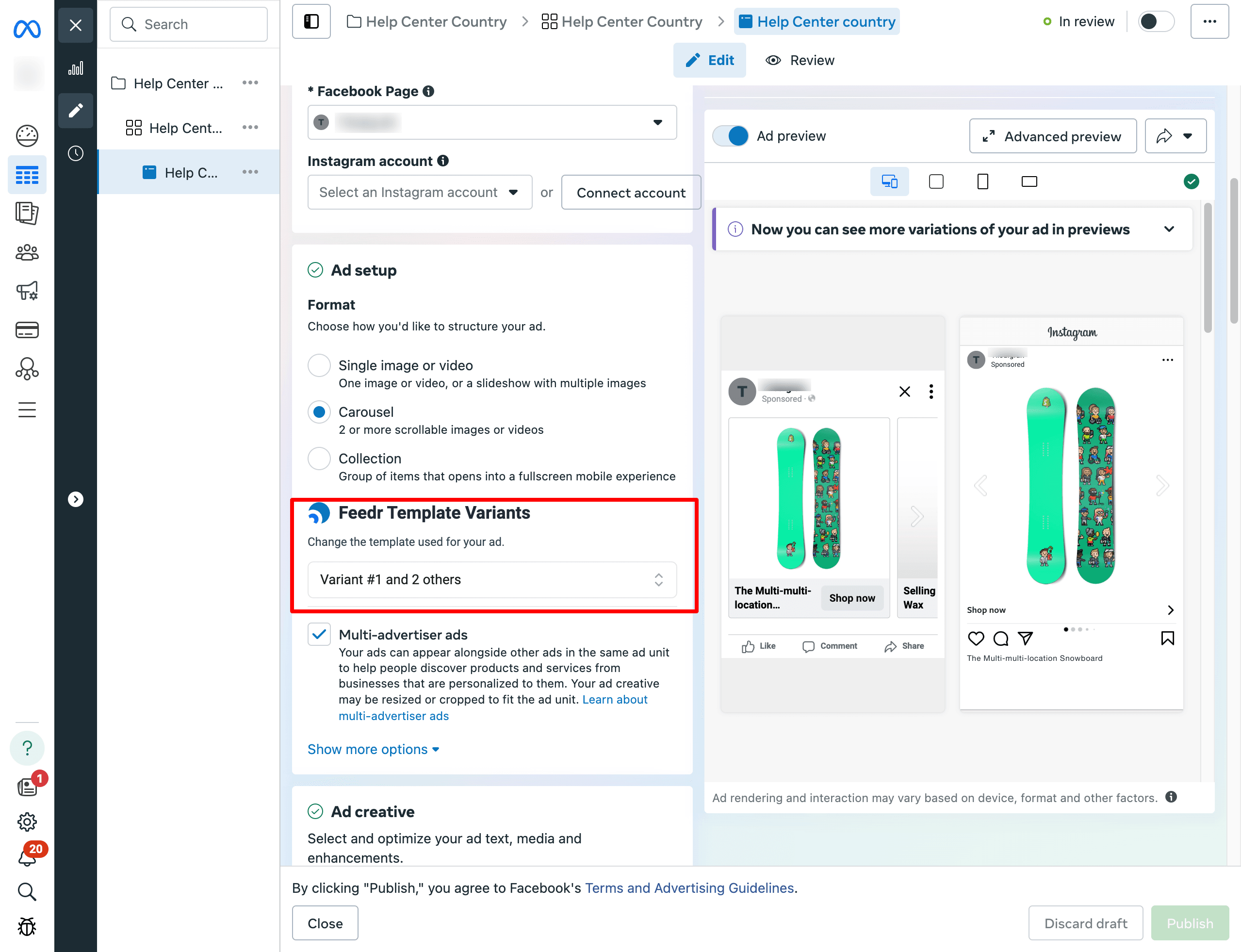
If everything is set up correctly you should be able to switch the variant, which will instruct Facebook to use the a new variant for the ad.
INFO
As of writing there is no way to preview the localized versions of the ad in Ads Manager.
It is also possible to change the variant inside of Feedr by navigating to the Manage Meta Ads page.
Language Feeds
If you want to use language feeds, you should follow the same steps as above. Instead you just have to create language feeds in Feedr and add them as language feeds in Meta Commerce Manager.
Remember when specifying the override field, you need to select the correct language instead of the country.