
Appearance
How to invite an existing client
If your client already has a Feedr team, you connect it to your agency with your invite link. The client keeps their team, shops, data and subscription. Your agency simply gets access to work in it.
Find your invite link
- Go to Clients and click Invite client.
- Click the copy button next to Invite link.
- Send the link to an owner of your client's Feedr team.
Your agency has one invite link, and you can send it to as many clients as you like. The link doesn't expire.
Agency owners and employees can both find and share the invite link.
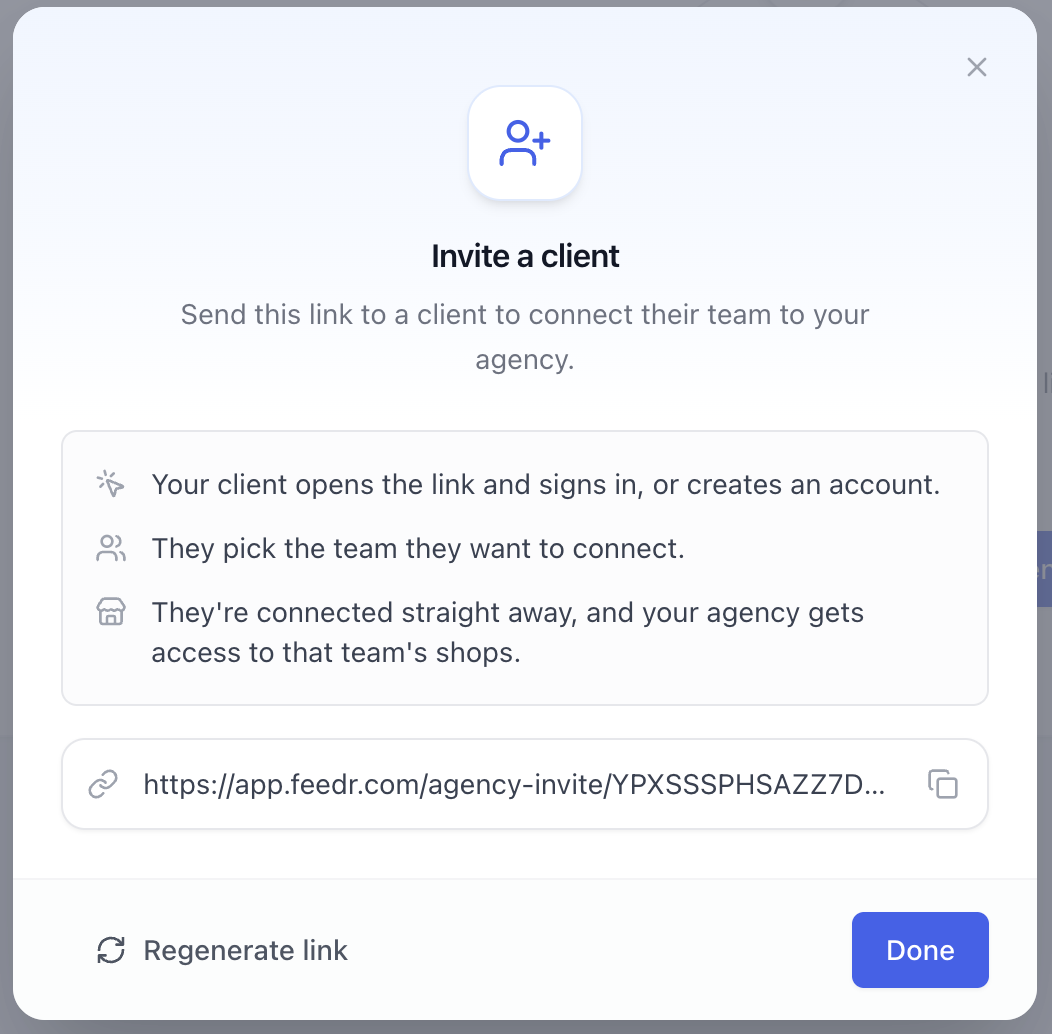
What your client does
- The client opens the link and signs in, or creates a Feedr account.
- They choose the team they want to connect.
- They click Connect team.
They're connected straight away. The client shows up on your Clients page, and your agency gets an email saying the client has linked their account.
Only an owner of the client's team can connect it. If someone else at the client opens the link, ask them to forward it to their team owner.
You can share this guide with your client: how to connect your team to an agency.
INFO
A team can only be connected to one agency at a time. If the client is already connected to another agency, they need to disconnect it first.
Create a new invite link
If your link has been shared with someone it shouldn't have, you can replace it.
- Go to Clients and click Invite client.
- Click Regenerate link and confirm.
The old link stops working right away, so anyone you've already sent it to will need the new one. Clients who are already connected are not affected.