
Appearance
How to create a new Meta Catalog
You're required to have a Meta Catalog to run catalog ads. This article guides you through how to create a new Meta Catalog.
WARNING
Meta recommends that you only have a one catalog. It's not recommended that you create multiple Meta Catalog.
Please see Tips for using one catalog in Commerce Manager for ads and Shops
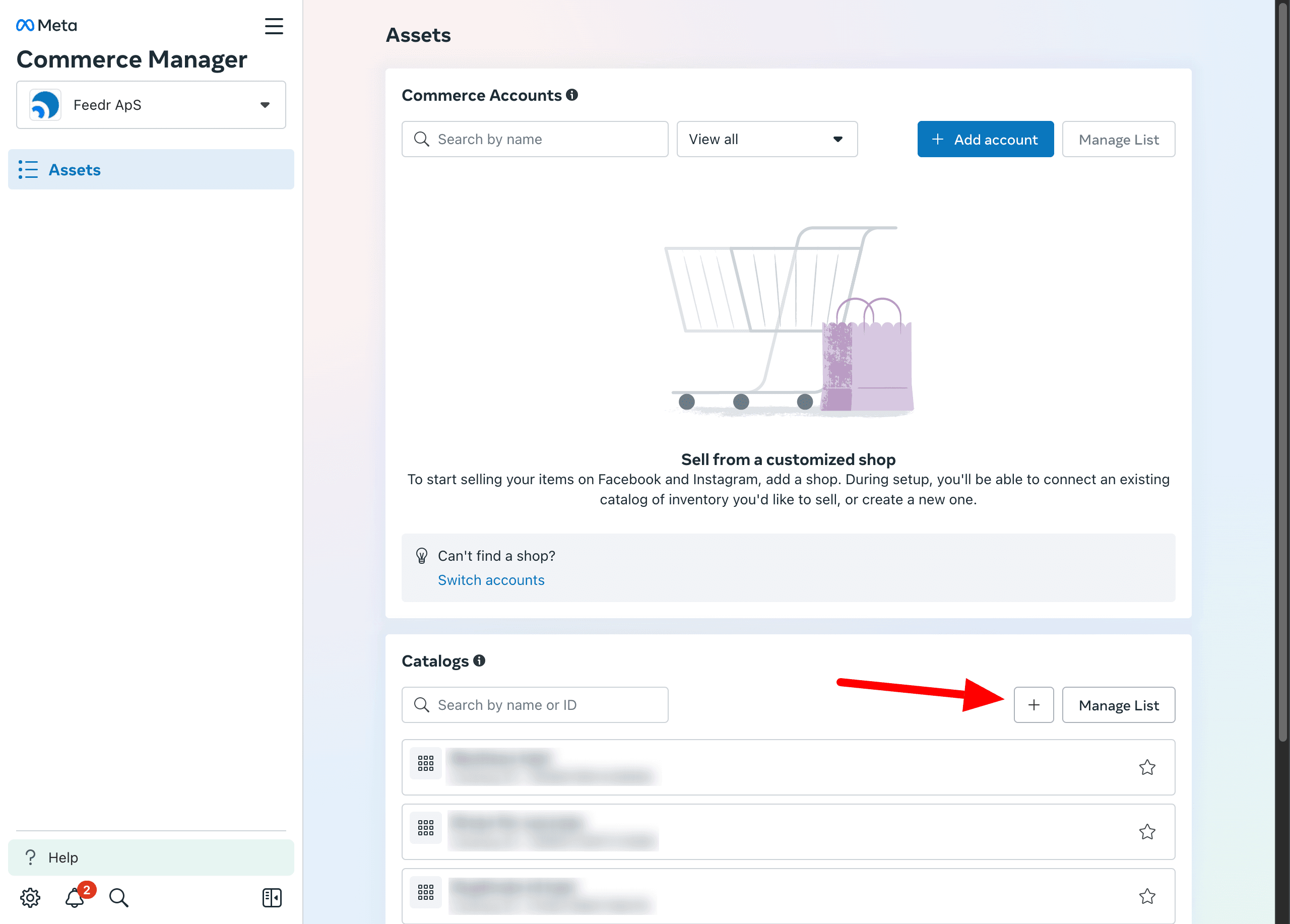
Start by going to Commerce Manager in Meta Business Manager.
Inside of Commerce Manager you can press the "+" button to create a new catalog.
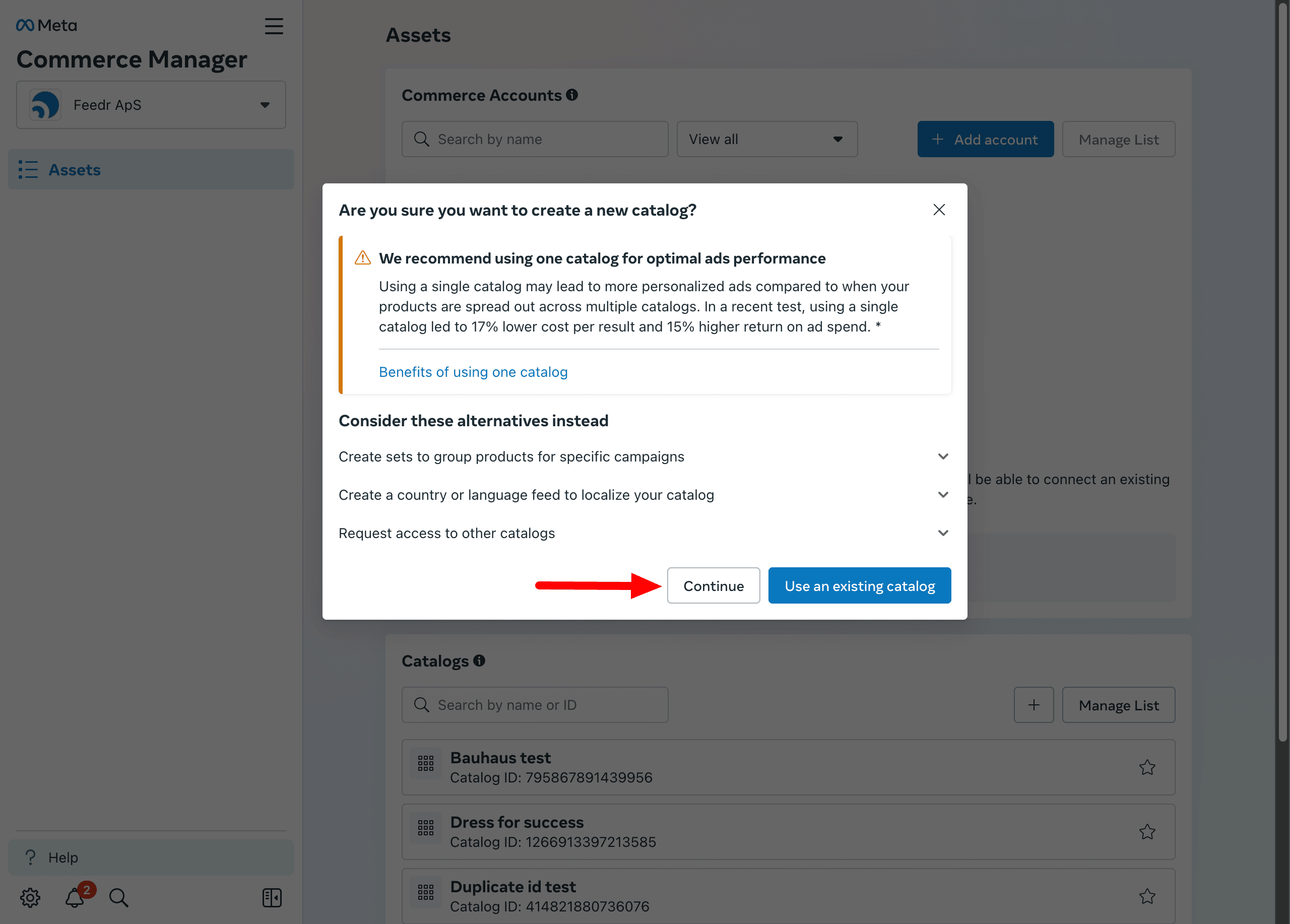
If you already have a Meta Catalog, you'll see a warning advising you to use the existing catalog.
WARNING
Meta recommends that you only have a one catalog. It's not recommended that you create multiple Meta Catalog.
Please see Tips for using one catalog in Commerce Manager for ads and Shops
If you want to create a new catalog, press Continue.
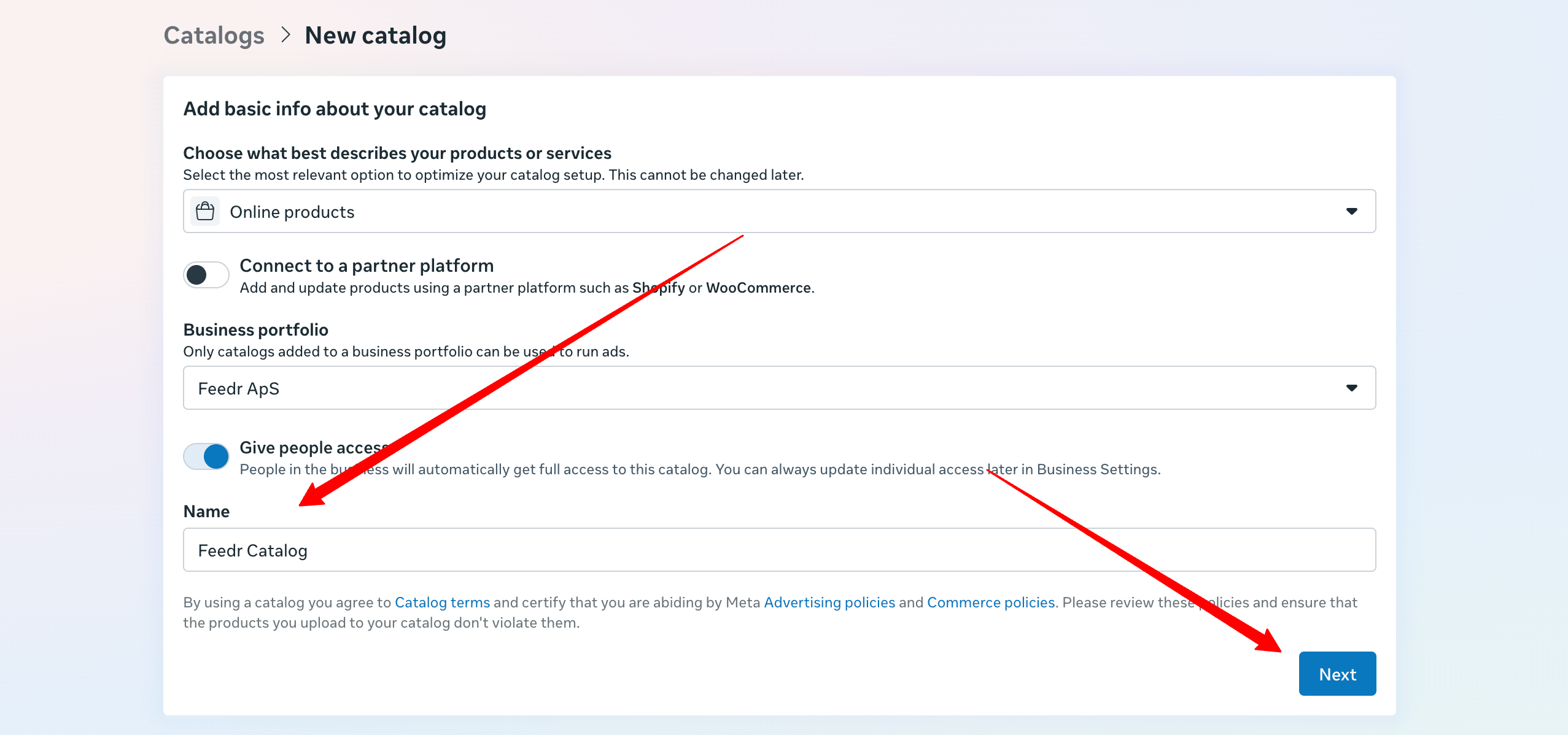
On the next page you need to select Online products and enter a name for your catalog.
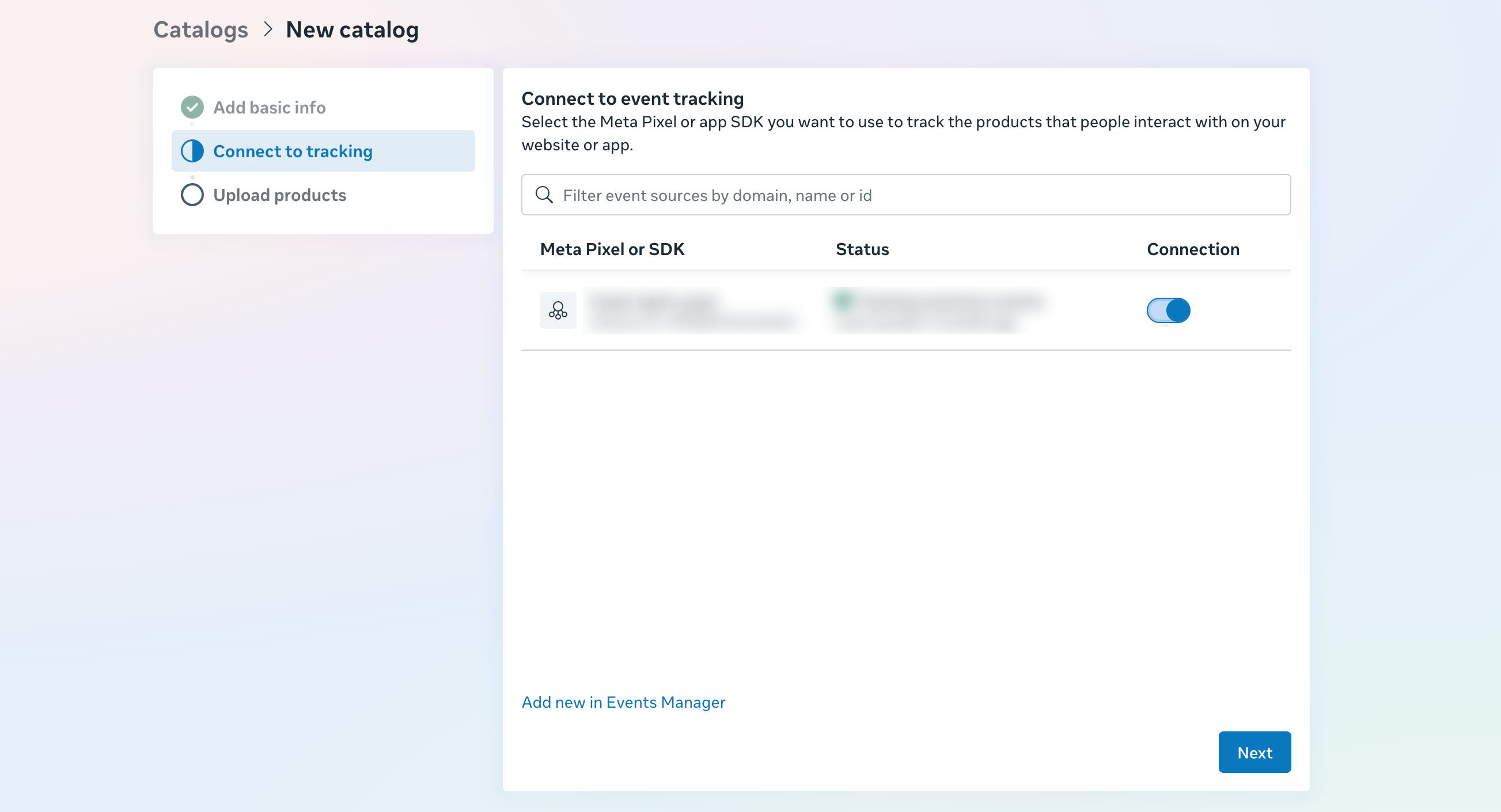
Afterwards you can select the Pixel you want to connect to your catalog.
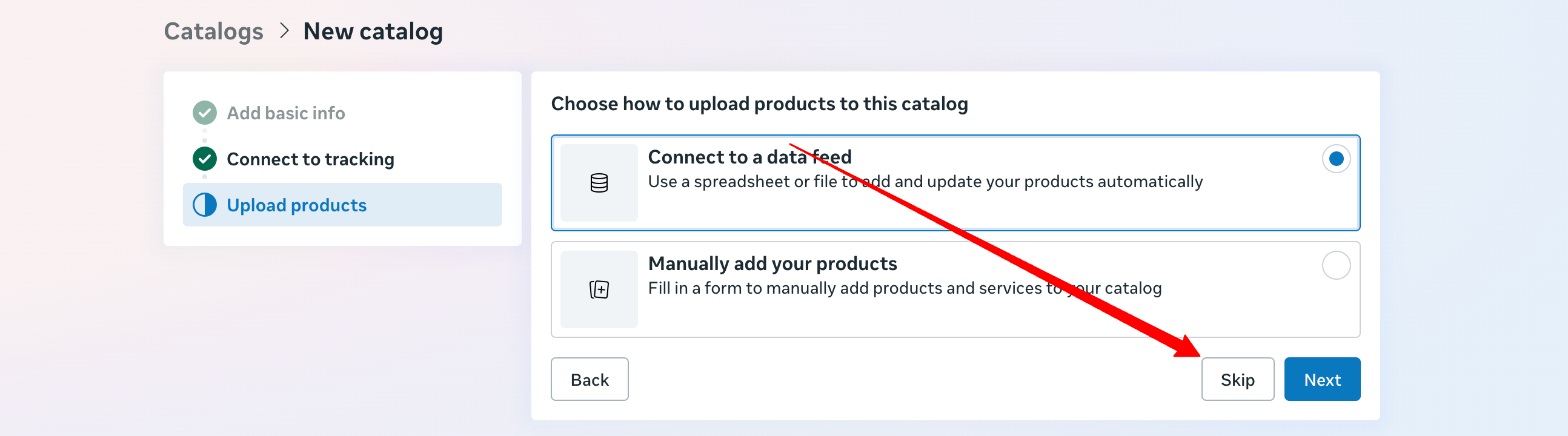
Now you're being asked to connect a data source to the newly created catalog. You can skip this step as we'll be connecting your Meta feed to the catalog directly through Feedr. Go ahead and complete the catalog creation by clicking "Skip".
The catalog is now created and you're ready to continue. If you have already created a Meta Integration in Feedr, you need to reconnect the integration to grant us access to the new Meta Catalog.
The next step is to connect your Meta feed to your Meta Catalog. Please follow this guide: How to connect feed to Meta catalog