
Collaborate with other people and manage permissions
In Feedr you never need to share accounts - every package includes unlimited users. Invite your colleagues or your agency to your team and control exactly what they can access. For instance, you can give your marketing agency access to a single shop without giving them access to your billing information.
TIP
If your agency uses Feedr's agency account, you don't need to invite each person at the agency. Connect your team to the agency instead. See how to connect your team to an agency.
Team roles
Every member of your team has exactly one team role. The role decides what they can see and do across the whole team.
| Role | What they can do |
|---|---|
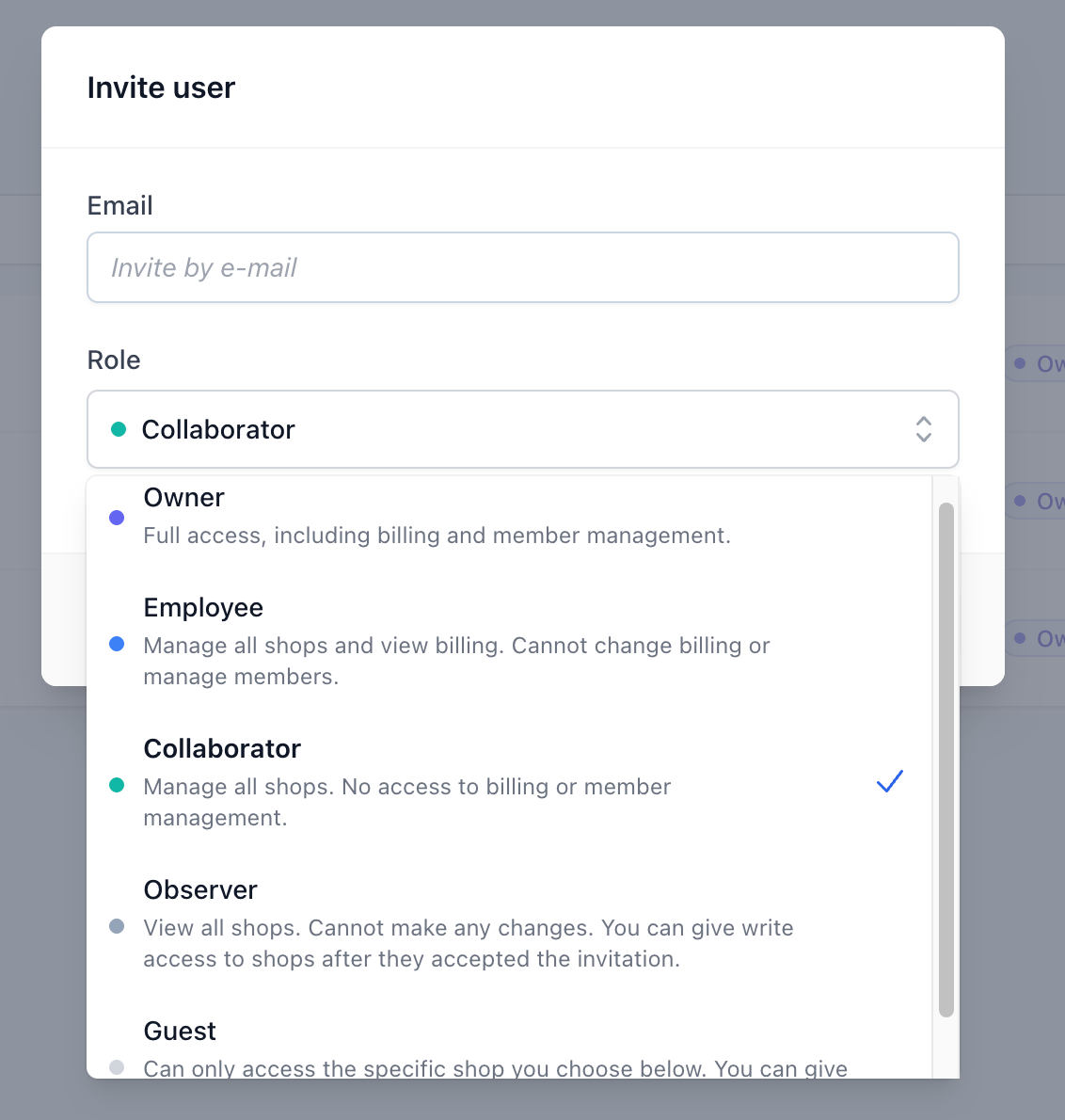
| Owner | Full access, including billing and member management. |
| Employee | Manage all shops and view billing. Cannot change billing or manage members. |
| Collaborator | Manage all shops. No access to billing or member management. |
| Observer | View all shops. Cannot make any changes. |
| Guest | Can only access the specific shops you grant them. |
INFO
Owners, Employees and Collaborators can edit every shop in the team. Observers can view every shop but can't change anything. Guests start with no access at all - you grant them access to individual shops (see below).
WARNING
Owners have full control over the team, including managing members and roles. An Owner can promote other members to Owner, and can also remove you. Only give the Owner role to people you fully trust.
Per-shop access for Guests
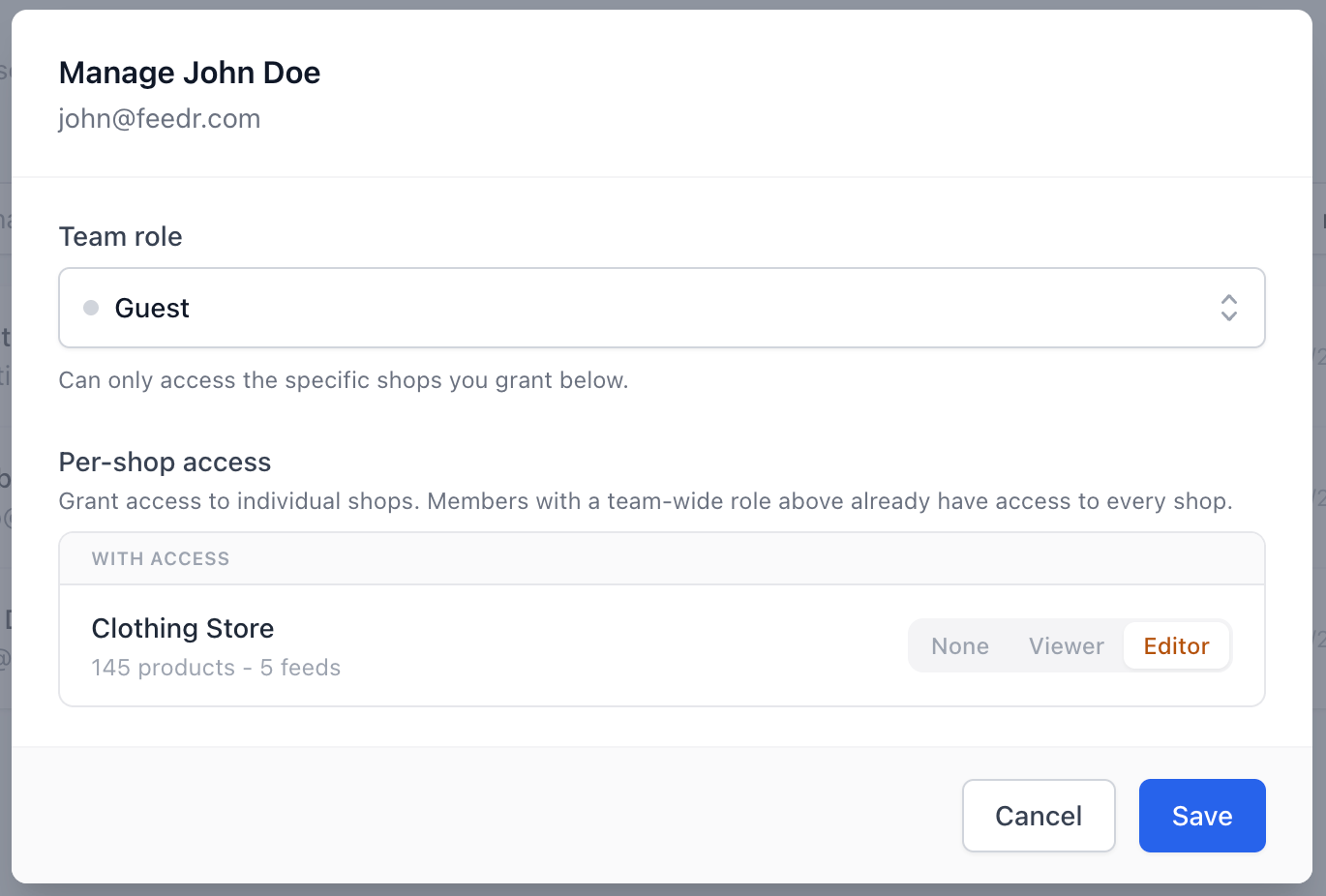
When you only want someone to work on a specific shop - for example an agency that manages a single store - invite them as a Guest and grant access to just that shop. For each shop you can choose one of three access levels:
- Editor - can view the shop and edit everything in it: create, edit and delete feeds, templates and more.
- Viewer - can only view the shop. They can't create, edit or delete anything.
- None - no access to the shop.
When someone is a Viewer, it's clearly indicated by a label at the top of the page.

Invite users to your team
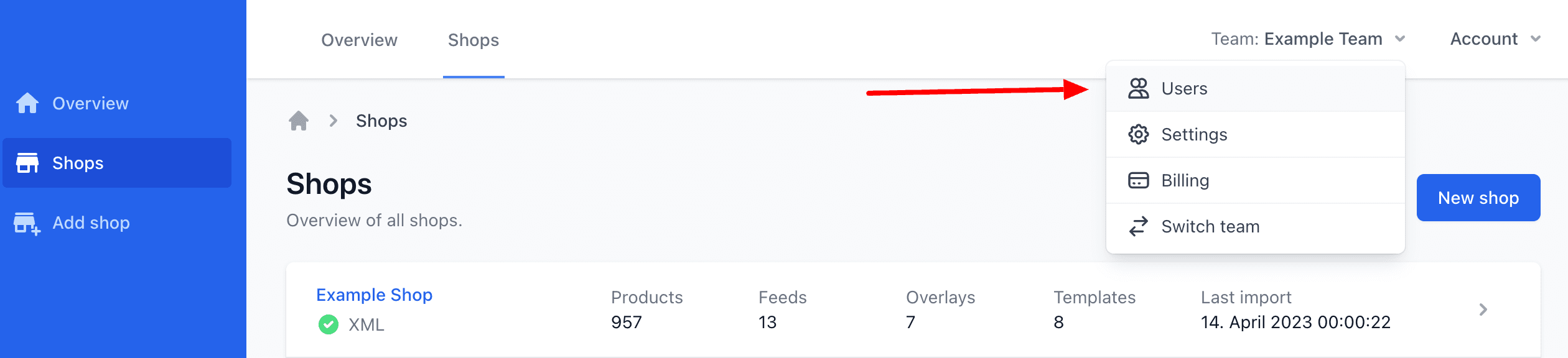
You can invite users anytime under the Users button in the team menu in the top right corner. Click Invite user.
When inviting a user you choose their team role (Owner, Employee, Collaborator, Observer or Guest). If you invite a Guest, you can also grant access to specific shops as an Editor or Viewer.
INFO
If you need to give a Guest access to multiple shops, they must accept the invitation first - then you can add the additional shop permissions from the Users page.
What the invited person sees
The invited person receives an email saying they have been invited to join your team. If they already have a Feedr user, the invitation appears under the Switch team button in their team menu. If they don't have a user yet, they need to create one before they can accept (or reject) the invitation.
The Users page
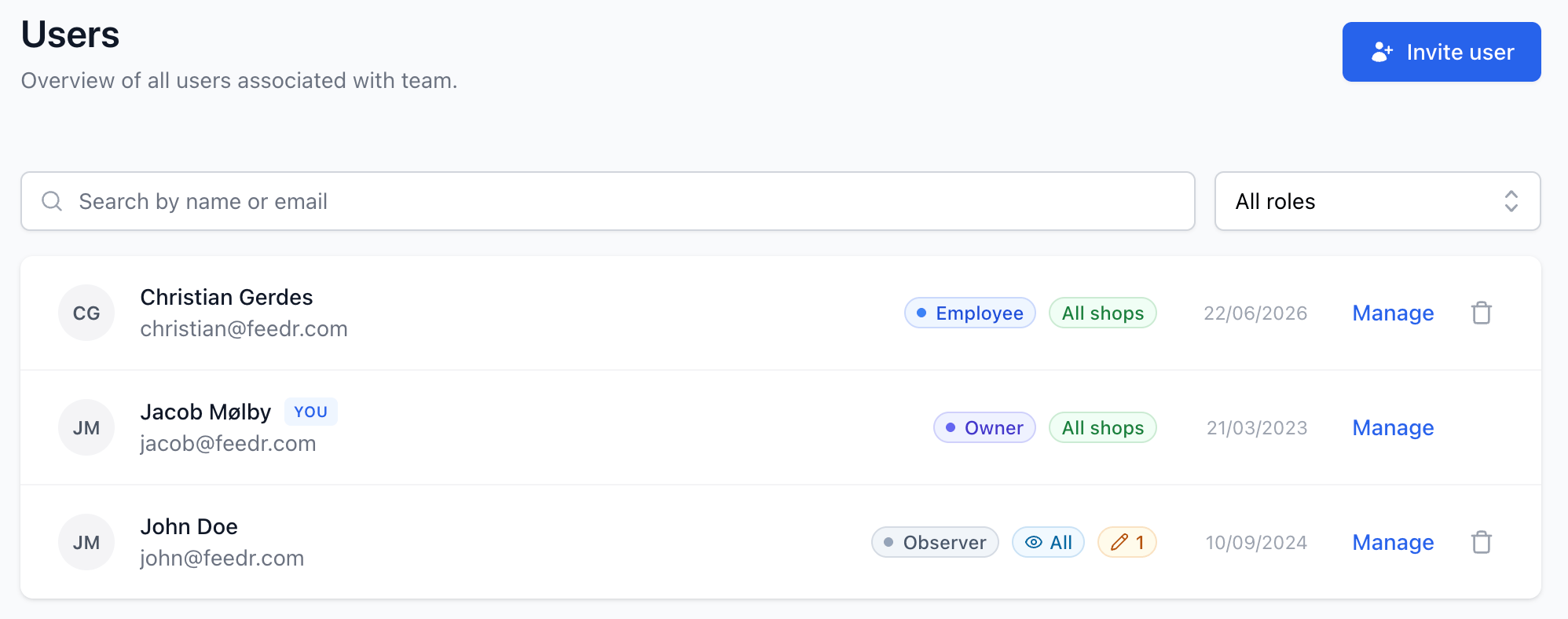
To open the Users page, click your team name and choose Users. On this page you can see the members of your team along with their roles and access.
Every role can open the Users page, but only an Owner can make changes - inviting people, changing roles, granting per-shop access or removing members. Other roles see the page in read-only form.
To grant a Guest access to a specific shop, open their actions menu, choose to manage their access, and pick Editor, Viewer or None next to each shop.
INFO
As a guest, you can only see the team's owners. Other members and pending invitations are not shown.
Team settings
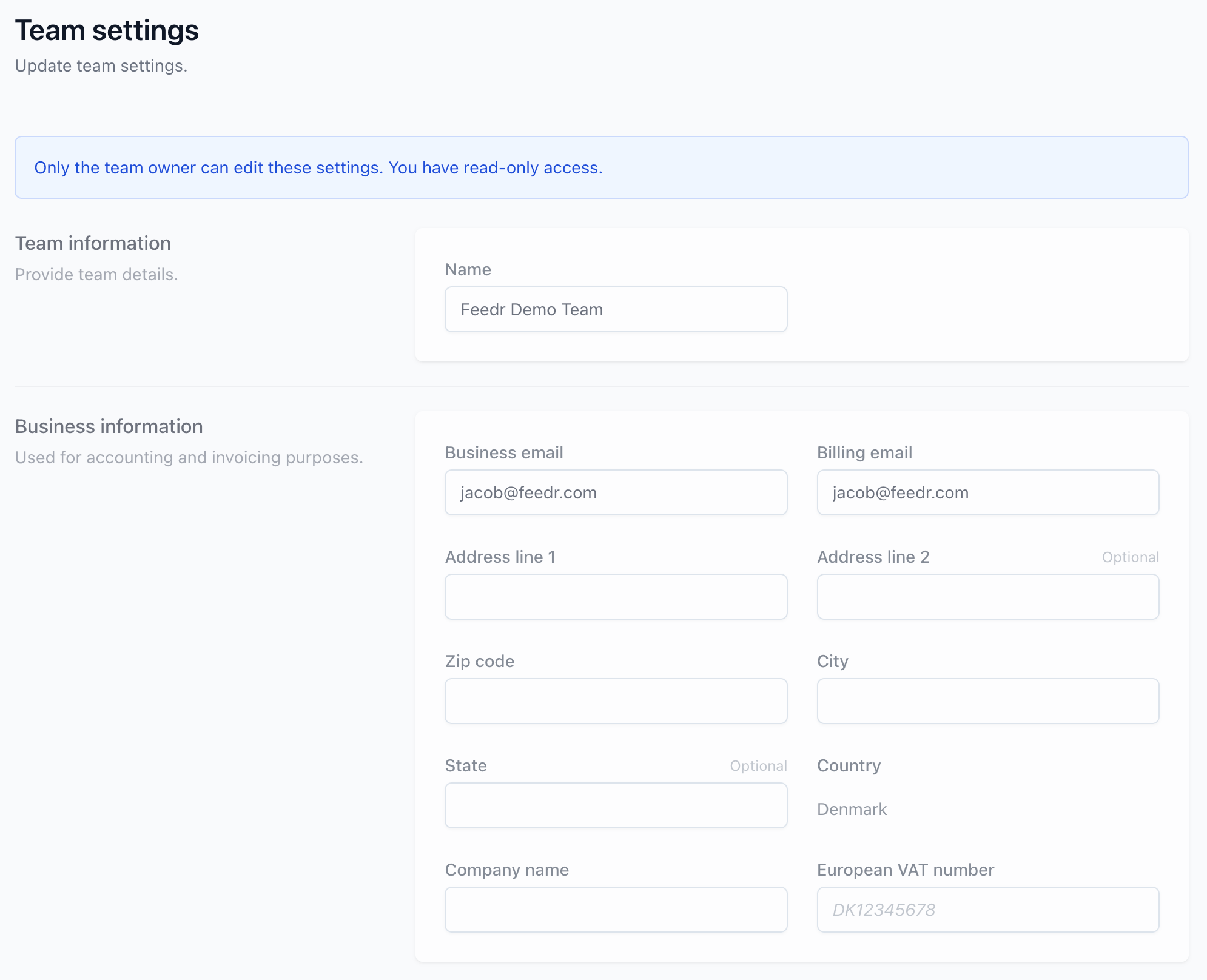
The Team settings screen holds your team name and business/billing details. Only the Owner can edit these settings. Employees, Collaborators and Observers can open the screen but see it as read-only, with a notice at the top:
INFO
Only the team owner can edit these settings. You have read-only access.
Guests don't have access to the Team settings screen at all.
Billing and subscription
Billing is the most sensitive area, so it's the most restricted:
- Owners can view and change billing - payment method, plan and add-ons.
- Employees can view billing, but can't change it.
- Collaborators, Observers and Guests can't access billing.
If there's a problem that needs attention - for example a failed payment - everyone on the team can see that something is wrong, but only the Owner can act on it. Members who can't change billing are shown a message asking them to reach out: