
Appearance
How to create custom channels
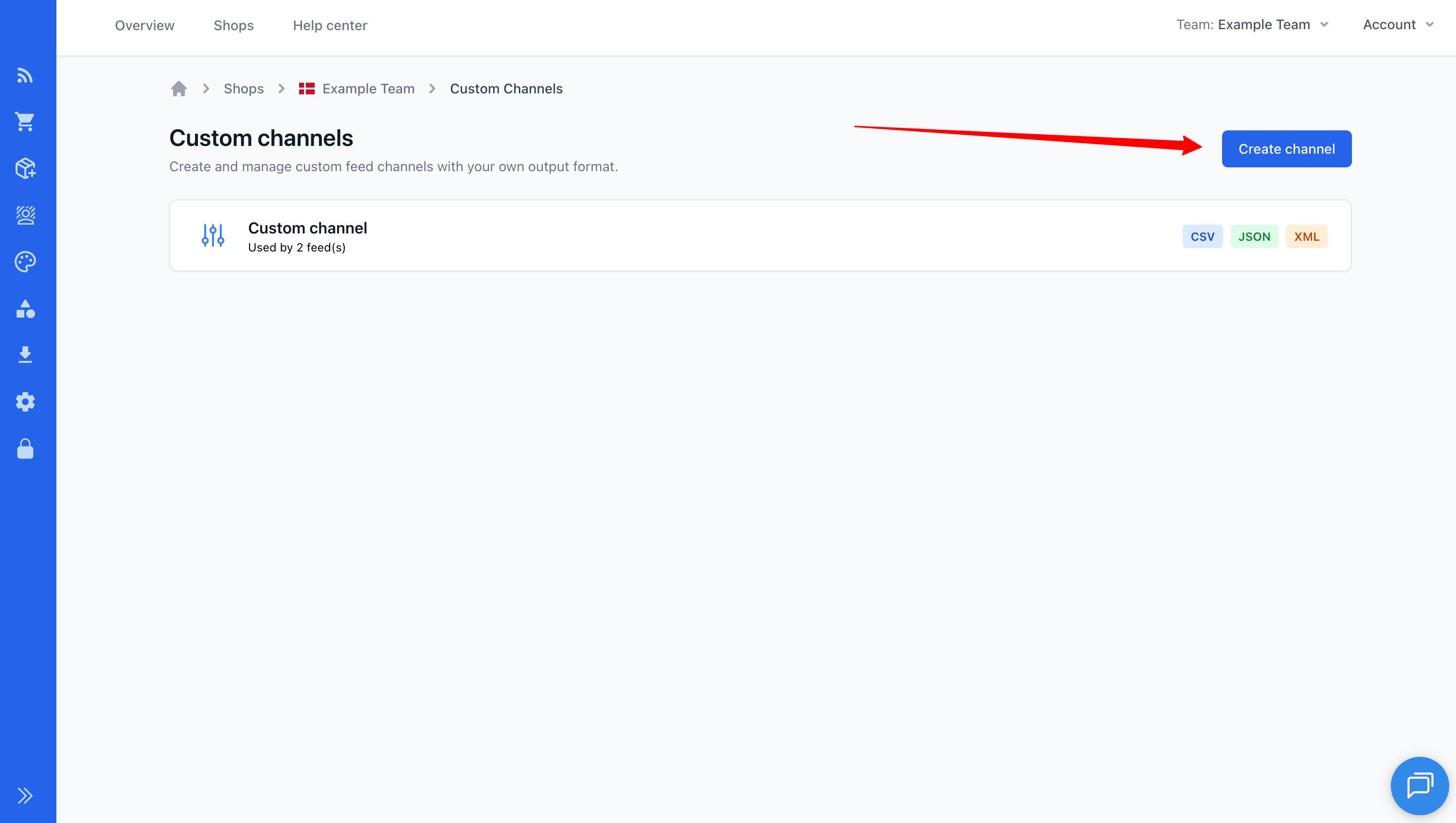
Custom channels let you define your own feed structure and format, giving you full control over field names, data layout, and output format. Unlike built-in channels (such as Facebook or Google) which have predefined fields, custom channels are entirely configured by you.
When to Use Custom Channels
Custom channels are useful when:
- You need to export to a platform not supported by Feedr's built-in channels
- A marketplace or partner requires a specific format you can't achieve with a built-in channel
- You want to send product data to internal systems like an ERP, PIM, or inventory tool
- You need full control over field names, structure, and output format
- You want to generate multiple formats (XML, CSV, JSON) from a single channel definition
Creating a Custom Channel
- Navigate to your shop in the sidebar
- Click Custom Channels
- Click Create in the top right
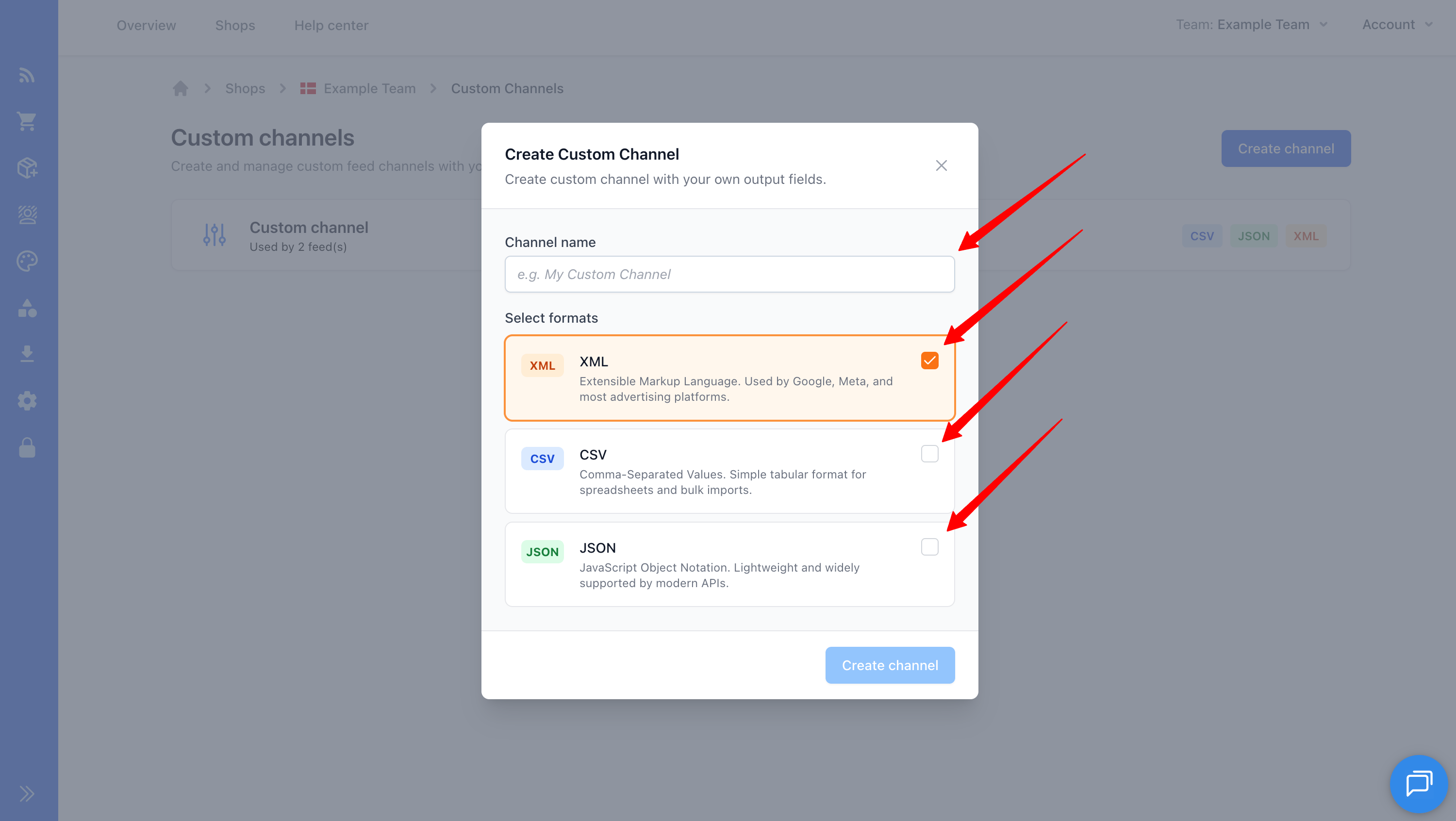
- Enter a title and select one or more output formats
TIP
You can select multiple formats (XML, CSV, JSON) for a single channel. Each format has its own configuration options, so you can tailor the output for different consumers from a single channel definition.
Supported Data Formats
| Format | Best for | Extension |
|---|---|---|
| XML | Ad platforms, marketplaces, structured data | .xml |
| CSV | Spreadsheets, simple imports, flat data | .csv |
| JSON | APIs, modern integrations, nested data | .json |
Configuring XML
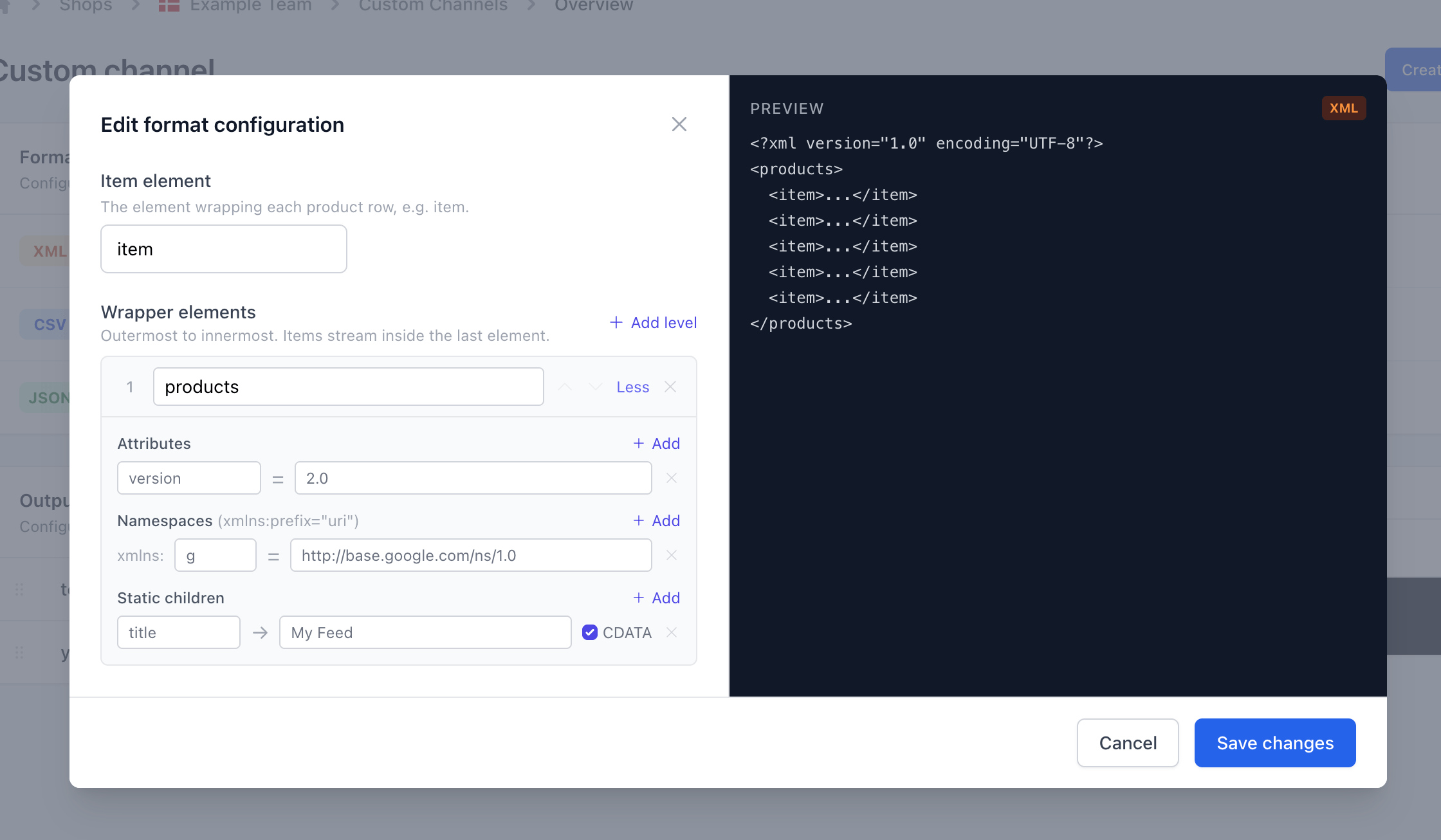
The XML format gives you control over the document structure, namespaces, and element wrapping.
XML Options
| Option | Description |
|---|---|
| Wrapper elements | Root element name. Can be nested multiple levels (e.g., rss → channel). |
| Item element | The element wrapping each product. Defaults to item. |
| Attributes | Key-value pairs added to wrapper elements (e.g., version="2.0"). |
| Namespaces | XML namespace declarations - map a prefix to a URI (e.g., g → http://base.google.com/ns/1.0). |
| Static children | Hardcoded child elements with a name, value, and optional CDATA wrapping. Useful for metadata like <title>My Feed</title>. |
Example XML Output
xml
<?xml version="1.0" encoding="UTF-8"?>
<rss version="2.0">
  <channel>
    <title>My Product Feed</title>
    <item>
      <name>Blue T-Shirt</name>
      <price>29.99</price>
      <description><![CDATA[A comfortable blue t-shirt]]></description>
    </item>
    <item>
      <name>Red Hoodie</name>
      <price>59.99</price>
      <description><![CDATA[A warm red hoodie]]></description>
    </item>
  </channel>
</rss>
Configuring JSON
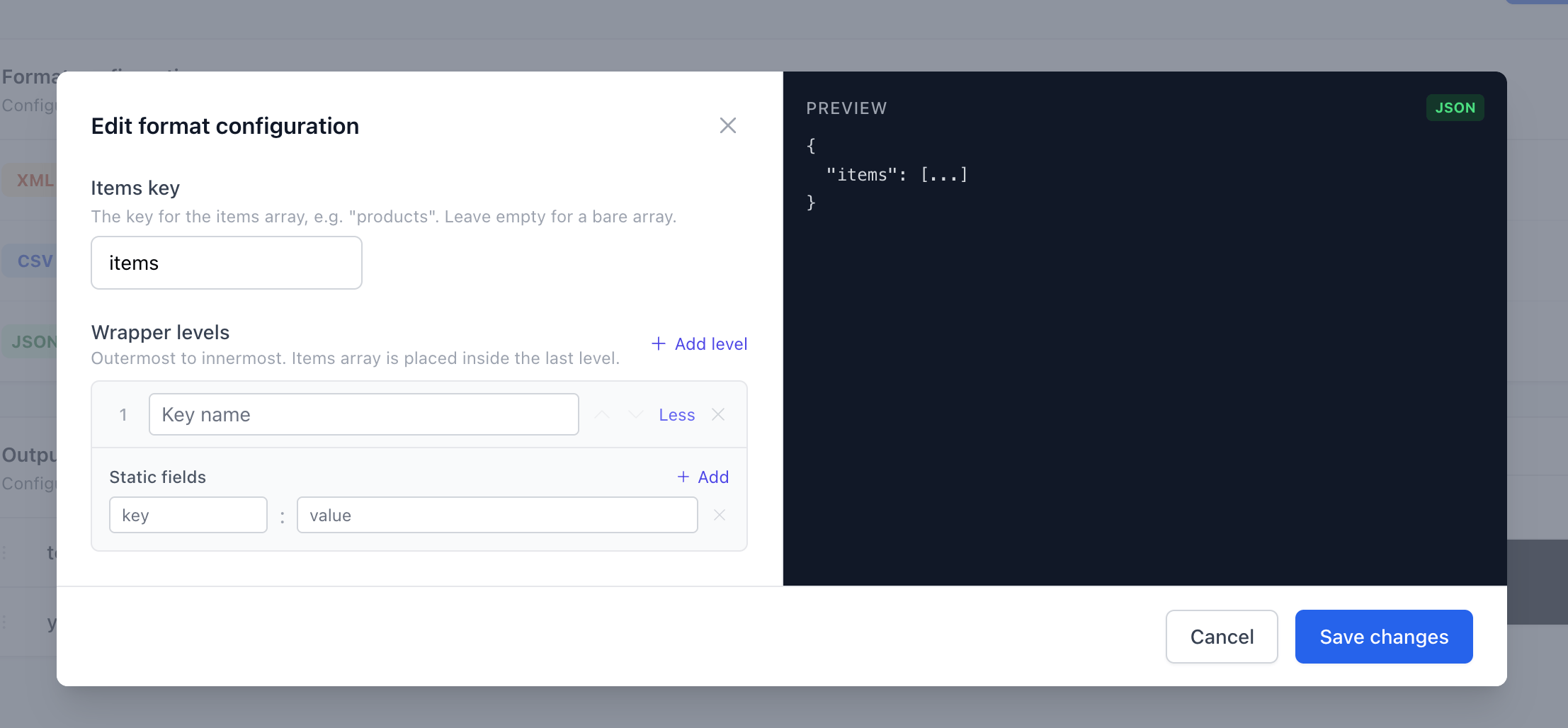
The JSON format lets you control the structure of the JSON document and add static metadata fields.
JSON Options
| Option | Description |
|---|---|
| Item key | The key for the products array. Defaults to products. |
| Wrapper elements | Nested object layers around the item array (e.g., data → catalog). |
| Static fields | Hardcoded key-value pairs at each wrapper level (e.g., "version": "1.0"). |
Example JSON Output
json
{
  "version": "1.0",
  "data": {
    "catalog": {
      "products": [
        {
          "name": "Blue T-Shirt",
          "price": "29.99"
        },
        {
          "name": "Red Hoodie",
          "price": "59.99"
        }
      ]
    }
  }
}
Configuring CSV
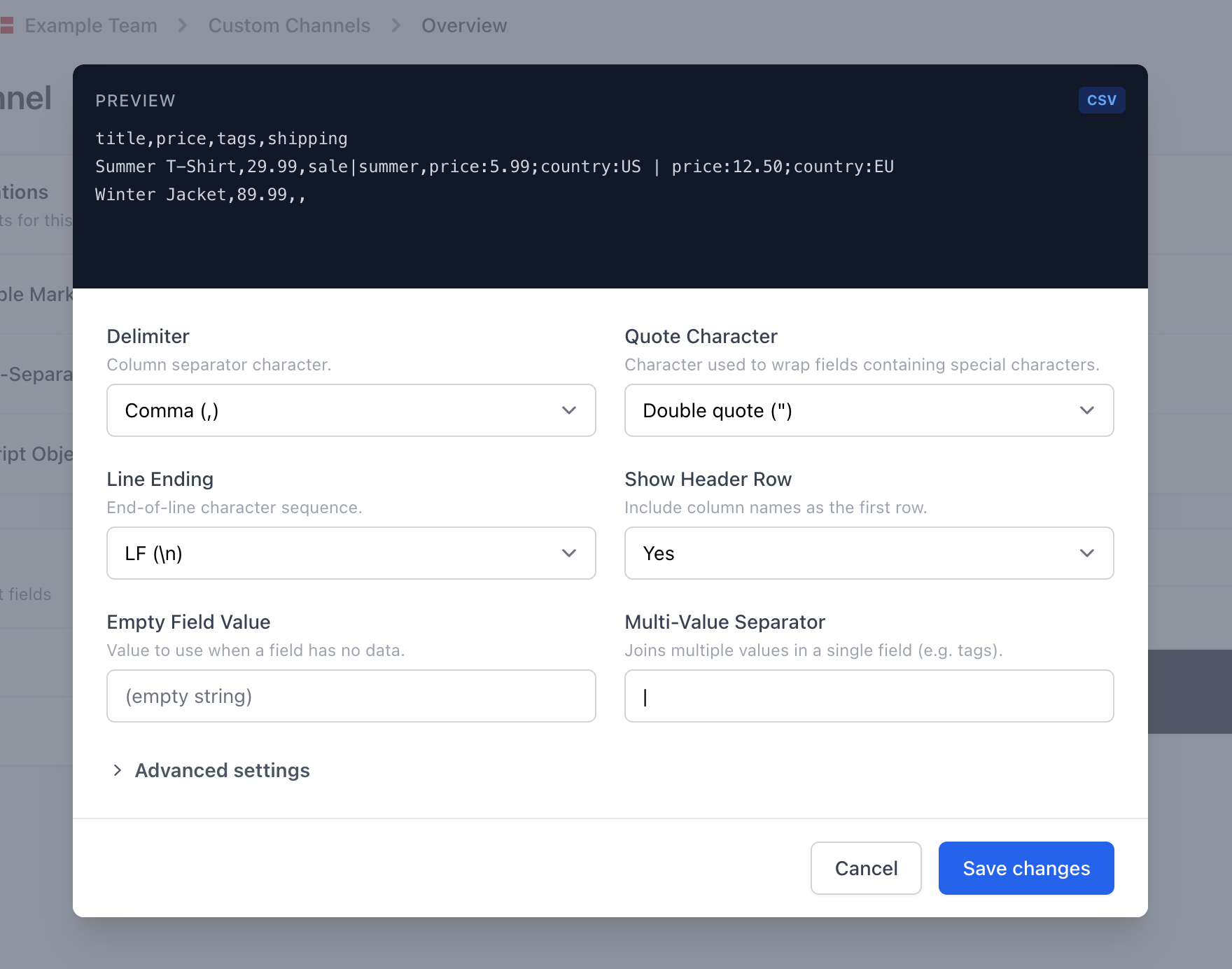
The CSV format offers detailed control over delimiters, quoting, and how nested or multi-value fields are represented.
CSV Options
| Option | Description | Default |
|---|---|---|
| Delimiter | Field separator (comma, semicolon, tab, pipe) | , |
| Include header | Whether to output a header row | Yes |
| Quote character | Quoting style (double quotes, single quotes, or none) | " |
| Line ending | LF or CRLF | LF |
| Empty field value | Value to use for empty fields | (empty) |
| Multi-value separator | Separator for fields with multiple values | | |
| Nested field format | How nested fields are formatted: key_value or value_only | key_value |
| Key-value separator | Separator between key and value in nested fields | : |
| Pair separator | Separator between key-value pairs in nested fields | ; |
| Group separator | Separator between nested groups | | |
Example CSV Output
csv
name,price,description
"Blue T-Shirt","29.99","A comfortable blue t-shirt"
"Red Hoodie","59.99","A warm red hoodie"
Managing Output Fields
Output fields define which fields appear in your feed and in what order. You manage them from the Output Fields tab on your custom channel.
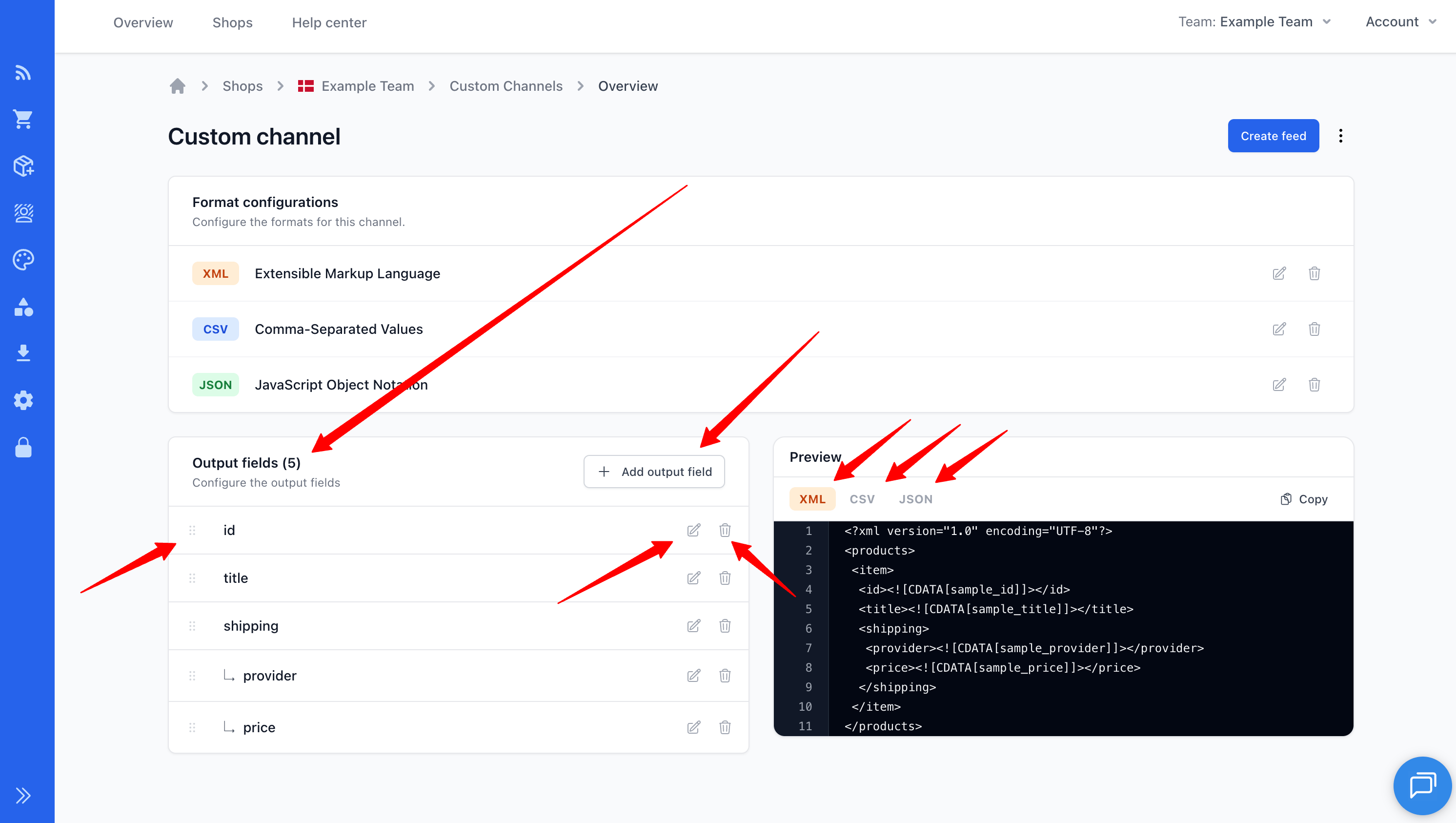
- Adding - click Add to create a new field. Fill in the title and configure options.
- Editing - click on a field row to open the edit modal.
- Deleting - click the delete button on a field row. You'll be asked to confirm.
- Reordering - drag and drop fields using the drag handle to change their order in the output.
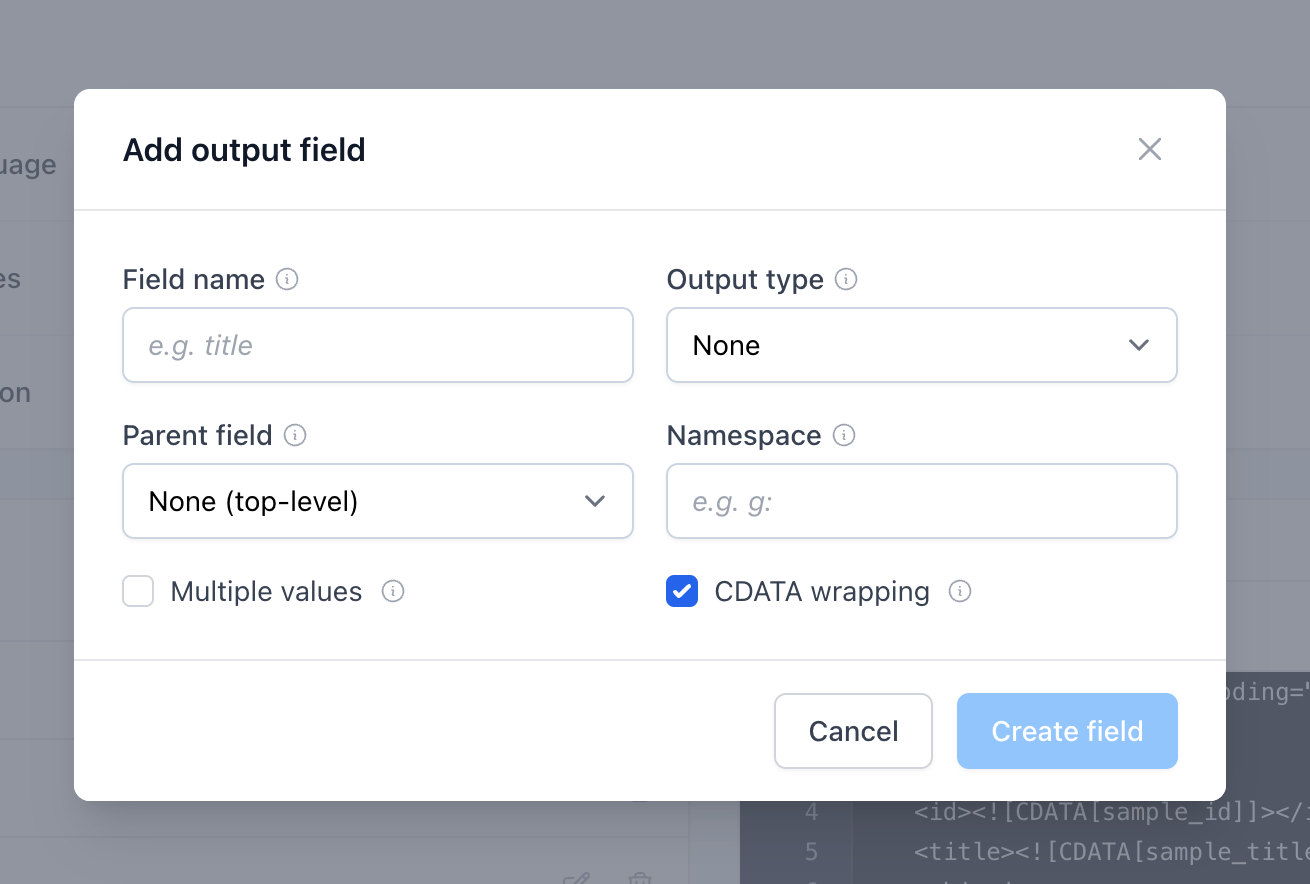
Field Options
| Option | Description | Applies to |
|---|---|---|
| Title | The field name as it appears in the output | All formats |
| Output type | Data type hint (text, url, image, date, boolean) | All formats |
| Namespace | XML namespace prefix for this field | XML only |
| CDATA | Wrap the value in a CDATA section | XML only |
| Multiple | Field can contain multiple values | All formats |
Creating Nested Fields
Custom channels support a parent-child field hierarchy up to two levels deep. Nested fields let you group related data under a parent element.
To create nested fields:
- Add a parent field (e.g.,
shipping) - Add child fields and set their Parent to the field you just created (e.g.,
country,price)
INFO
A parent field acts as a container - it won't have a value of its own. Only child fields carry product data.
How Nested Fields Render
The same parent-child structure renders differently depending on the format:
XML - nested elements inside the parent element:
xml
<shipping>
  <country>US</country>
  <price>5.99</price>
</shipping>
JSON - nested object inside the parent key:
json
{
  "shipping": {
    "country": "US",
    "price": "5.99"
  }
}
CSV - flattened using the configurable separators:
csv
shipping
"country:US;price:5.99"
Creating a Feed with a Custom Channel
Once your custom channel is configured with output fields, you can create a feed that uses it:
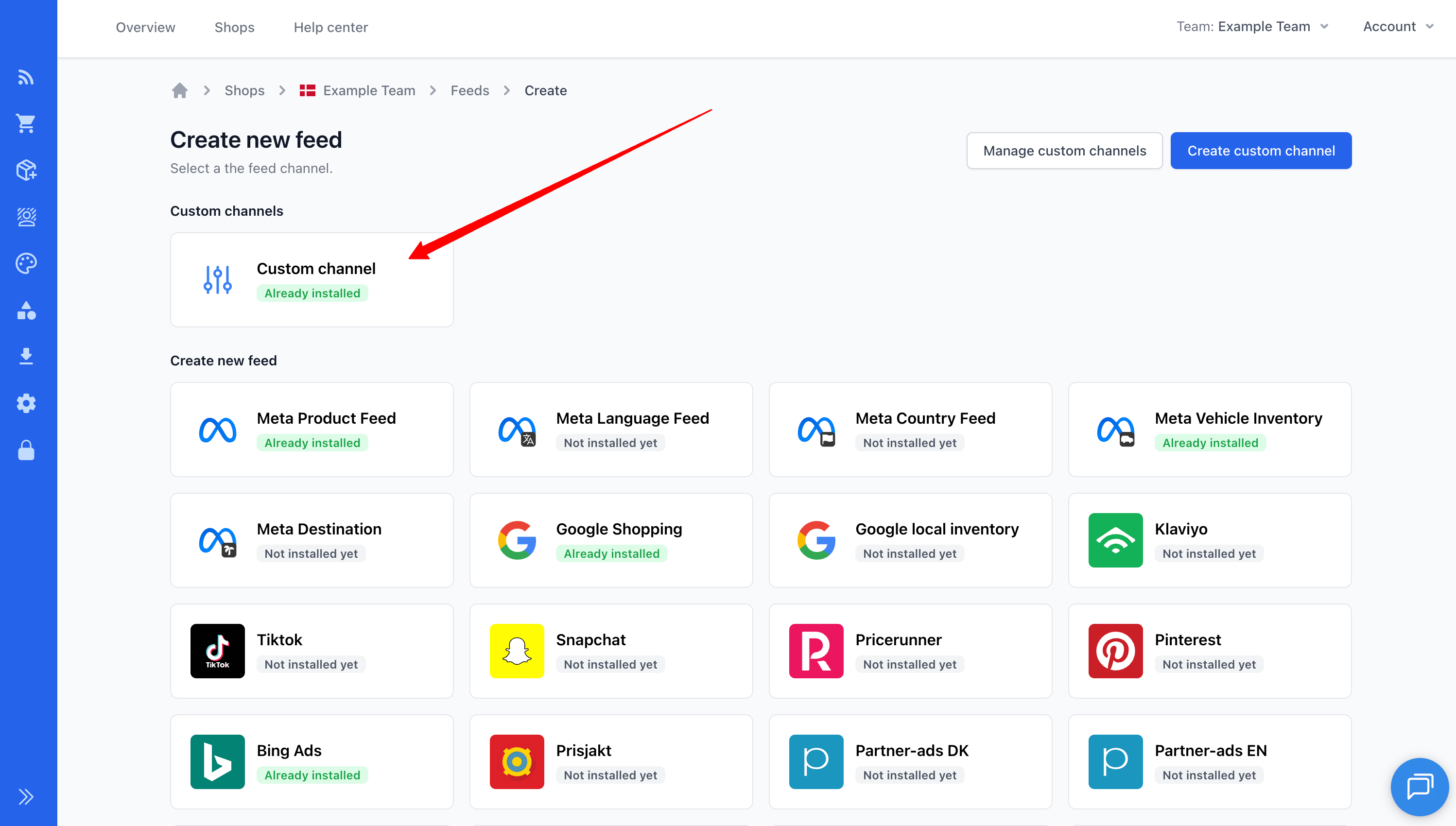
- Go to Feeds → New Feed
- Select your custom channel from the channel list
- Click Create
- Copy the feed URL to use in your integration
- Configure Output Mapping to map your product data to the output fields you defined
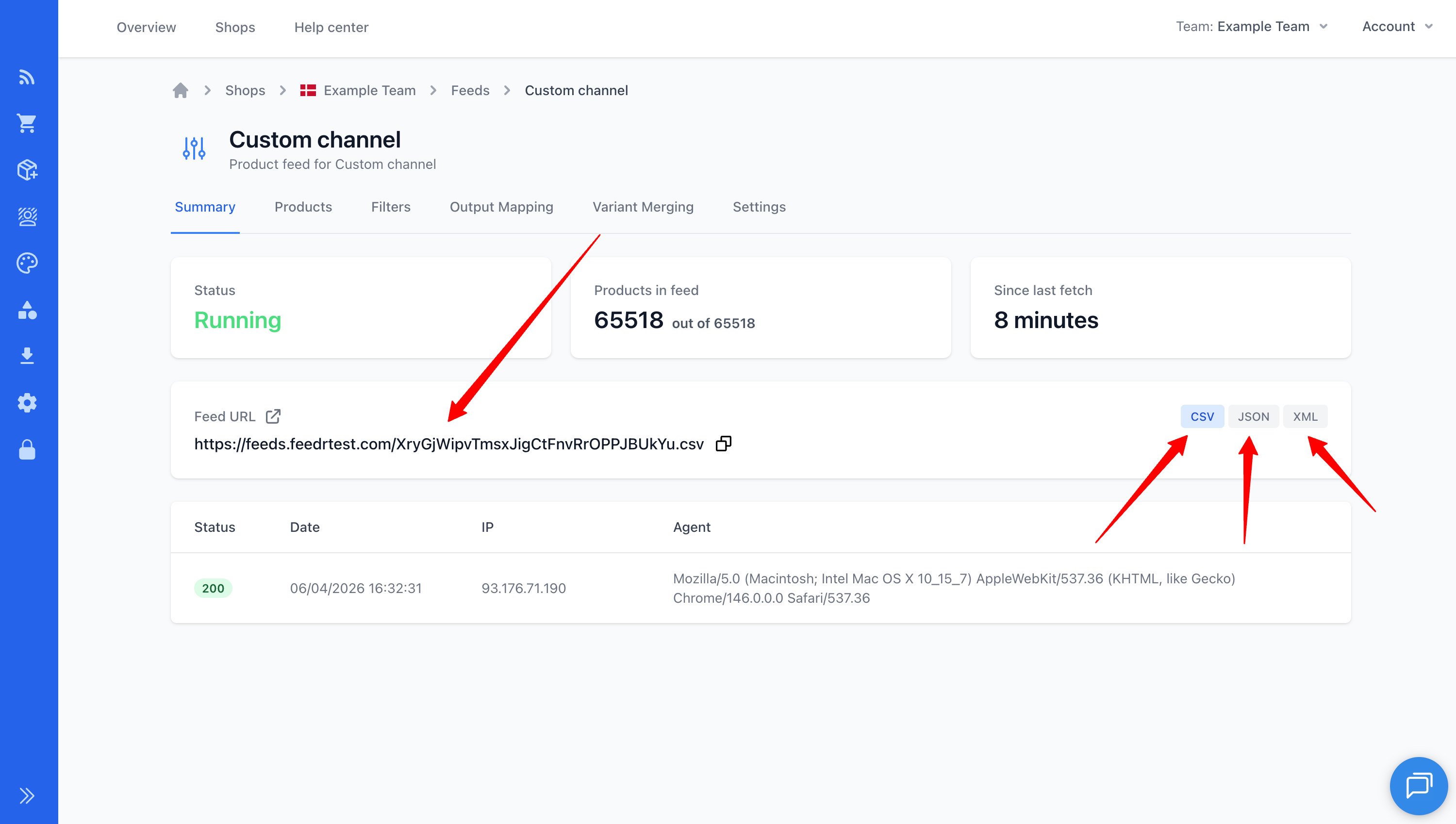
Accessing Different Formats
If your custom channel has multiple formats enabled, you can access each one by changing the file extension in the feed URL:
https://feeds.feedr.com/your-hash.xmlhttps://feeds.feedr.com/your-hash.csvhttps://feeds.feedr.com/your-hash.json
Only formats that you configured on the channel will be available. Requesting a format that isn't configured will return an error.
WARNING
Make sure you've configured the format-specific options (wrapper elements, delimiters, etc.) for each format you enable. The defaults work for simple cases, but most integrations will need some customization.
Duplicating a Custom Channel
You can duplicate an existing custom channel to create a copy with all output fields and format configurations intact. This is useful when you need a similar channel with small variations - duplicate it and adjust the differences instead of starting from scratch.
You can duplicate an existing custom channel to create a copy with all output fields and format configurations intact. This is useful when you need a similar channel with small variations - duplicate it and adjust the differences instead of starting from scratch.