
How to use rich text
Rich text is the text element in the template editor. Styling attaches to the text you select rather than to the whole block, so one element can hold several fonts, sizes, colors and product variables at once.
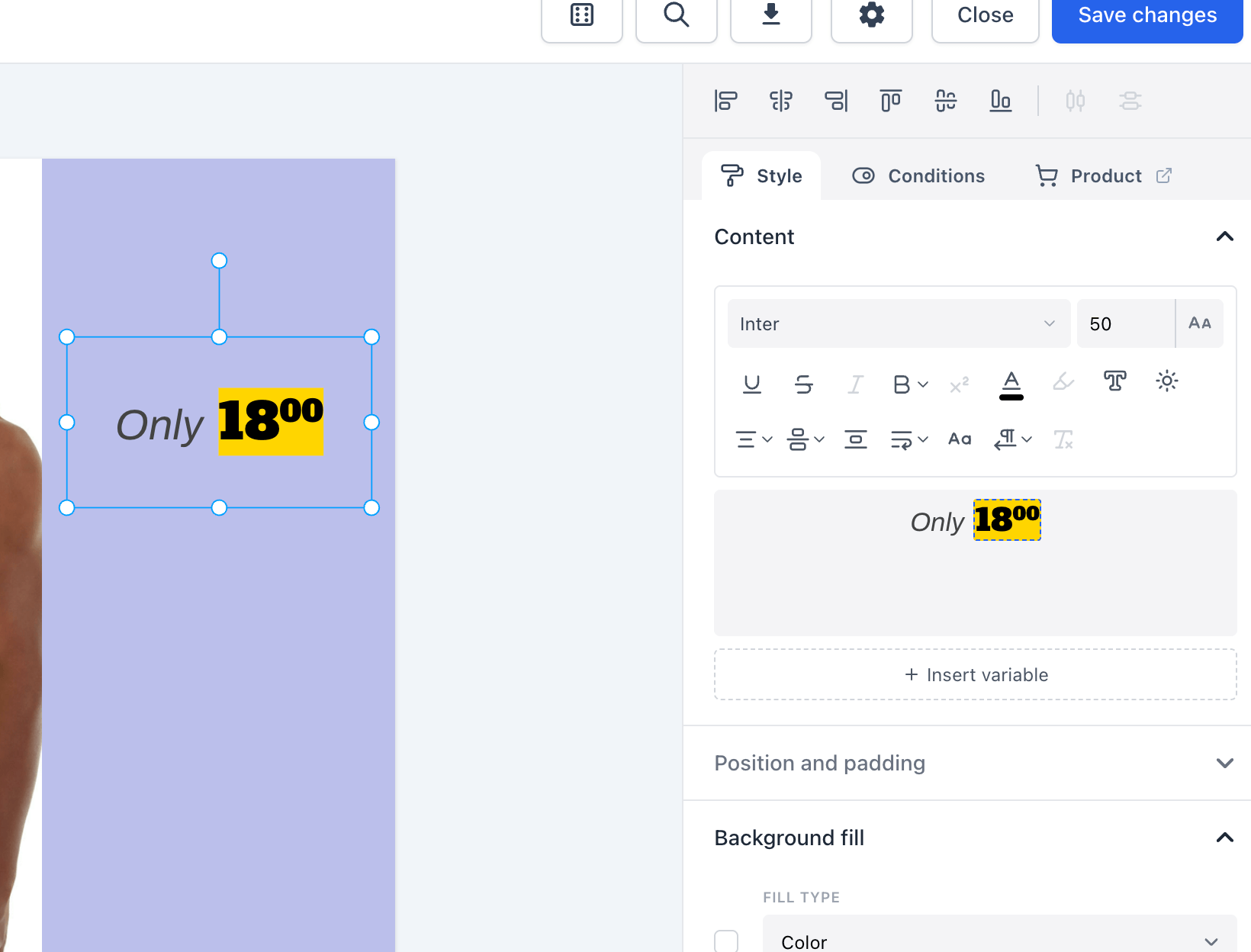
The classic example is a price row: a struck-through before-price in grey next to the current price in bold red, with the decimals raised. That used to need two or three separate text elements lined up by hand, which broke as soon as a product had a longer price. Now it is one element that reflows on its own.
Adding rich text
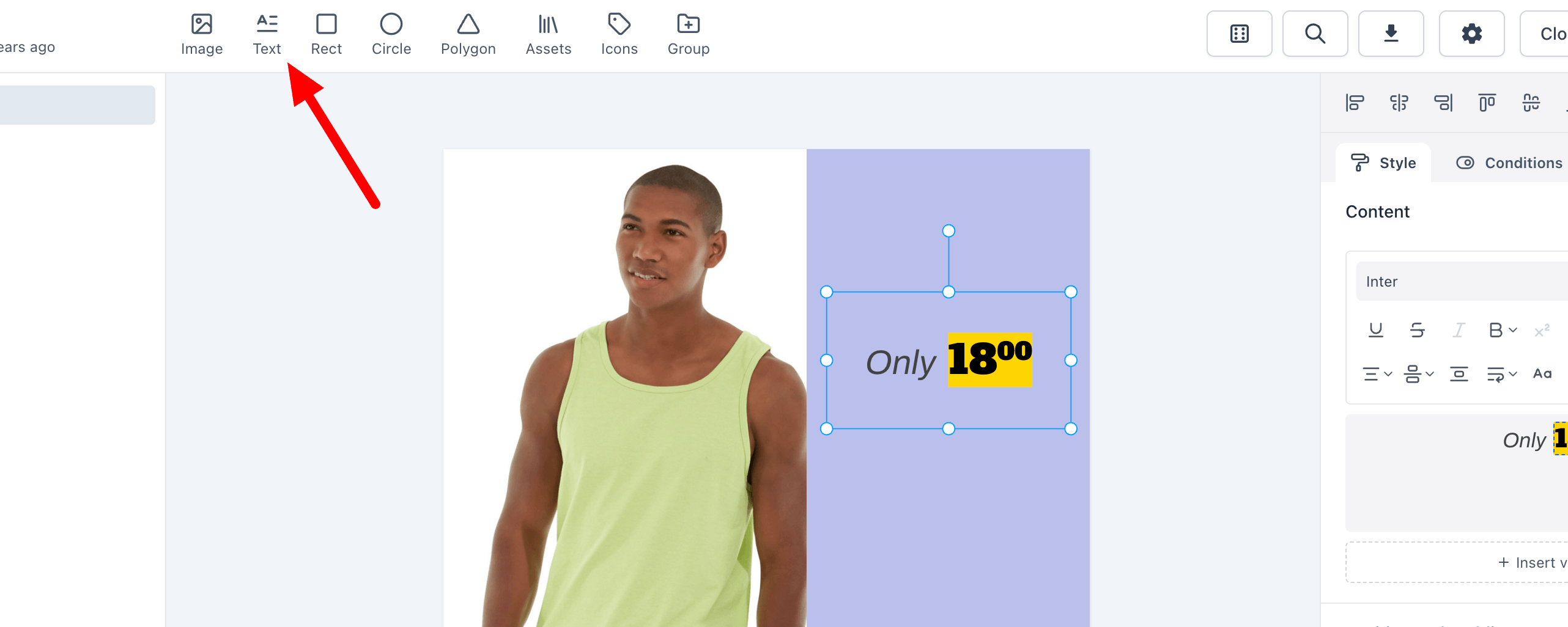
Click "Text" in the elements bar.
The toolbar and where it applies
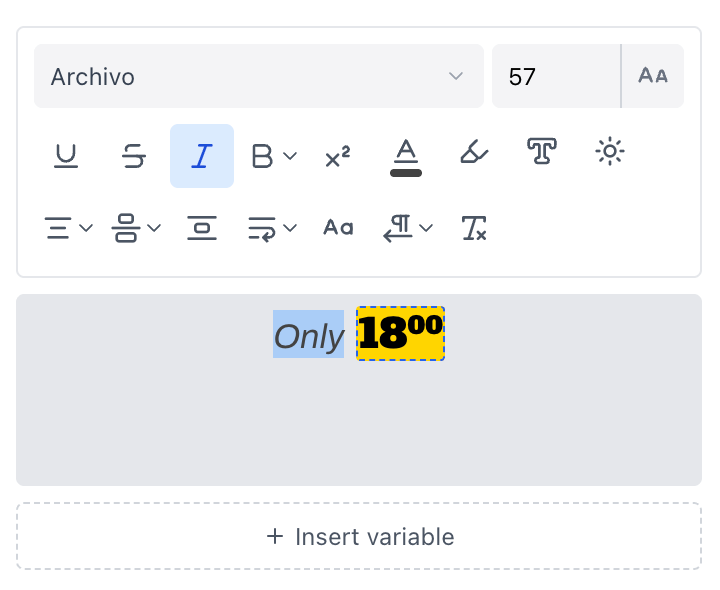
The toolbar sits above the editor. What it changes depends on what you have selected:
- Text selected - the change applies to that selection only.
- Nothing selected - the change sets the element default, which every span without its own override follows.
- Cursor in a paragraph - alignment applies to that paragraph.
A few controls are always element-wide and say so in their tooltip: line height, padding, overflow and text direction.
Available controls:
| Control | What it does |
|---|---|
| Font, size, weight, italic | Standard type controls, including your custom fonts |
| Text fill | Solid color or a gradient with as many stops as you need |
| Underline, strikethrough | Text decorations |
| Raise | Superscript or subscript |
| Highlight | A background behind the selected text |
| Text outline | A stroke around the glyphs, with its own width |
| Text shadow | A shadow on the glyphs, separate from the shadow the whole element casts |
| Spacing | Letter spacing, per selection |
| Transform | Uppercase, lowercase, capitalize |
| Alignment | Left, center, right, justify, per paragraph |
| Clear formatting | Strips overrides back to the element defaults |
Bold, italic and underline also work with the usual Cmd/Ctrl + B, I and U shortcuts.
Inserting product variables
Click "Insert variable" to add a product field, an extra field or an internal field. Variables appear in the editor as chips showing the resolved value for the current preview product, styled the way they will render, so you can see the actual layout while you write.
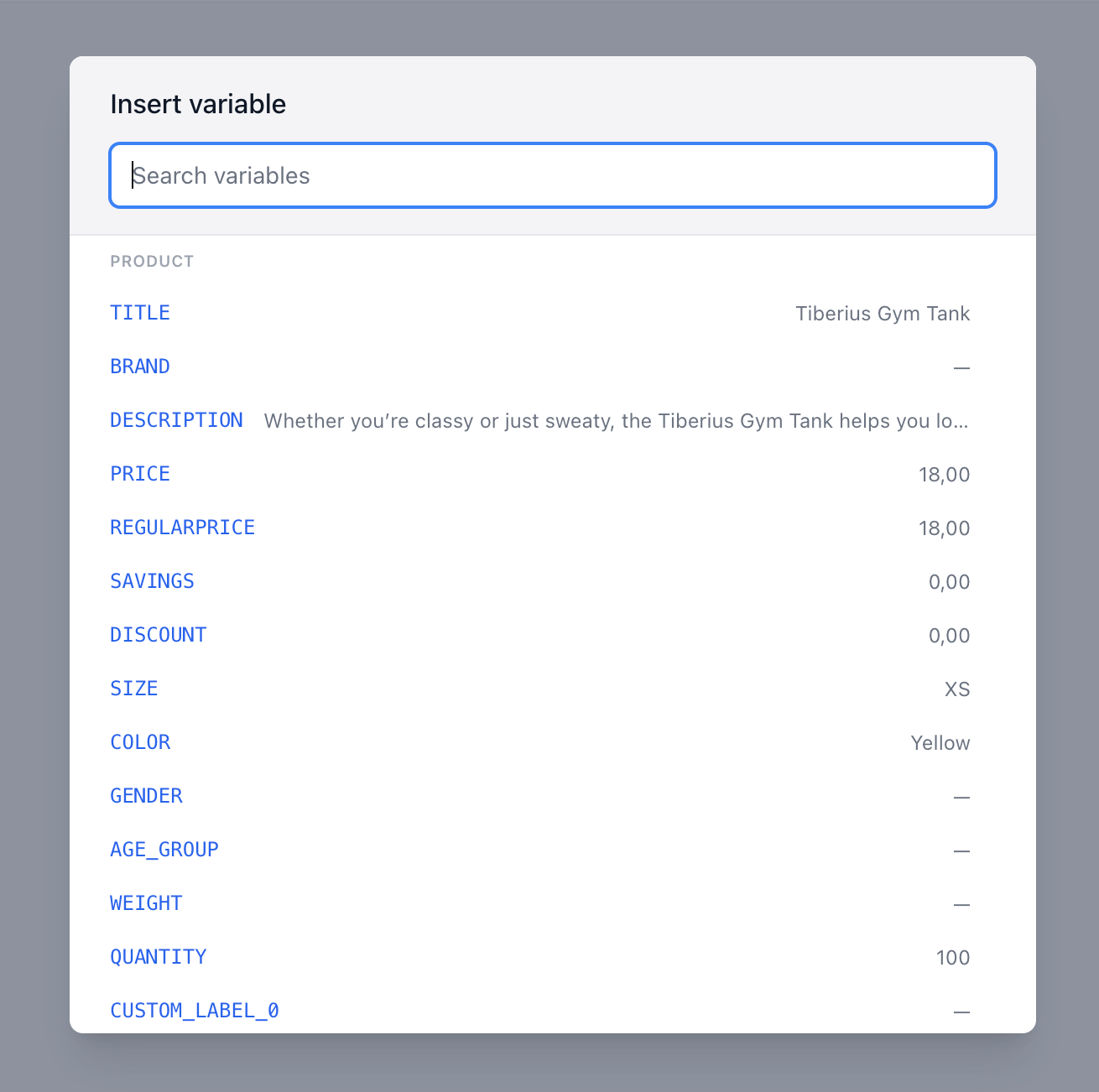
The picker shows coverage next to each field, for example only 812/1043, so you can tell before you use a field how many of your products actually have it.
A variable chip takes styling like any other text. Select it and change the font, color or weight, and only that value changes.
Number formatting per variable
Click a variable chip to open its format options. Formatting is set on the chip, not on the element, so two prices in the same block can be formatted differently.
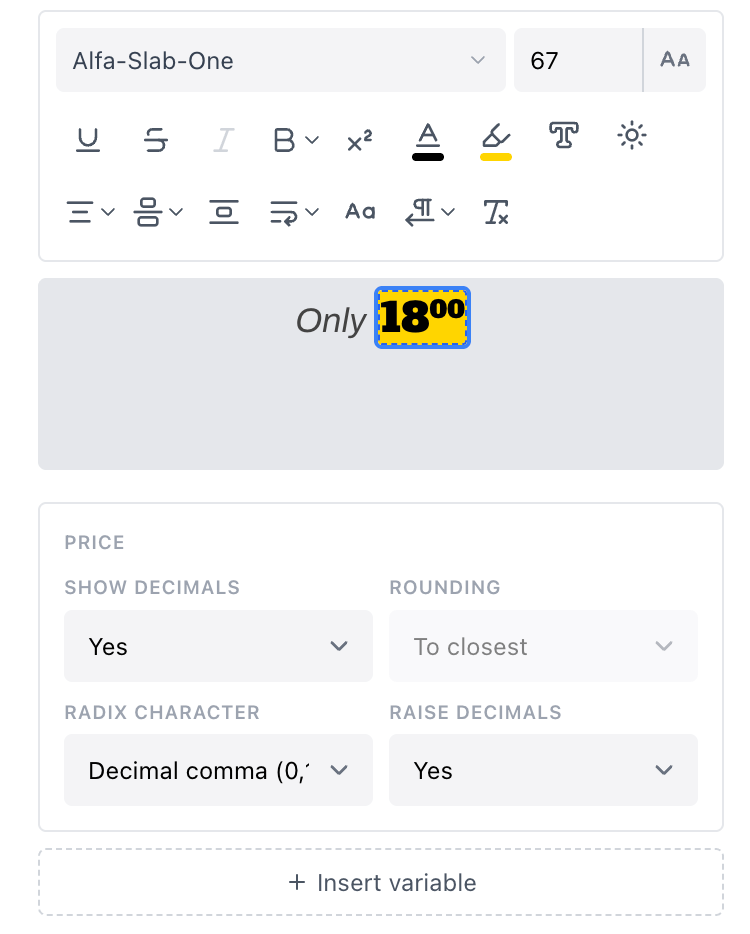
You can set:
- Rounding - up, down or nearest
- Decimals - always show, hide, or show only when needed
- Decimal separator - comma or period, with the thousands separator following from it
- Raised decimals - draws the decimal part as a superscript, for the 199,95 look with small decimals
Text-only fields do not show number formatting.
Auto text size
Turn on "Auto text size" and the element solves for the largest font size that fits the box. Every span scales proportionally, so mixed styling keeps its relative sizes.
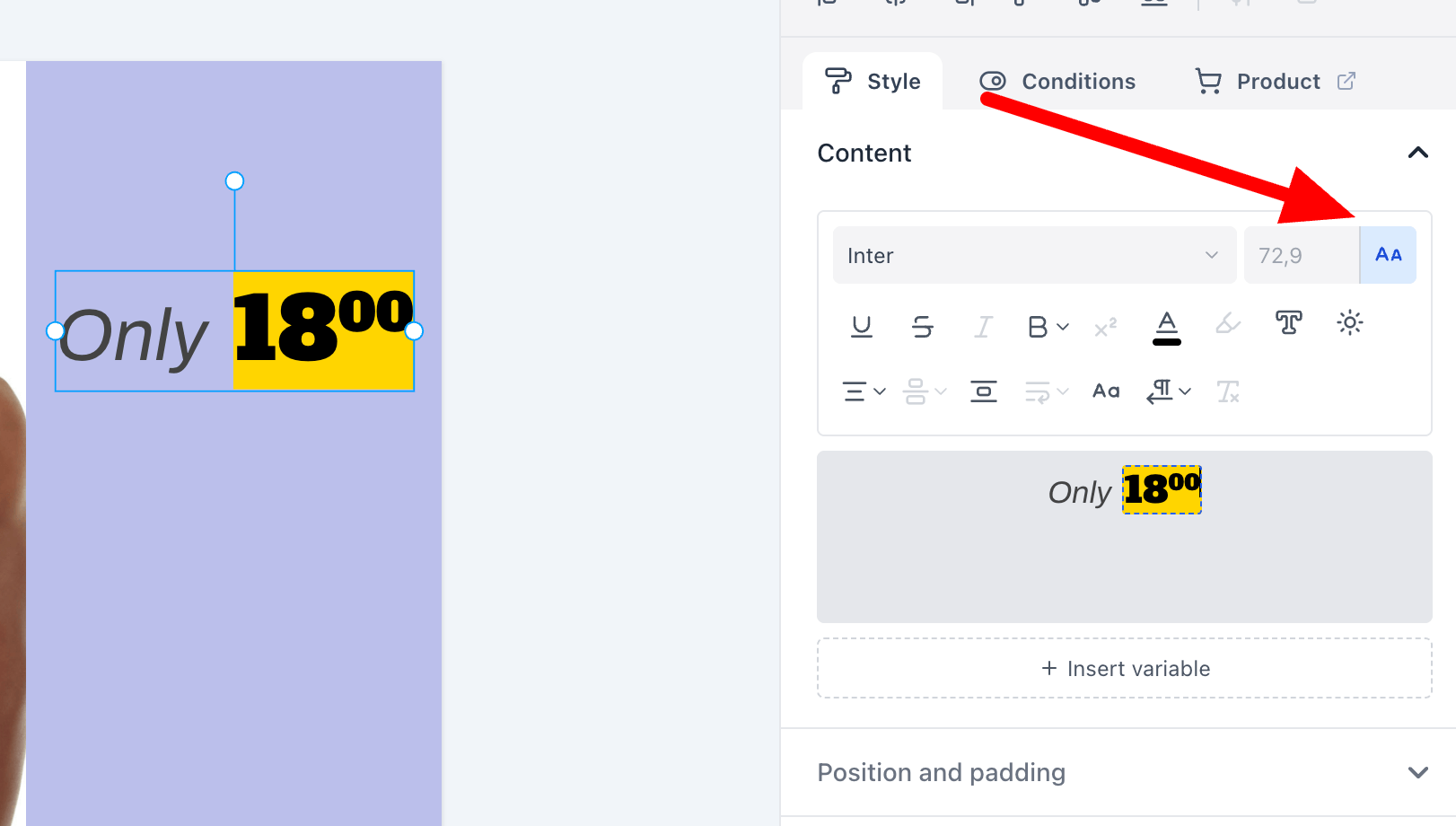
With auto text size on, the height field reports the solved height rather than accepting a value, and the top and bottom resize handles are removed. Drag the side handles to change the width and the text re-solves to fit.
This is what you want for any field with unpredictable length, such as product titles.
Overflow
Overflow controls what happens when text does not fit the box:
- Wrap - break onto new lines
- Ellipsis - cut the text at the box height and end it with an ellipsis
Text is cut at character level, so a long word gets truncated rather than dropped entirely.
Text direction
Text direction is set on the element, in the toolbar's direction control. Use right-to-left for Arabic, Hebrew and similar scripts.
Existing text elements
Existing text elements from before rich text keep working and stay editable, but they do not get the new features. If you want mixed styling or auto text size on an old element, add a new rich text element and move the content over.