
How to show images from your product data in templates
An image element can read its image url from a field in your product data, so each product shows its own badge, brand logo or banner.
Adding an image from a field
- Click "Image" in the elements bar.
- Choose "Image from a field".
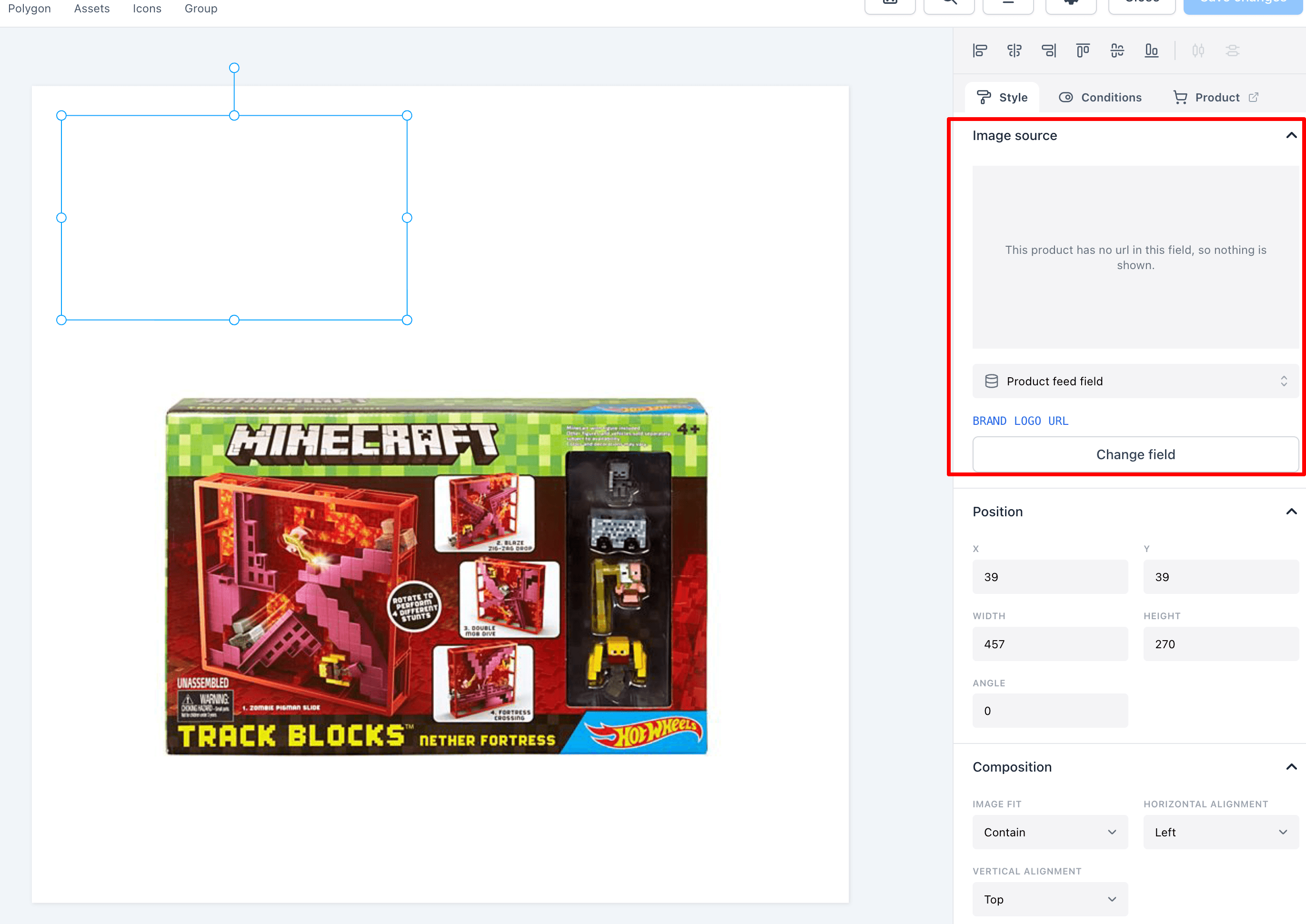
- In the properties panel, click "Choose field" and pick a field.
The field has to contain a full image url, for example https://example.com/badges/new.png.
Previewing different products
The editor shows the image for the product you are previewing. Switch to another product and the image updates with it.
When a product has no image
If the field is empty or the image cannot be loaded, the element is left out for that product. The rest of the image renders as normal.
Good to know
- The url must be a public link directly to an image file.
- Feedr keeps a copy of each image. If you change the artwork, upload it under a new url, or products may keep showing the old version for a while.