
Appearance
How to create a TikTok Product Feed
This guide wil help you connect your products from Feedr to TikTok.
To create a new TikTok Product Feed in Feedr, click on New Feed in the corner. Afterwards you should copy the URL since we will need that later. To copy the URL simply click on it.
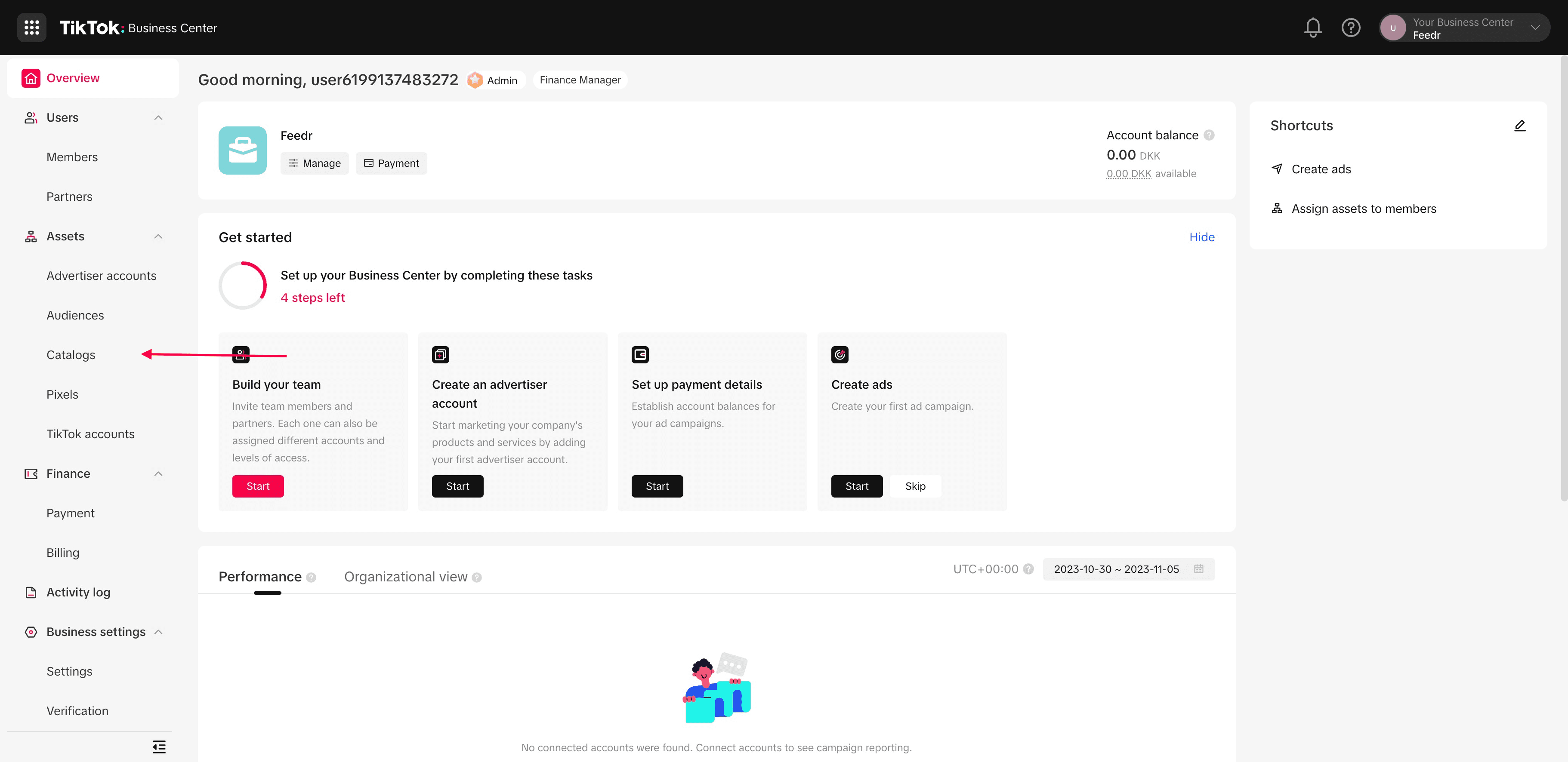
1. Go to Catalogs
Within TikTok Business Center, locate and click on the 'Catalogs' menu item.
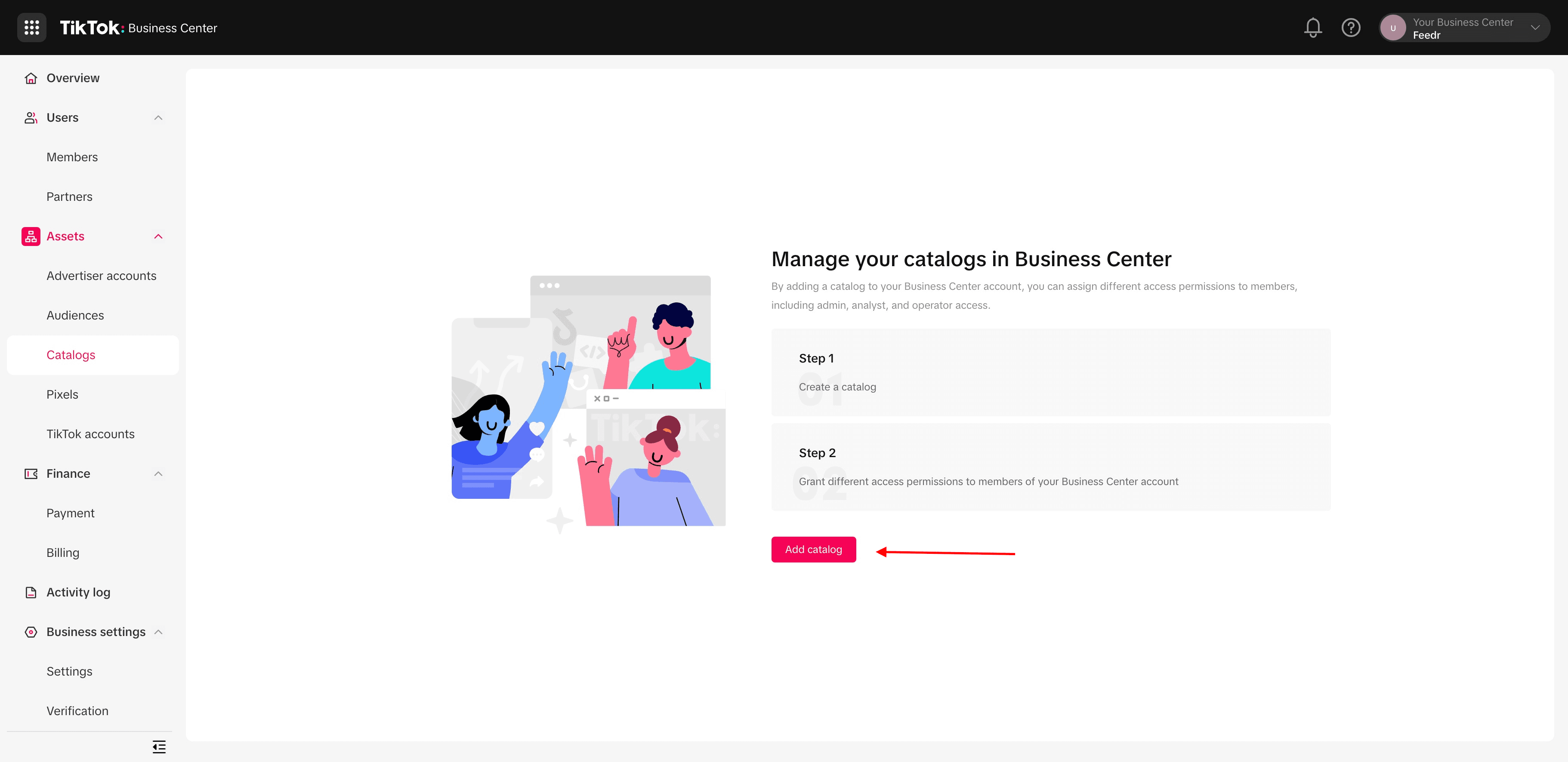
2. Click Add Catalog
In the Catalogs section, select 'Add Catalog' to initiate the creation of a new product catalog.
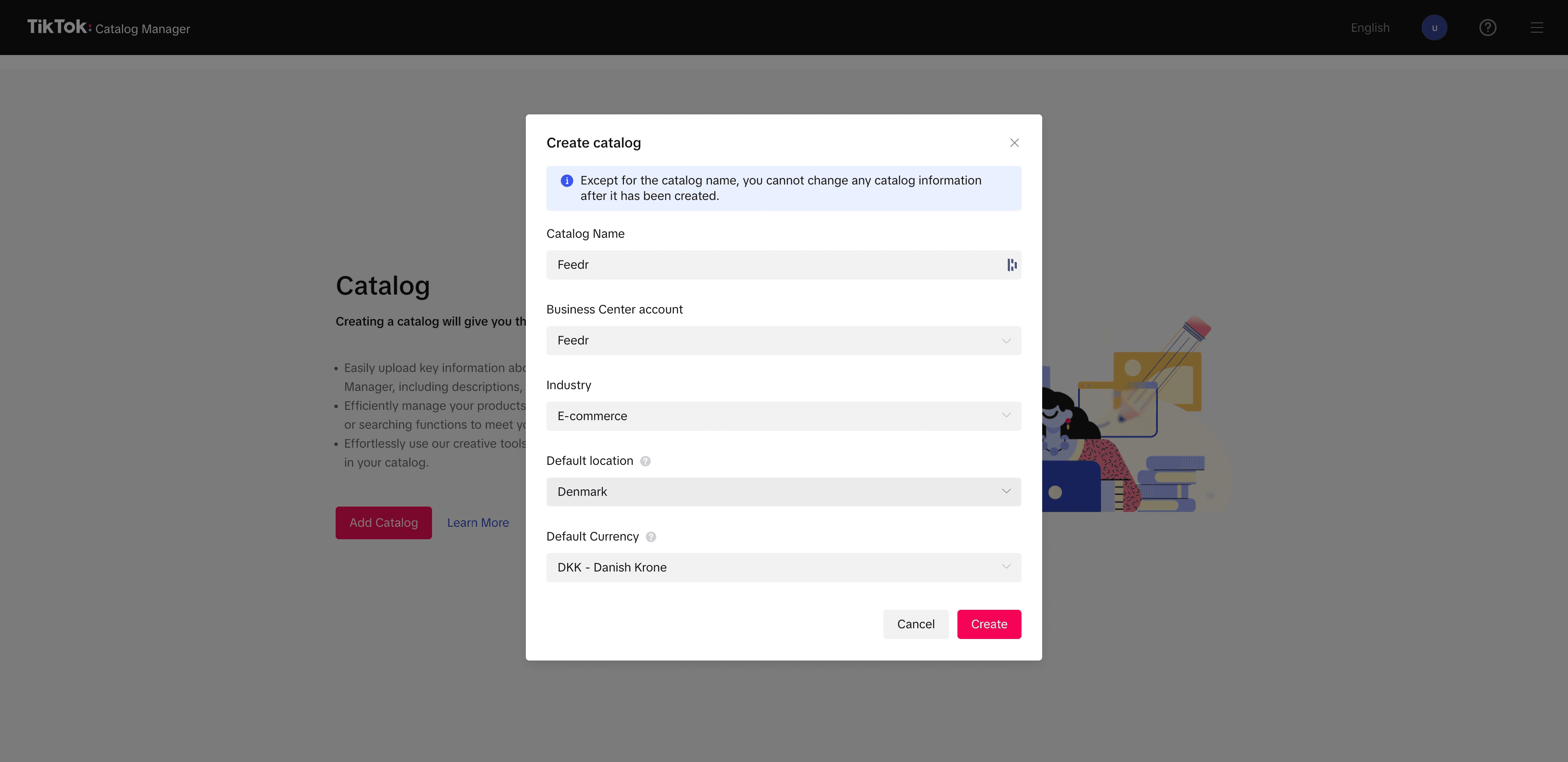
3. Create Catalog
Provide all the required information for your new catalog, including the name, industry that best represents your business, location and currency.
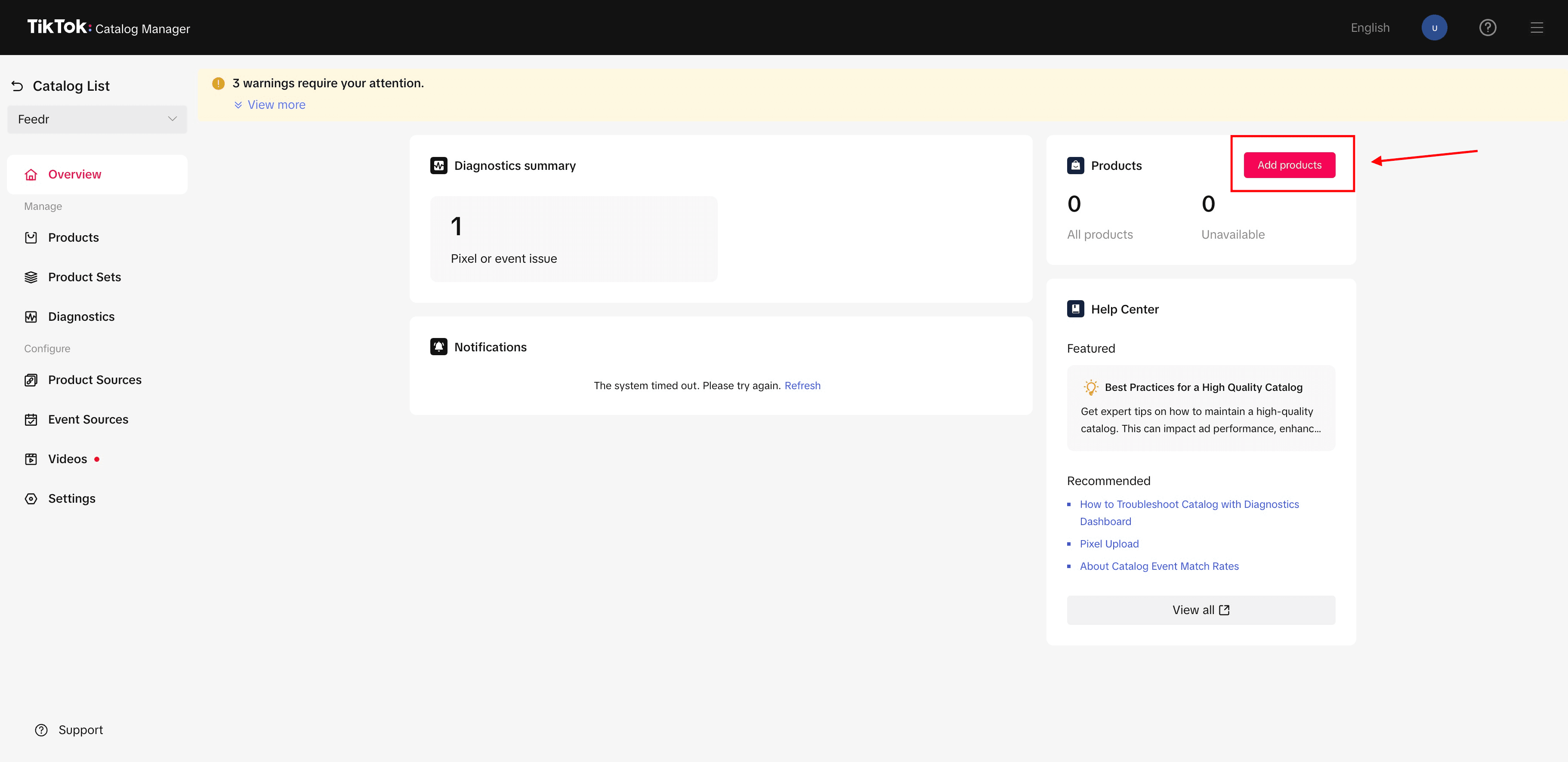
4. Add Products
After setting up the catalog, select the 'Add Products' option to start importing your items.
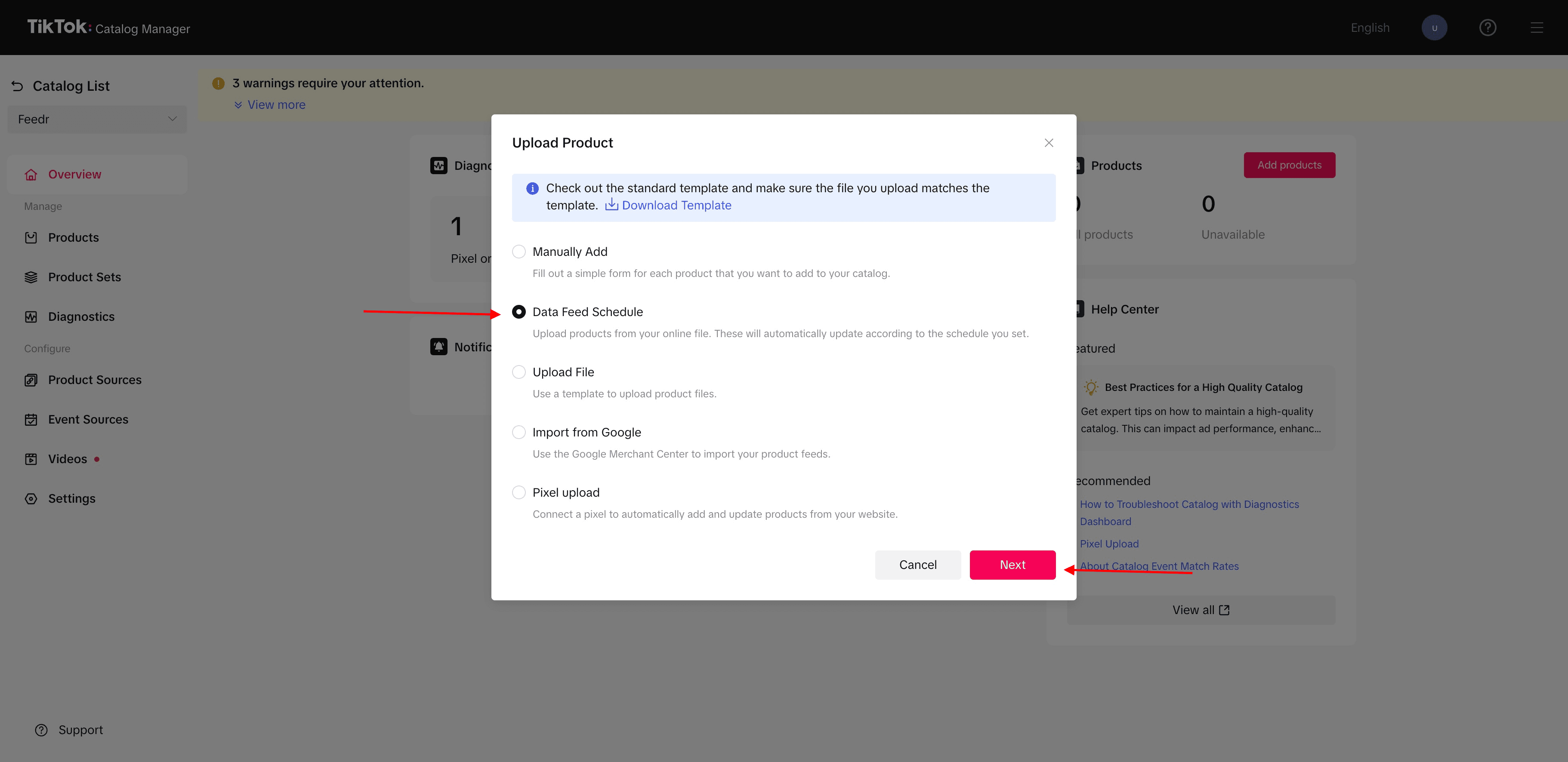
5. Select Data Feed Schedule
Select the 'Data Feed Schedule' option to import your products from Feedr.
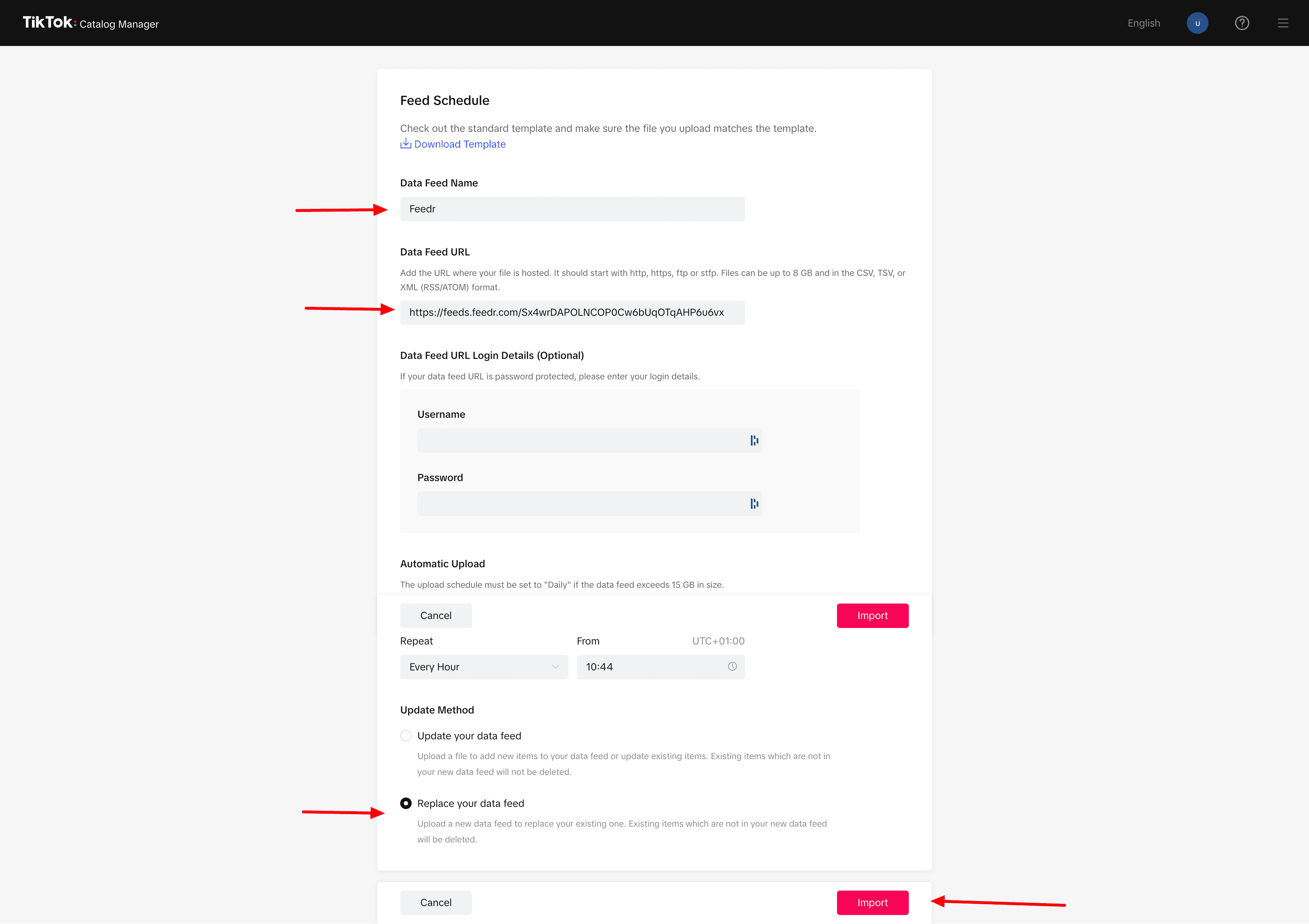
6. Enter Feed Name and URL
Input the name you wish to assign to your feed and paste the feed URL from Feedr.
In the 'Update Method' choose 'Replace your data feed', to make sure it is synced correctly with your shop.
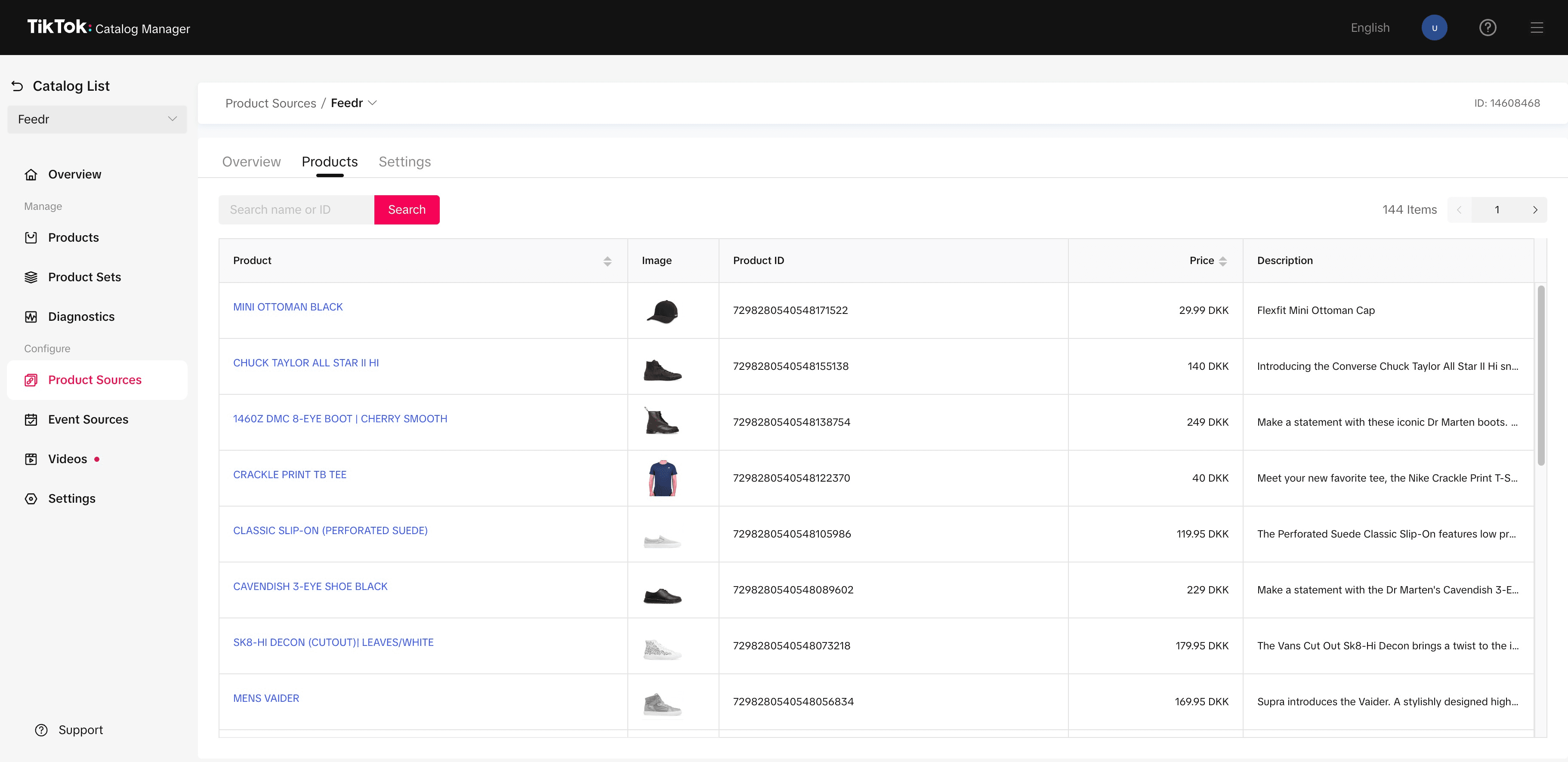
7. View Imported Products
Once your feed is connected and the products are imported, you can view them under the 'Products' tab.
Your Feedr products are now successfully integrated with TikTok, ready for you to engage with the platform's massive audience through your ecommerce campaigns.