
How to schedule templates
Scheduling lets you automatically swap which template is used on your product images based on the current date - without you having to log in and change anything. This is perfect for seasonal campaigns and promotions like Black Friday, Christmas, or a summer sale: design the campaign template ahead of time, set the dates it should run, and Feedr takes care of switching back to your regular template when the promotion ends.
How scheduling works
There is no separate "schedule" screen. Scheduling is built on top of the rules in Output Mapping or Template Variants: you apply the campaign template behind a rule that only matches during the campaign window, and keep your regular template as the fallback.
The idea
Whichever place you schedule from, the mechanism is the same. You set up two branches with a rule:
- The campaign template - shown only when today's date falls inside the campaign window.
- The regular template - the fallback used the rest of the year.
The campaign branch uses the special Now field together with an is between rule and two dates. Now always evaluates to the current date and time when the feed is generated, so the rule turns on and off automatically as time passes - no manual swapping needed.
You can do this in two places, depending on how your templates are applied:
- Template Variants - schedules which template variant is shown in your Meta ads.
- Output Mapping - schedules the template used for an image field (like
image_link) in any feed.
Schedule in Template Variants
If you drive your Meta ads with Template Variants, each variant has its own rules. You put the campaign template behind an IF Now is between rule and fall back to your regular template in the ELSE branch.
The video below walks through scheduling a Black Friday variant.
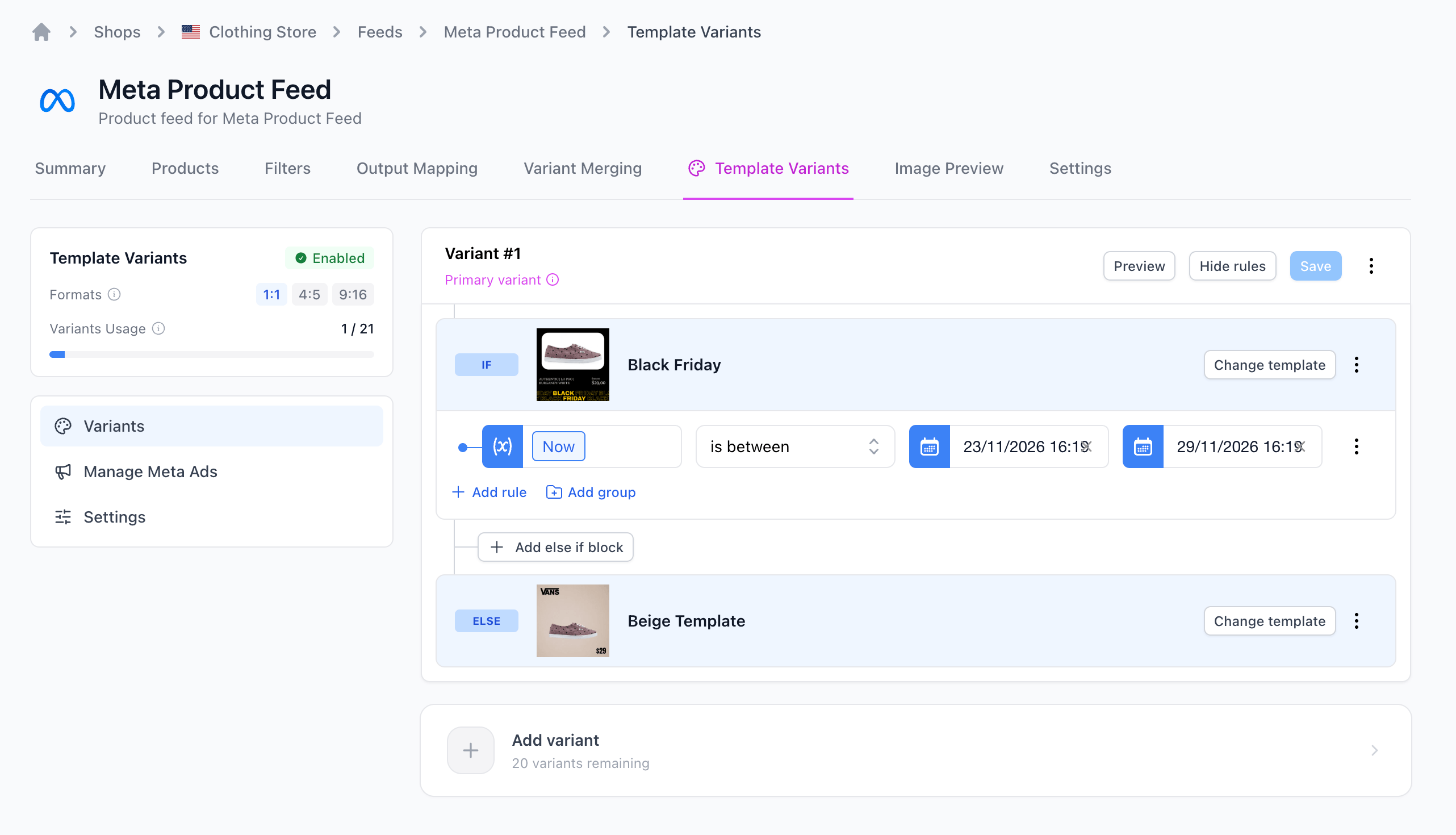
- Open the Template Variants tab and select the variant you want to schedule.
- On the IF branch, click Change template and pick your campaign template (e.g. Black Friday).
- Add a rule, choose the
Nowfield, select the is between operator, and pick the start and end dates of your campaign. - In the ELSE branch, click Change template and pick your regular template as the fallback.
- Click Save.
Schedule in Output Mapping
When you map an image field, you can add multiple value blocks and control which one is used with rules. Apply the campaign template to the first block behind a Now is between rule, and apply your regular template to a second block as the fallback.
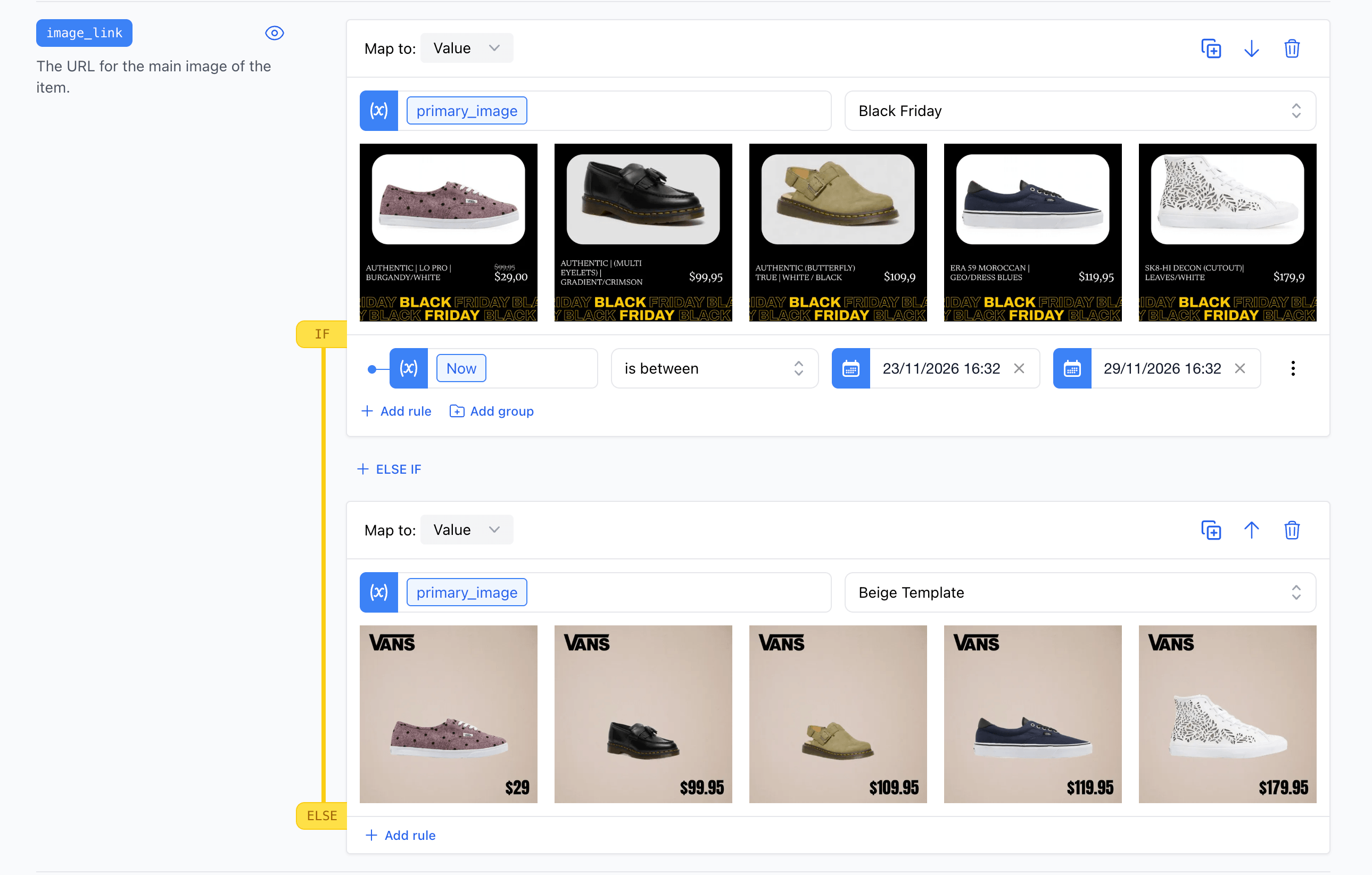
To set it up, open Output Mapping in your feed and scroll to the image field you want to schedule:
- On the image field, set the block type to Value and apply your campaign template (e.g. Black Friday) using the template picker.
- Add a rule to that block. For the field, choose the
Nowfield. - Choose the is between operator and pick the start and end dates of your campaign in the two date inputs.
- Add a second Value block below it and apply your regular template. Because it has no date rule, it acts as the fallback whenever the campaign rule does not match.
- Save the mapping.
TIP
The Now field always reflects the date at the moment the feed is generated. As long as your feed refreshes on its normal schedule, the template will switch on and off on its own - no manual action needed.
Open-ended schedules
You don't have to use is between. If you only need a start date or only an end date, use the date operators instead:
- after a date - start a template on a given day and keep it running indefinitely.
- before a date - run a template up until a given day.
Running several campaigns
You can stack more than one scheduled template by adding extra branches - additional value blocks in Output Mapping, or an else if block in Template Variants - each with its own Now rule and date range. Branches are evaluated from top to bottom, so the first one whose rule matches wins. Place your most specific, time-limited campaigns at the top and your regular template at the bottom as the catch-all fallback.
WARNING
Make sure your campaign date ranges don't unintentionally overlap. If two windows overlap, the block higher in the list takes priority for the overlapping days.