
How to copy setup to another shop
You can copy templates, internal fields, custom channels, feeds, output mappings and template variants from one shop to another. The other shop can be on a different team, as long as you have access to it. Agencies use this to reuse a proven setup across their clients.
Before anything is copied, Feedr shows you what the other shop is missing and lets you decide how to fill each gap.
What you need
- Access to both shops. You need to be able to view the shop you copy from, and edit the shop you copy to. That access can come from your own role on a team or from your agency's access to a client.
- A product import in the target shop. The shop you copy to must have finished at least one product import, so Feedr knows which fields it has.
Start a copy
There are two ways to start, and both open the same steps.
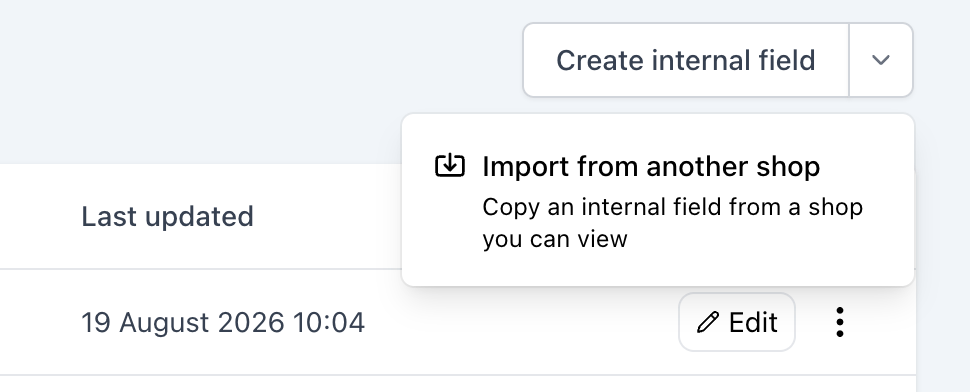
- Import from another shop. In the shop that needs the item, go to its templates, internal fields, custom channels or feeds. Click the arrow next to the create button, and choose Import from another shop. The same arrow is on the create button of an empty page. Then pick the shop to copy from and the item.
- Copy to another shop. Open the menu on the item you want to copy, for example a template or an internal field, and choose Copy to another shop. On a feed, the option is on the feed's settings page. Then pick the shop to copy to.
Output mappings and template variants always belong to a feed. On a feed's output mapping, use the Copy menu and choose Copy to another feed or Import from another feed. On a feed's template variants, choose Import from another feed. You also pick the feed that receives the copy.
The arrow next to the create button only shows when you have access to another shop.
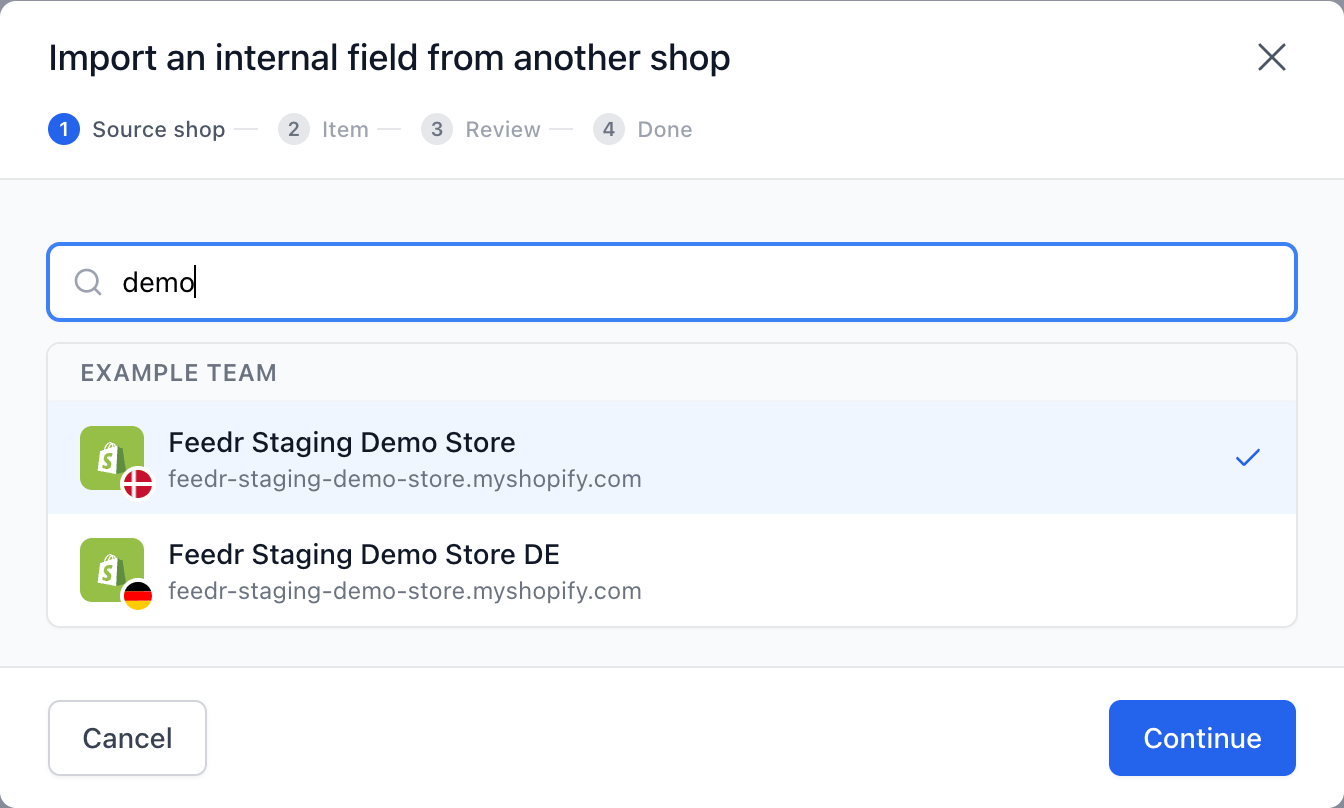
Pick the shop
The shop list shows every shop you have access to, grouped by team. Type in the search box to find a team or a shop. A shop you can't pick shows the reason next to it:
- View only. You can't edit the shop, so you can't copy into it.
- No successful import yet. The shop needs a product import before you can copy into it.
- Nothing to import. When you import, a shop that has nothing of that kind, for example no internal fields, shows that it has none yet.
- No feed to copy into. When you copy an output mapping to another shop, the shop needs a feed to receive it. For template variants, the list shows No feed that takes template variants when the shop has no feed on a channel that uses them.
Pick what to copy
Pick the item to copy. Templates show a preview, so you can see which one you pick. For template variants you can pick several at once, from one feed at a time. The Continue button shows how many you picked.
Review the copy
The review shows what the copy needs from the target shop. Work through it, then click the copy button. It names the target shop, and for output mappings and template variants it also shows how many fields or variants you copy.
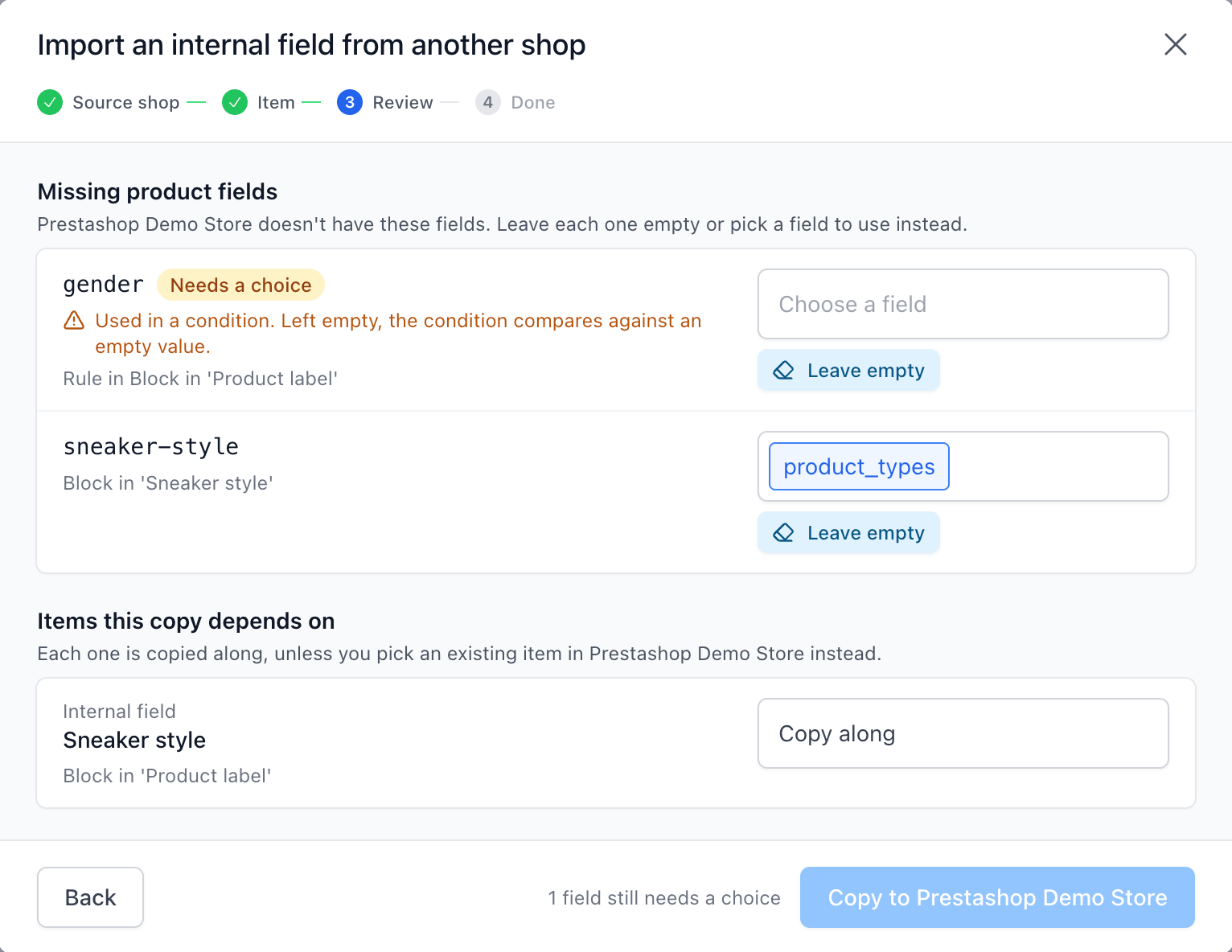
Missing product fields
These are product fields the copied item uses that the target shop doesn't have, usually extra fields from the source store. For each one, click the box to pick a field or an internal field from the target shop to use instead, or click Leave empty.
- A field left empty outputs nothing where it's used as a value.
- A field used in a condition, such as a feed filter or a variant rule, is marked. Left empty, the condition compares against an empty value, so a rule like "season is summer" matches no products.
- A field used in a template design can only be replaced by a field a template can show, an extra field or an internal field.
- A field used inside an internal field can't be replaced by another internal field, because an internal field can't use one. Pick a product field or an extra field.
This also covers the internal fields that are copied along. If a copied internal field uses an extra field the target shop doesn't have, that field is listed here too.
Items this copy depends on
A copied item often uses other items: a template can use an internal field, and a feed uses templates and maybe a custom channel. Each one is copied along by default. If the target shop already has a matching item, pick it instead to avoid a duplicate.
- Templates are picked from previews: the template that would be copied along, and the target shop's own templates.
- Internal fields are picked in the same field picker as missing product fields. Pick one of the target shop's internal fields, or a product field or extra field to use in its place. Then no internal field is copied. When a template design uses the internal field, only fields a template can show are offered. To copy the field along after all, click Copy along.
- Custom channels are picked from a list.
When the target shop has an item with the same name, Feedr picks it for you and marks it Matched by name. Check that it does the same thing before you copy. An item you use instead of copying keeps its own setup, so the review doesn't ask about its fields.
Your choices here can change what the rest of the review asks for. For example, copying a template along can put an internal field into a design. A pick that no longer fits is cleared, so check the review again after changing a choice.
Fields to copy
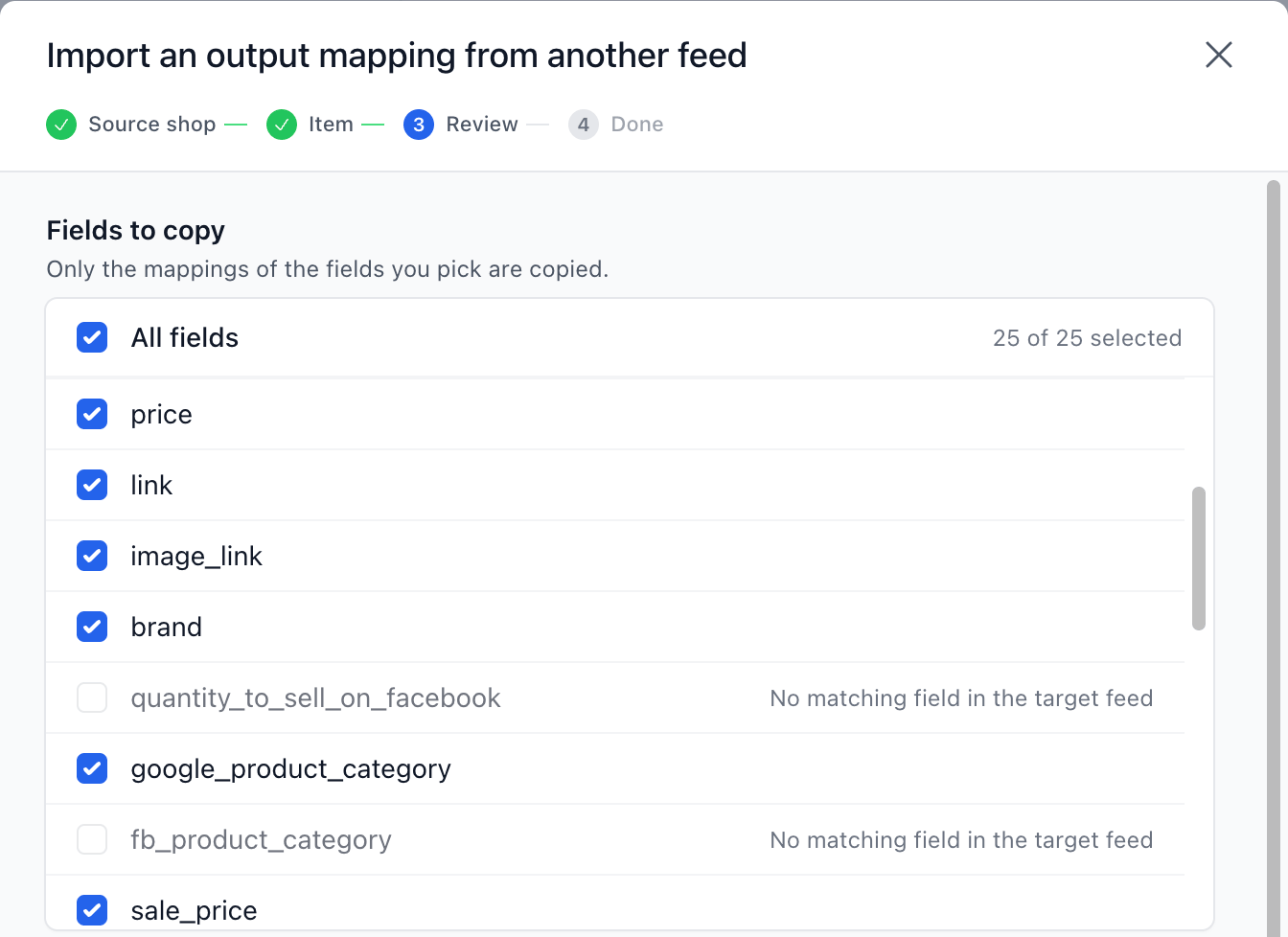
When you copy an output mapping, the review lists the source feed's mapped fields. All of them are picked to start with. Untick the fields you don't want to copy.
A field the target feed's channel doesn't have is shown greyed out with No matching field in the target feed. It can't be copied.
Mappings that will be replaced
When the target feed already maps a field the copy brings, the review lists it. The copy replaces those mappings, so confirm them before you copy.
Copied to the target team
Custom fonts and uploaded images that a template uses are copied to the target team automatically. You don't need to do anything.
Not carried over
Some things stay behind in the source shop, for example a feed's manually included or excluded products. The review lists them so nothing disappears without you knowing.
When a copy can't run
The review tells you when a copy can't go ahead, for example when the target team's plan has no room for another feed, when a feed would go over its template variant limit, or when none of a mapping's fields exist in the target feed.
What each copy does
- Template. Creates a new template in the target shop, including its 4:5 and 9:16 formats. See how to copy a template to another shop.
- Internal field and custom channel. Creates a new one in the target shop.
- Feed. Creates a new feed with the same settings, filters, output mapping, template variants and linked templates. The new feed gets its own feed URL and isn't connected to any channel yet, so nothing reaches a channel until you connect it.
- Output mapping. Copies each picked mapping into the target feed's output field with the same name, even when the target feed is for another channel. Only those fields change.
- Template variants. Adds the variants you pick after the target feed's existing variants. The target feed's own variants and settings stay as they are.
After the copy
After copying to another shop, click Open in followed by the shop's name to go straight to the copy. A copied internal field opens in its editor. If the shop is on another team, Feedr switches to that team for you.
After importing into the shop you're in, the button names what you imported, such as Open feed. An output mapping or template variants imported into the feed you're on already show on the page, so click Done.
A copy is a one-time snapshot. Later changes to the original don't change the copy, and changes to the copy don't affect the original.
TIP
If the target shop changes while you're reviewing, for example someone deletes an internal field you picked, Feedr updates the review and asks you to check it again before copying.