
How to refresh a Klaviyo feed
Klaviyo fetches your Feedr feed on its own schedule, so changes you make in Feedr can take a while to show up in Klaviyo. When you want Klaviyo to pick up a change right away, for example a new template or updated prices, start a sync yourself.
This guide assumes you have already added your Feedr feed as a catalog source in Klaviyo. If you haven't, follow How to create a Klaviyo feed first.
1. Open your catalog sources
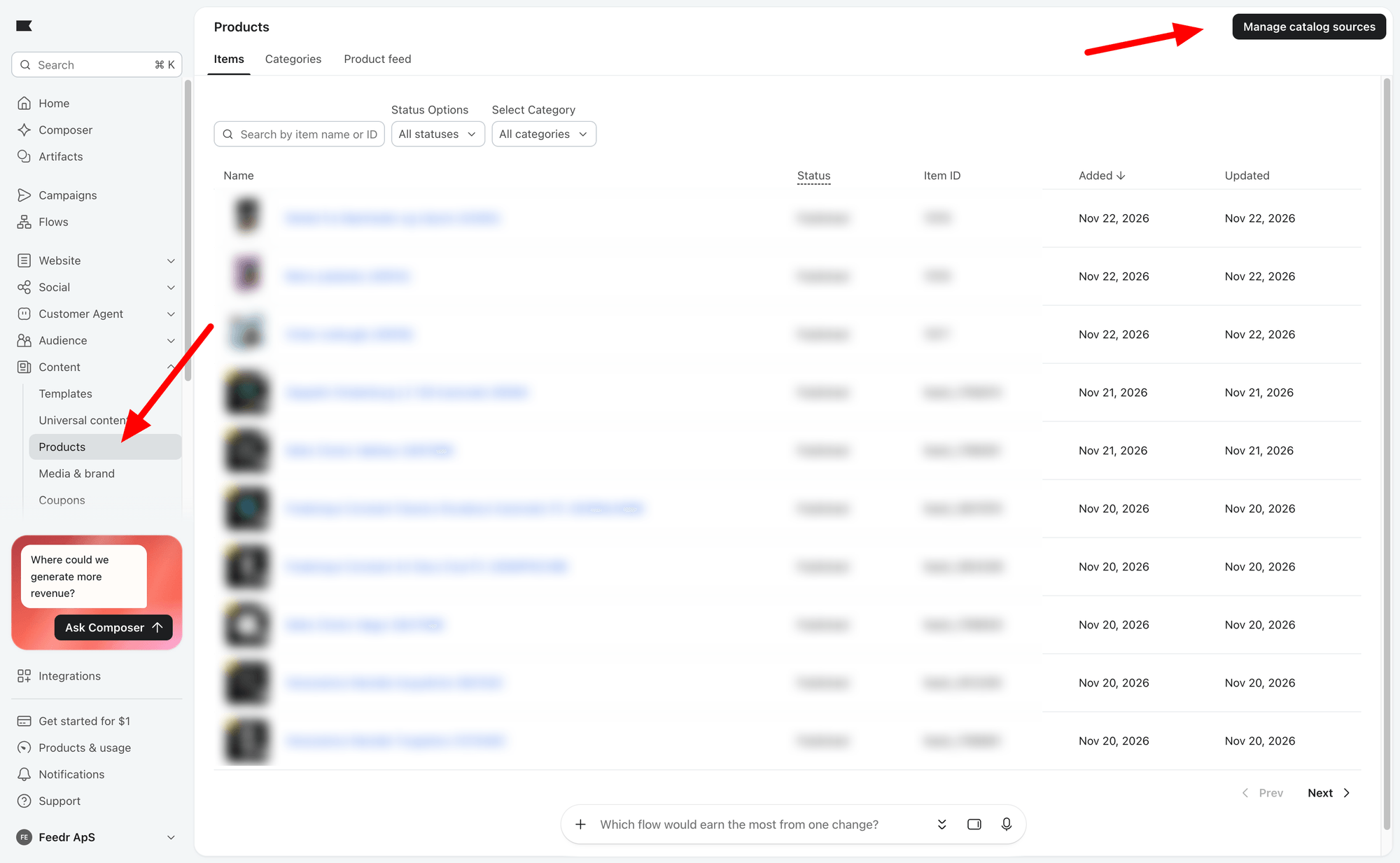
In Klaviyo, go to Content and then Products. Click Manage catalog sources in the top right corner.
2. Open your Feedr source
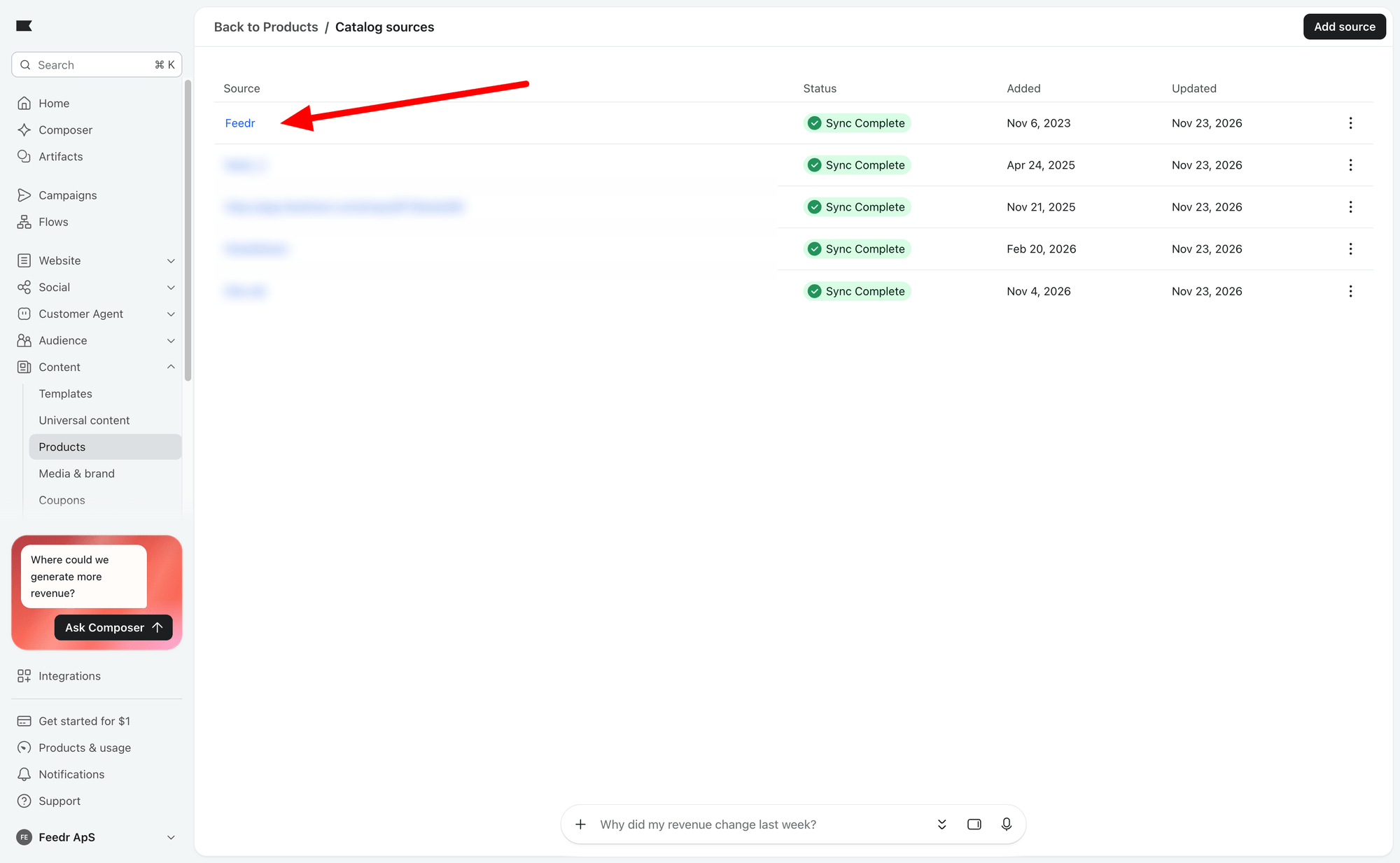
Click the source you created for your Feedr feed. It has the name you gave it when you added it.
3. Refresh the sync
Click Refresh sync in the top right corner. Klaviyo fetches your feed from Feedr again and updates your products.
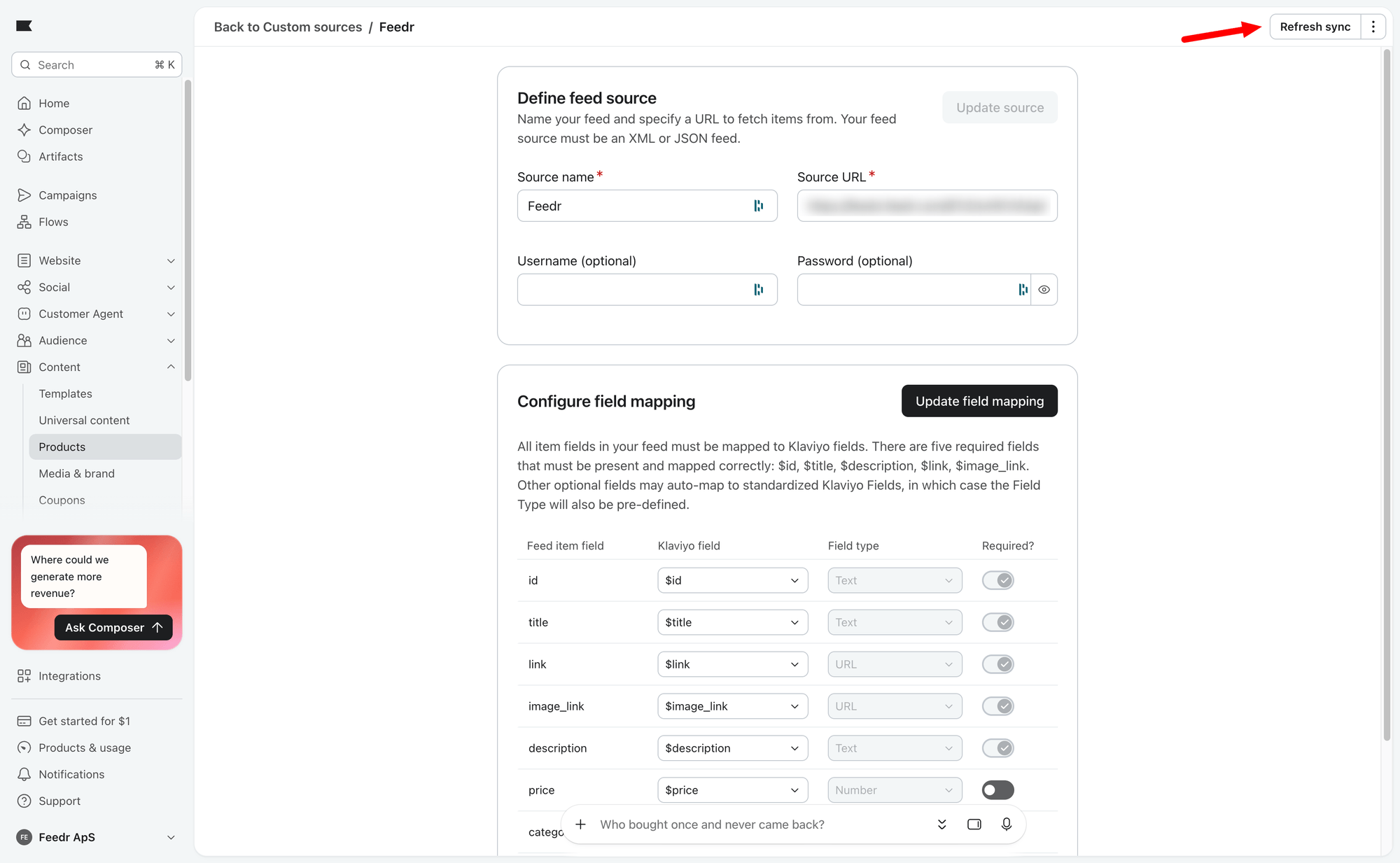
When the sync is done, the source shows Sync Complete in your list of catalog sources.