
How to add an IP allowlist to your Shopify app
An IP allowlist limits which networks can use your Shopify app to access your shop. This guide shows how to add Feedr to the IP allowlist of a Shopify app that is already connected to Feedr.
Do you need an IP allowlist?
Shopify requires an IP allowlist for apps installed on a store outside the organization that owns the app. This is usually the case if an agency or developer created the app in their own Dev Dashboard and installed it on your store through Custom distribution.
- From November 20, 2026, an app without an IP allowlist can't be installed on new stores.
- From January 1, 2027, every app installed on a store outside its organization must have an IP allowlist.
If you created the app yourself as a member of your store, the allowlist is optional. Shopify still recommends it, because it stops a leaked access token from being used from other networks.
Add Feedr to the IP allowlist
Feedr runs on Amazon Web Services (AWS). You allow AWS's network, which has the network number (ASN) 16509.
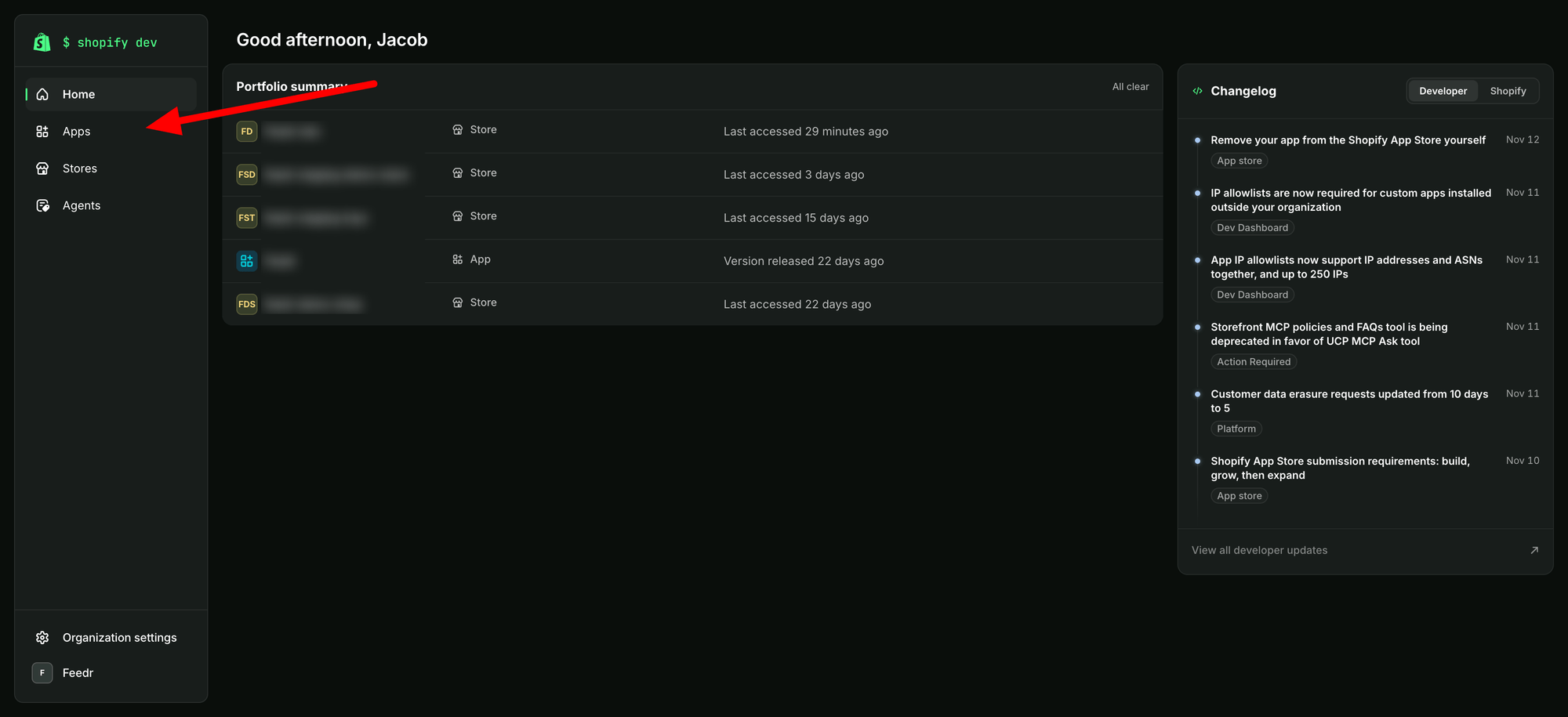
Go to the Shopify Dev Dashboard at https://dev.shopify.com/dashboard and click "Apps" in the left sidebar.
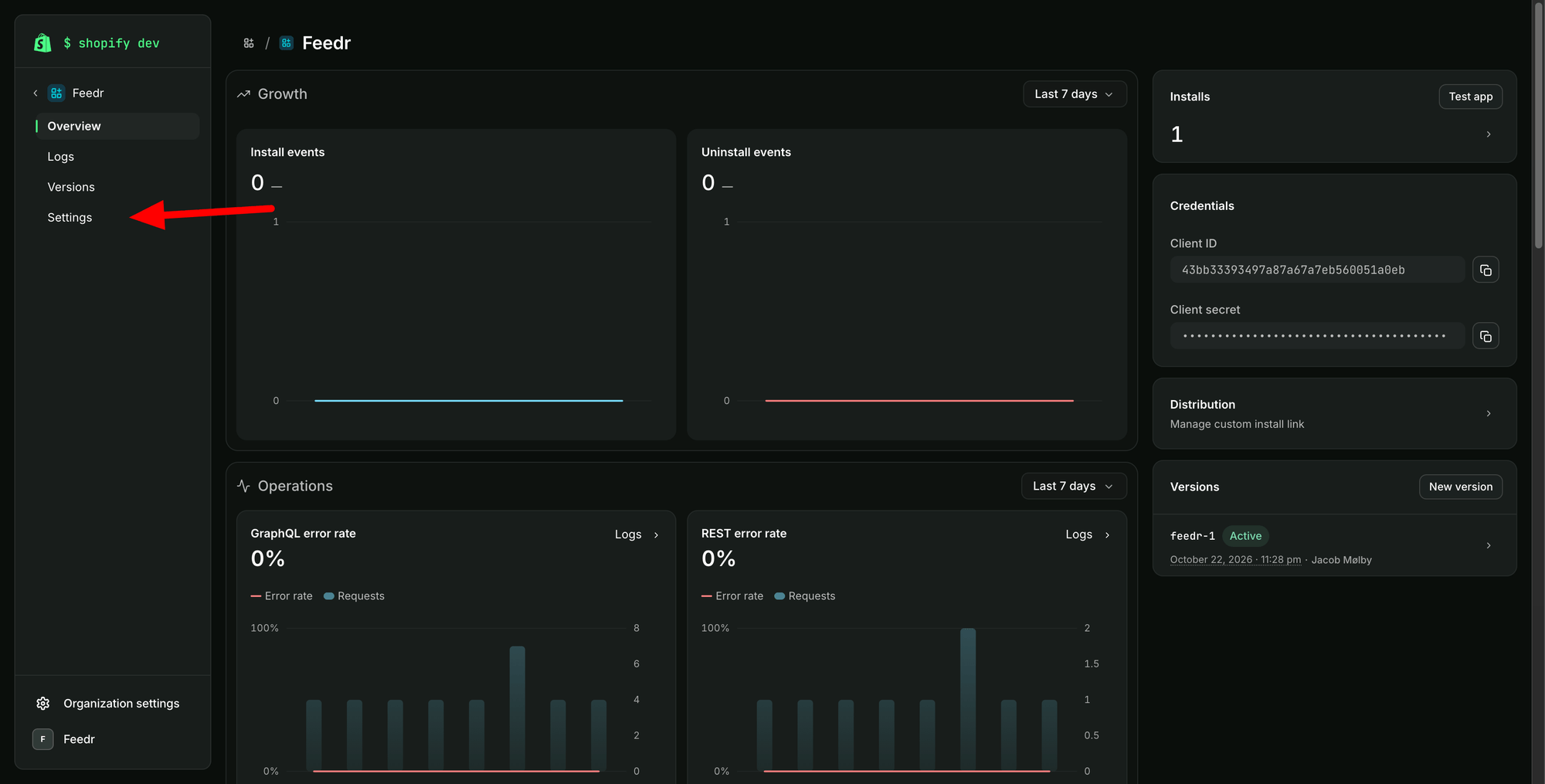
Open the app you use for Feedr. Then click "Settings" in the left sidebar.
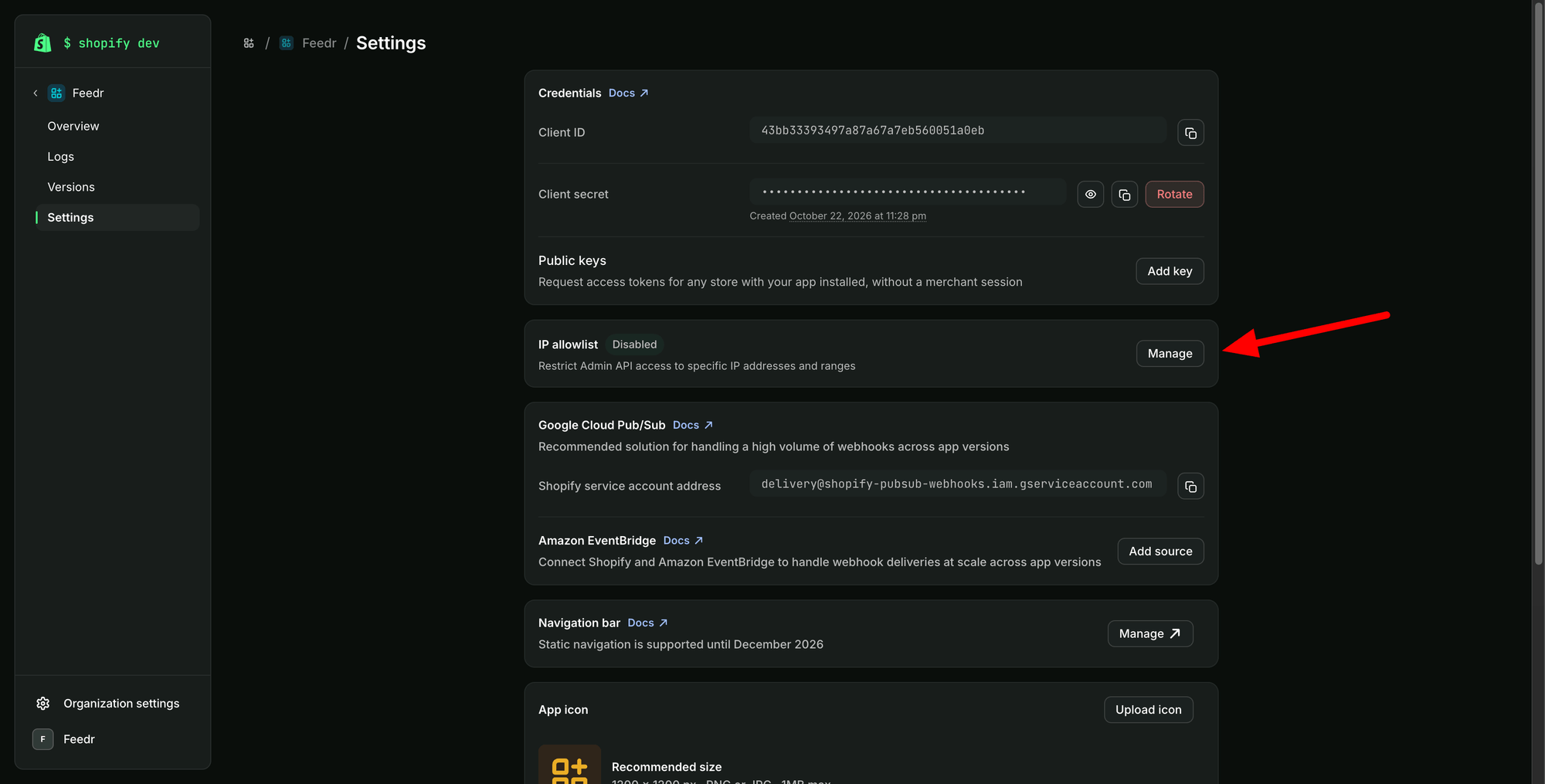
In the "IP allowlist" section, click "Manage".
Now set up the allowlist:
- Enforcement: Turn on
- Networks (ASN):
16509. If the field already has entries, keep them and add16509on its own line. - Limit ASNs to countries: Leave it at "All countries". If you pick countries, Shopify may block Feedr's requests.
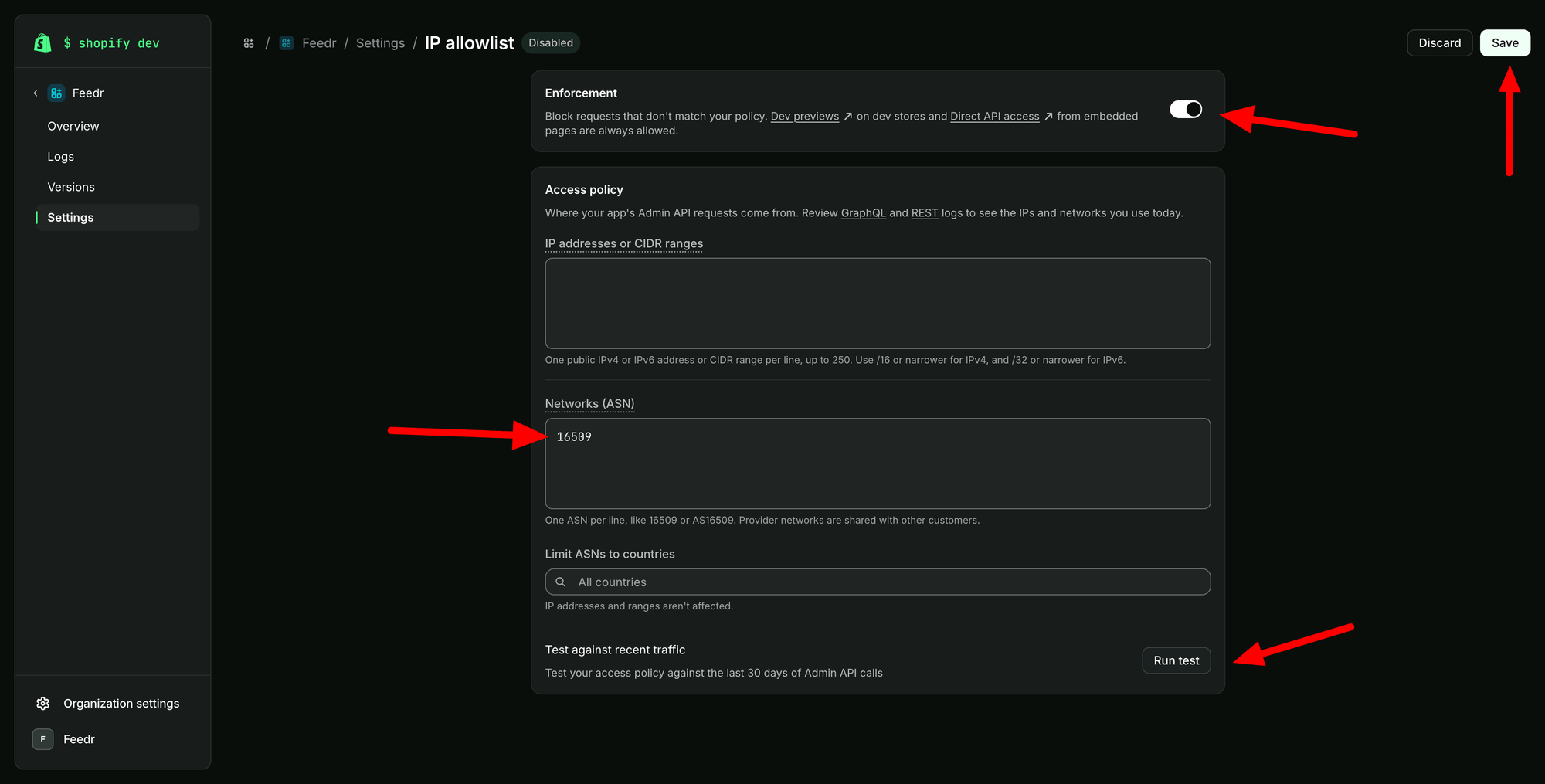
Before you save, click "Run test" under "Test against recent traffic". Shopify checks your app's Admin API requests from the last 30 days against the allowlist. The result should say that 0 requests would be blocked.
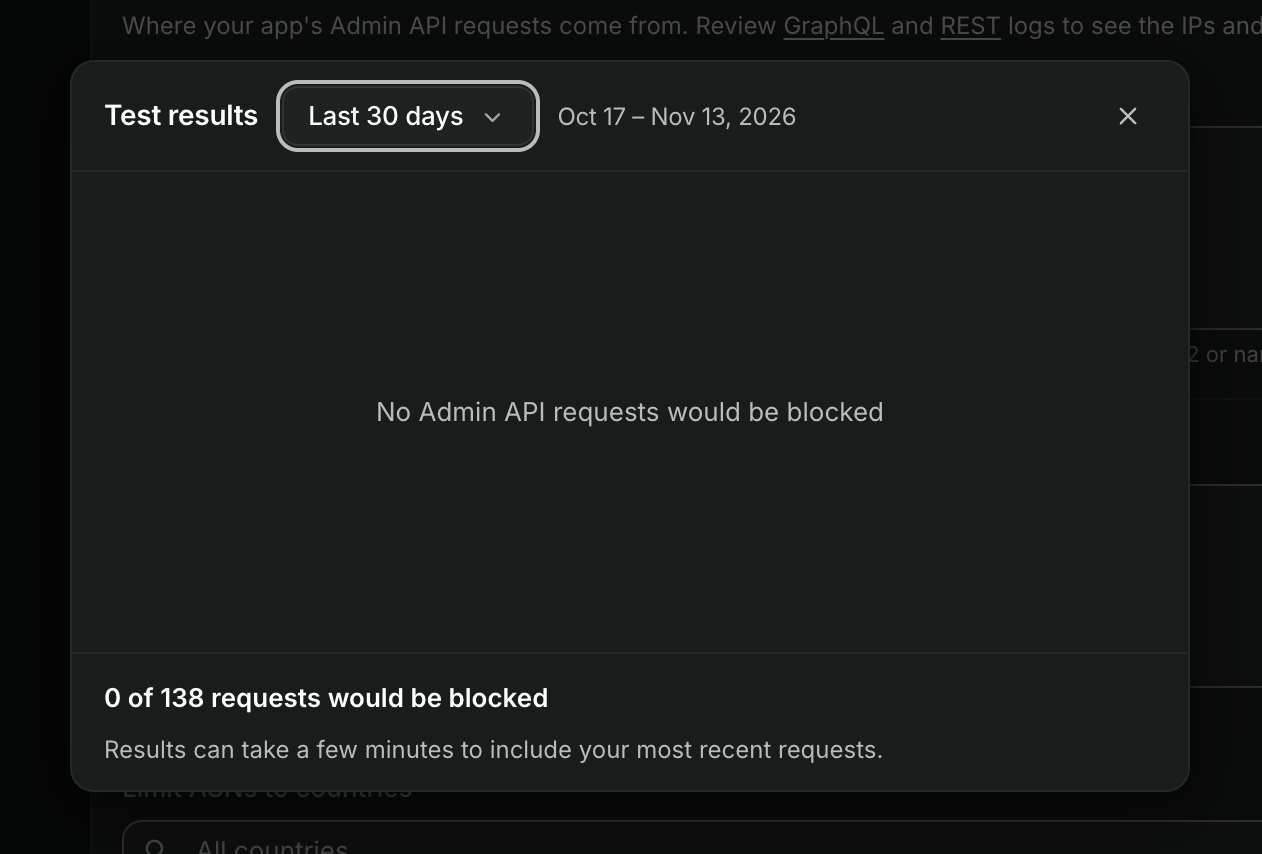
Close the test results and click "Save" in the top right corner.
Check that your import still works
In Feedr, open your shop's settings, go to "Imports" and click "Import now". When the import finishes, Feedr can still reach your shop.
If the import fails, open the IP allowlist in the Dev Dashboard again. Check that 16509 is in the "Networks (ASN)" field and that "Limit ASNs to countries" says "All countries".