Connecting your feed to a Meta catalog
Once you have connected Meta to Feedr, you can manage how your Feedr feed is attached to a Meta catalog directly from the feed's page in Feedr - no need to bounce into Commerce Manager.
This article covers regular feeds. For country and language variant feeds, see Country & Language Feeds.
If you don't have the Meta integration set up - or you'd rather do everything manually inside Commerce Manager - see Setting up a Meta Feed.
Prerequisites
Before you start:
- The Meta integration must be connected in Feedr - see Setup Meta Integration.
- The catalog you want to use must already exist in Commerce Manager. Feedr cannot create catalogs for you. If the catalog was created after you connected Meta to Feedr, you'll need to re-authenticate so Feedr can see it.
All of the actions below happen on the feed's page in Feedr, in the Meta Catalogs section. Each catalog you have access to is shown as a button - clicking it opens a modal where you can manage that catalog's data sources.
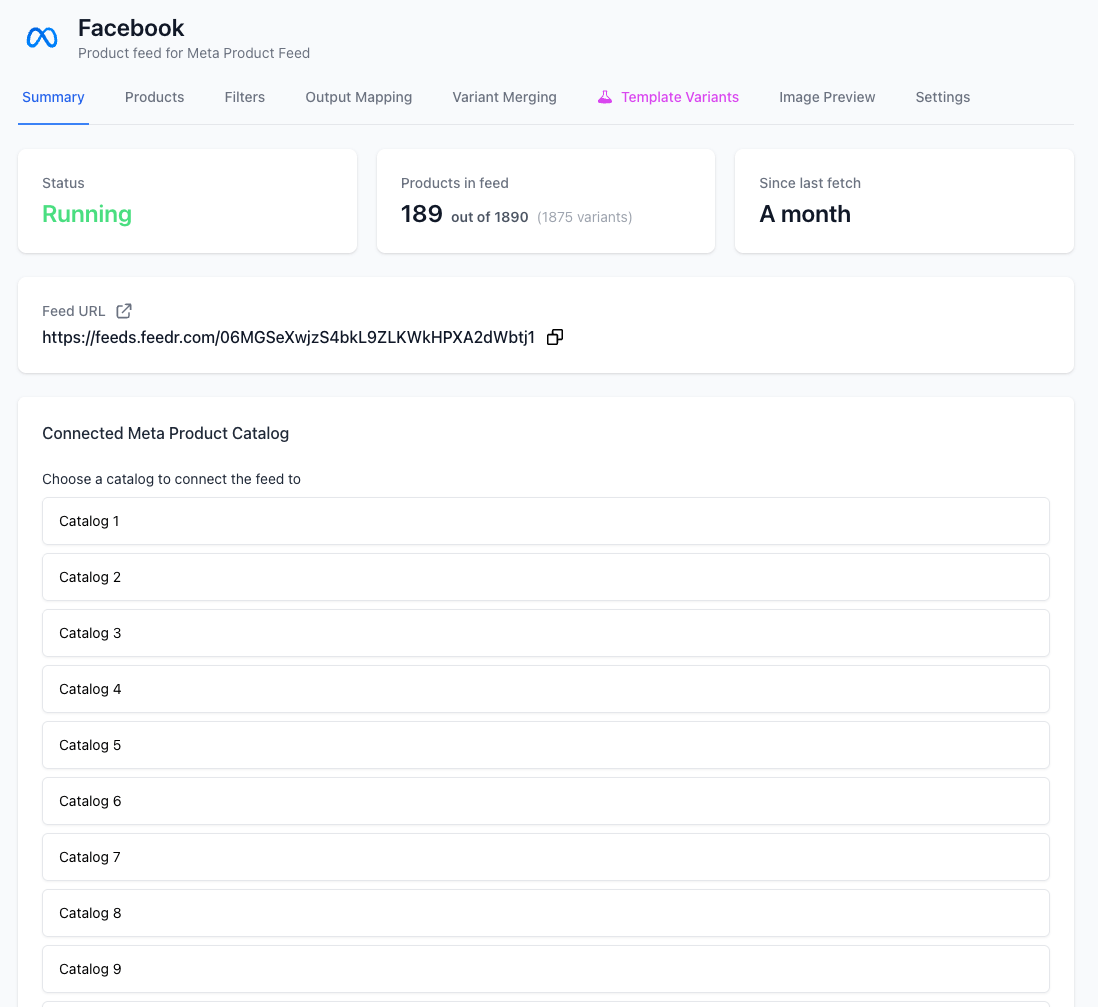
There are a few different situations you might be in. Skip to the section that matches yours:
- You don't have a Meta catalog yet
- You already have a Meta catalog with an existing primary feed
- You already have a Meta catalog with a connected Shopify or WooCommerce app
You can also manage existing data sources and request that Meta fetches your feed now.
1. You don't have a Meta catalog yet
If you don't have a catalog yet, you first need to create one in Commerce Manager - Feedr cannot do this for you. Follow the steps under Setting up a Meta Feed → You don't have a Meta catalog up to and including selecting Online products and choosing the people and partners with access. Stop before the "Connect to a data feed" step - you'll do that from Feedr instead.
Once the empty catalog exists in Commerce Manager:
- Go back to Feedr and re-authenticate the Meta integration, making sure to tick the new catalog.
- On the feed's page in Feedr, find the Meta Catalogs section and click on your new catalog.
- In the modal that opens, click Connect as primary feed.

That's it - Feedr will register the feed with Meta as the catalog's primary data source. The catalog button will now show the connected feed underneath it.
2. You already have a Meta catalog with an existing primary feed
When a catalog already has a primary data source, you have two choices: replace it with your Feedr feed, or add your Feedr feed alongside it as a supplementary feed.
Click the catalog button on the feed's page to open the modal. You'll see each existing data source listed with its role (Primary / Supplementary) and a set of action buttons.
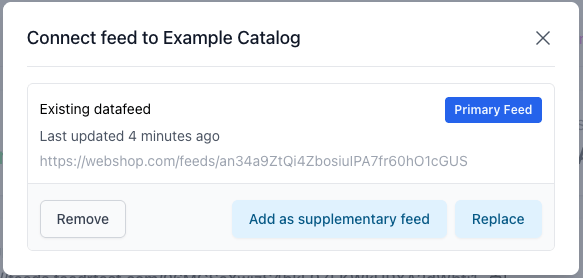
Replace the existing primary feed
Before you replace the primary feed, check that the product IDs in your Feedr feed have the same format as the ones already in Meta. If they don't, Meta will treat every product as new and your tracking will likely break.
See how to compare the IDs in the manual setup article. If the IDs don't match, adjust the id mapping in your feed first - and reach out to support if you're unsure.
To replace the existing primary feed with your Feedr feed, click Replace on the existing primary's row. You'll be asked to confirm.
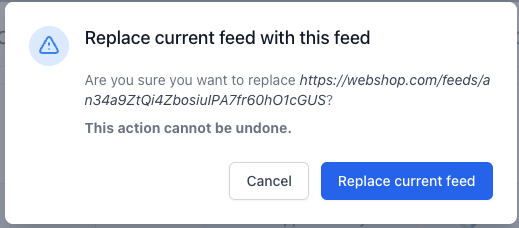
After you confirm, Feedr swaps the primary data source for your feed. The previous source is detached from the catalog.
Add the Feedr feed as a supplementary feed
- Feed filtering won't work as expected. Products that are in the primary feed will still appear in Commerce Manager, just without the Feedr-specific data (such as templates). If you still want to use filtering, see Controlling catalog items in the manual setup article.
- Feedr's values must take priority over the primary feed. This is configured in Commerce Manager and cannot be set from Feedr - see Configure Data Sources. It's especially important for the Image and Additional image link fields if you use templates.
All other features, including Template Variants, will still work.
To add your Feedr feed as a supplementary feed, click Add as supplementary feed on the primary feed's row in the modal.
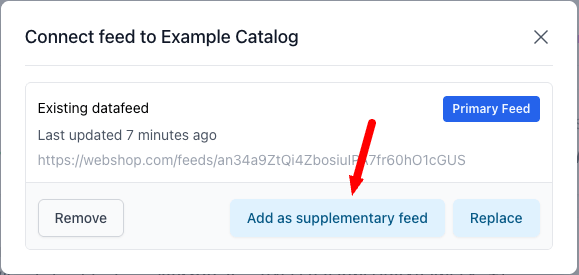
The Feedr feed will be attached as a supplementary feed on top of the selected primary.
3. You already have a Meta catalog with a connected Shopify or WooCommerce app
If your catalog's primary data source is a Shopify or WooCommerce app, you can add your Feedr feed on top of it as a supplementary feed.
- Feed filtering won't work as expected. Products synced by the app will still appear in Commerce Manager, just without the Feedr-specific data (such as templates). If you still want to use filtering, see Controlling catalog items in the manual setup article.
- Feedr's values must take priority over the app. This is configured in Commerce Manager and cannot be set from Feedr - see Configure Data Sources. It's especially important for the Image and Additional image link fields if you use templates.
Click the catalog button on the feed's page to open the modal. The Shopify or WooCommerce app shows up as a primary data source.

Click Add as supplementary feed on the app's row.
Your Feedr feed is now attached as a supplementary feed on top of the app source.
Managing your catalog
You can remove any data source - feed or app source - from a catalog directly in Feedr. In the catalog's modal, each data source has a Remove button.
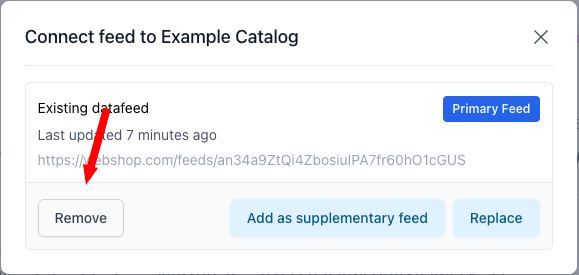
A confirmation modal will ask you to confirm before the data source is detached.
A few things to be aware of:
- You cannot remove a primary feed that still has supplementary feeds attached to it. The Remove button is disabled in that case - remove the supplementaries first, then the primary.
- If the data source you're removing belongs to a different shop or was added outside of Feedr, the confirmation modal warns you. Removing it from Meta won't delete it inside Feedr or in the external provider - it just detaches it from the catalog.
Manually requesting a fetch from Meta
By default, Meta fetches your feed on a schedule. If you've just made changes and want them reflected in Meta right away - for example before launching an ad - you can ask Meta to fetch the feed now.
On the catalog's connected view, each data source with a previous upload shows a Request Fetch button. Click it and Meta will queue a fetch.
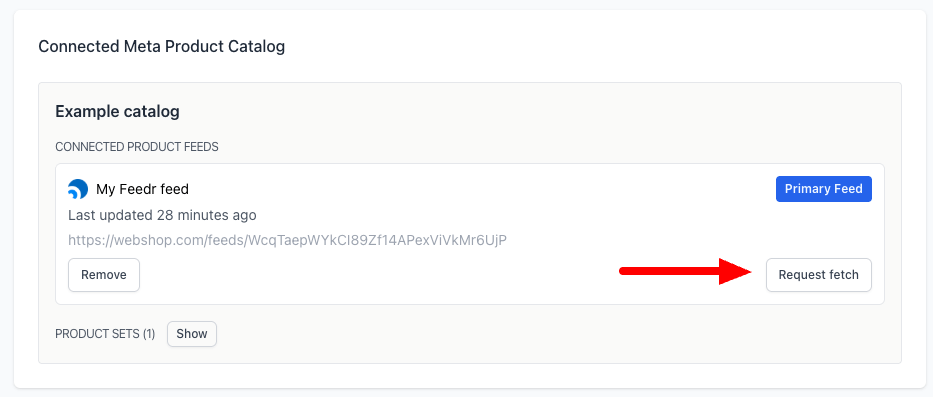
The button is disabled while an upload is already in progress.