A/B Testing Catalog Ads in Meta
A/B testing can be useful to test different templates to see which one performs better without you having to guess which template will perform better.
Benefits of A/B Testing
- Data-driven decision making: Instead of relying on intuition or guesswork, you have concrete data to support your choices.
- Understanding user preferences: It helps you gain insights into what resonates with your audience.
- Increased conversions: By identifying the most effective template, you can potentially increase desired actions (e.g., click-throughs or purchases).
Feedr Setup
Prerequisites:
- You need a feed connected to your Meta Catalog in Commerce Manager
- You need to connect your Meta account to Feedr
- You need at least one template
- You need at least two variants
To setup A/B testing, you need to go to the Template Variants tab in your feed and configure at least two variants.
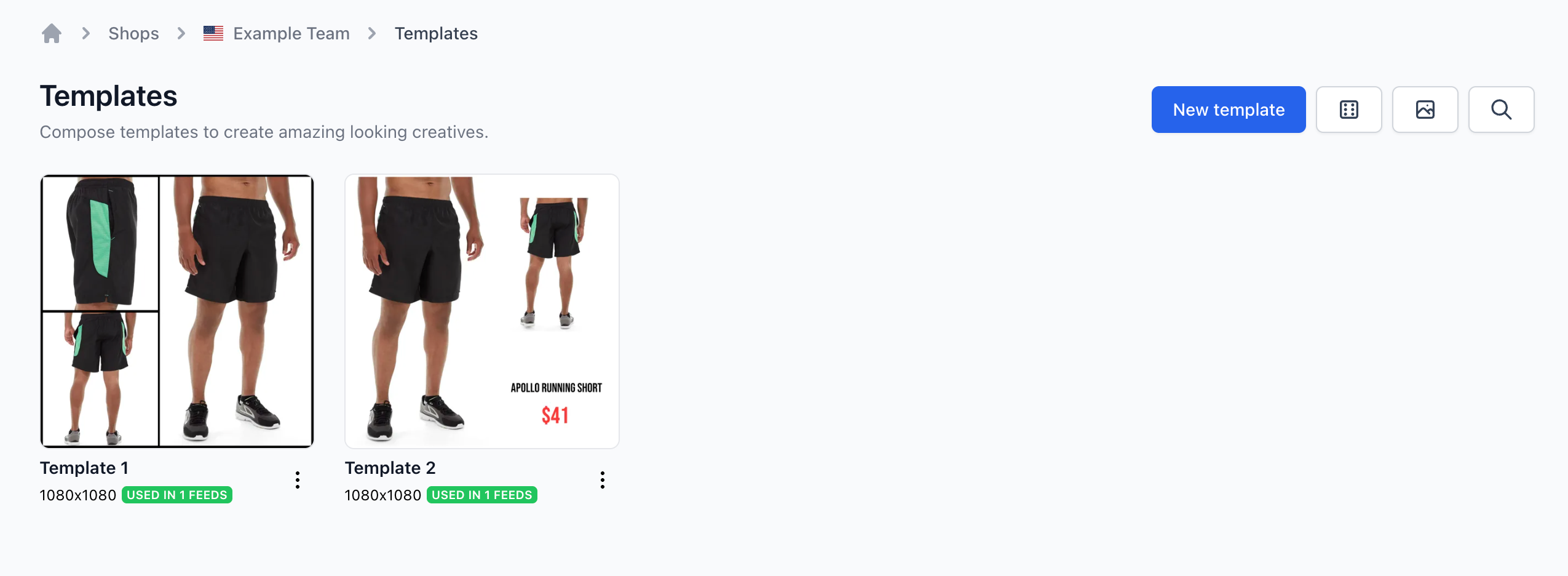
In this guide, we've designed two templates, and intend to split test across three variants.
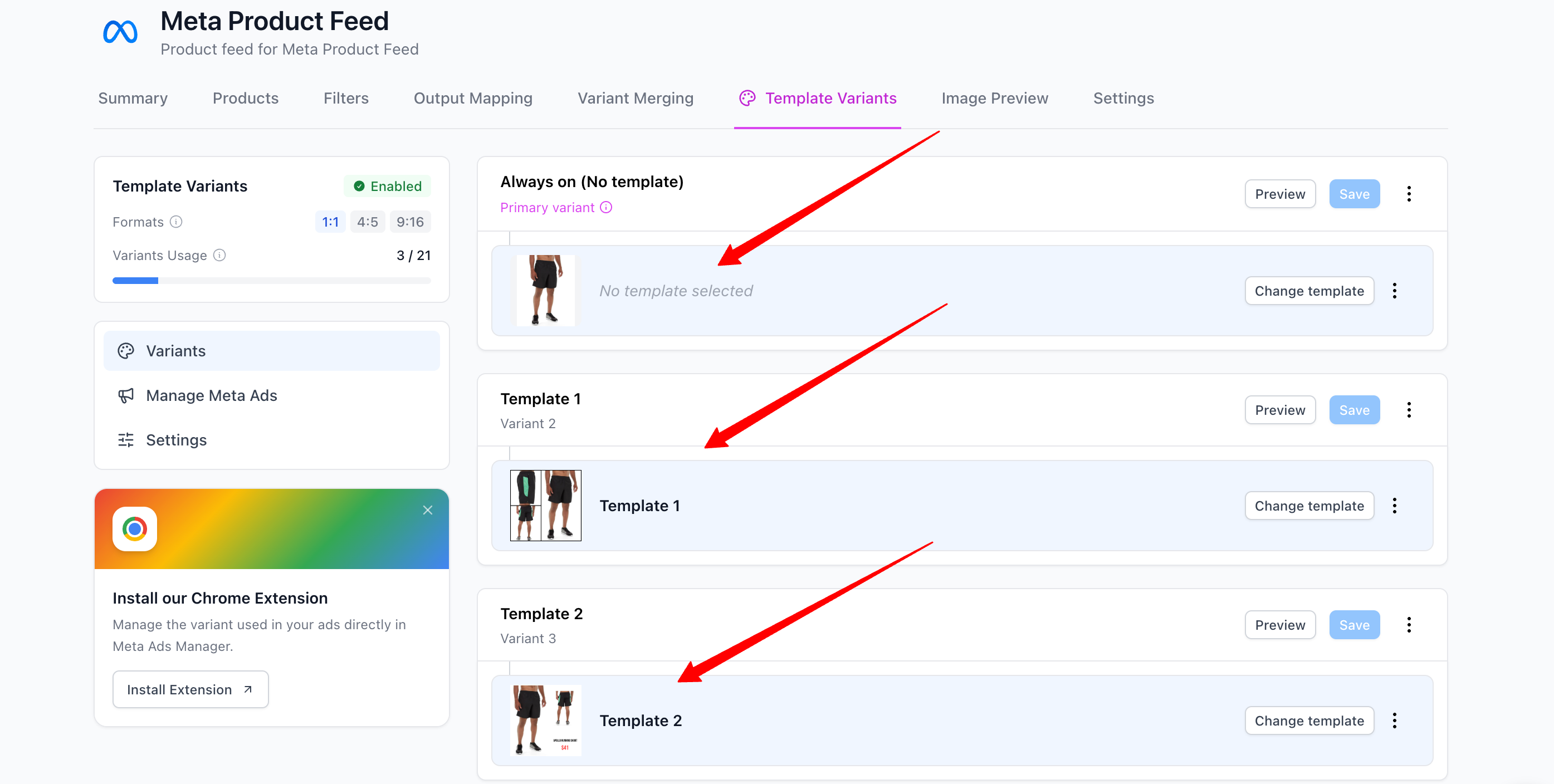
After you've designed your templates, please go ahead and create a variant for each of them like this. We also want to split test against the plain product image (no template), so we'll end up having three variants. We recommend that you name each variant based on the template used in that variant. That makes it easier to identify which variant is performing better.
Create New Campaign in Meta Ads Manager
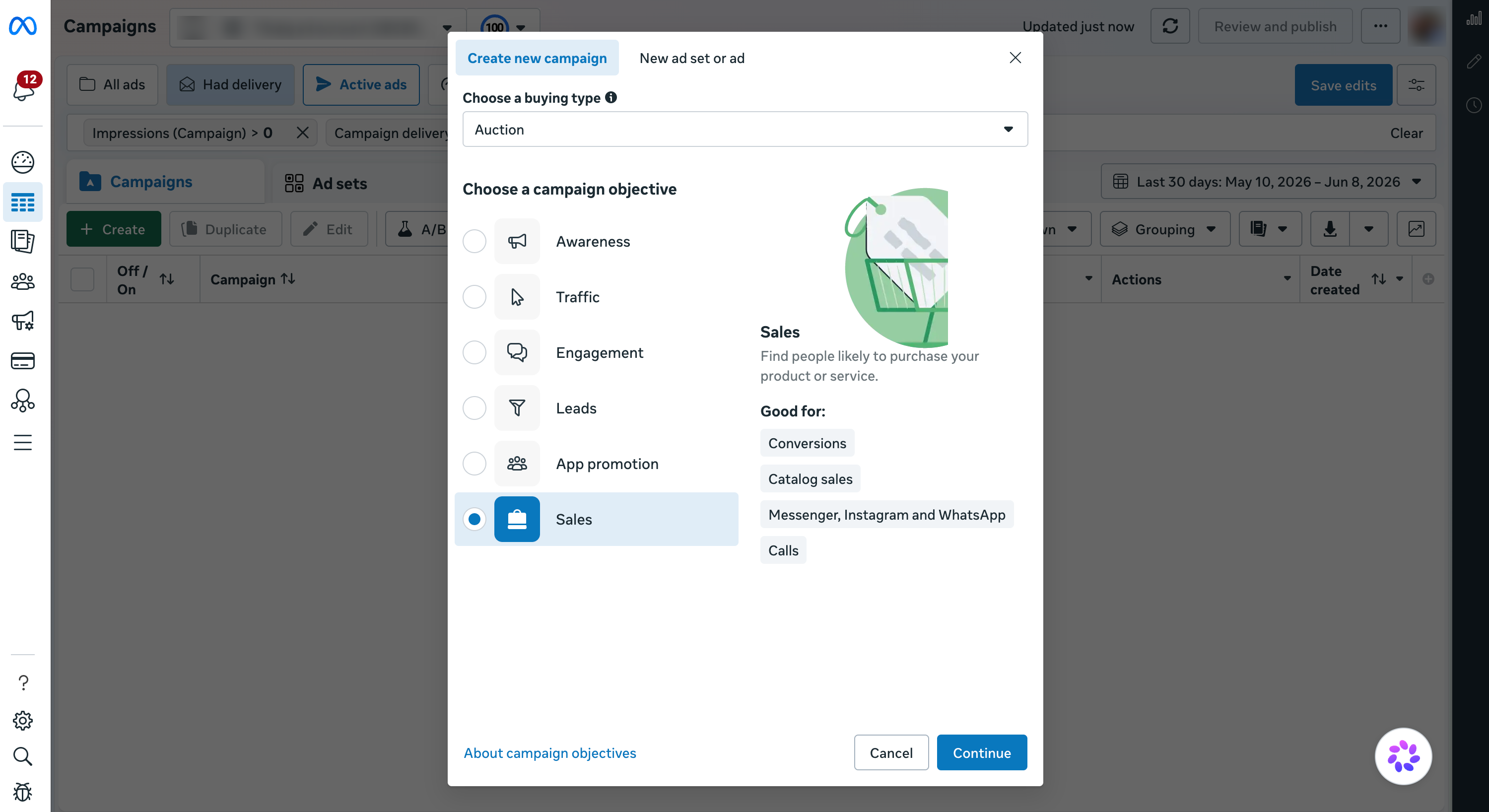
Inside Meta Ads Manager, create a new sales campaign. To do this press the + Create button and then select Sales as the campaign objective. The goal here is to create three ad sets, one for each variant.
Adsets and Ad Setup
Once you have created the campaign you will have a structure with an adset and an ad. Create one adset for each variant. In our case, we'll create three adsets. Each adset should have one ad. We'll also number each adset, and then name each ad based on the used template so we can easily identify which variant is being tested.
It's important that you configure each ad to use the catalog. After configuring the adsets and ads, please go ahead and publish them. We recommend, that you turn the campaign into "Draft" mode before publishing.
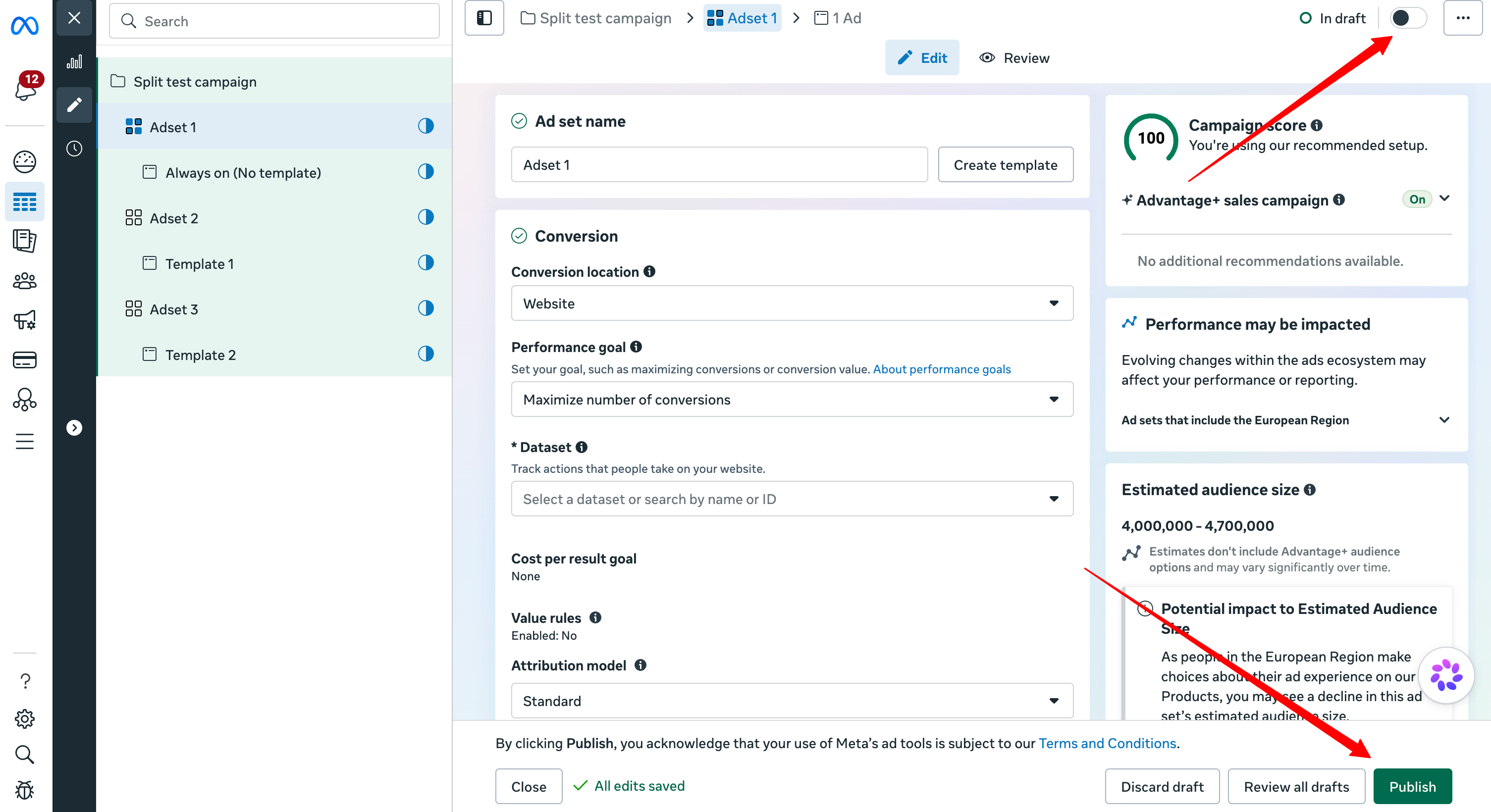
Change the variant
Once the campaign is published (still in draft mode), you can configure each ad to use the correct variant.
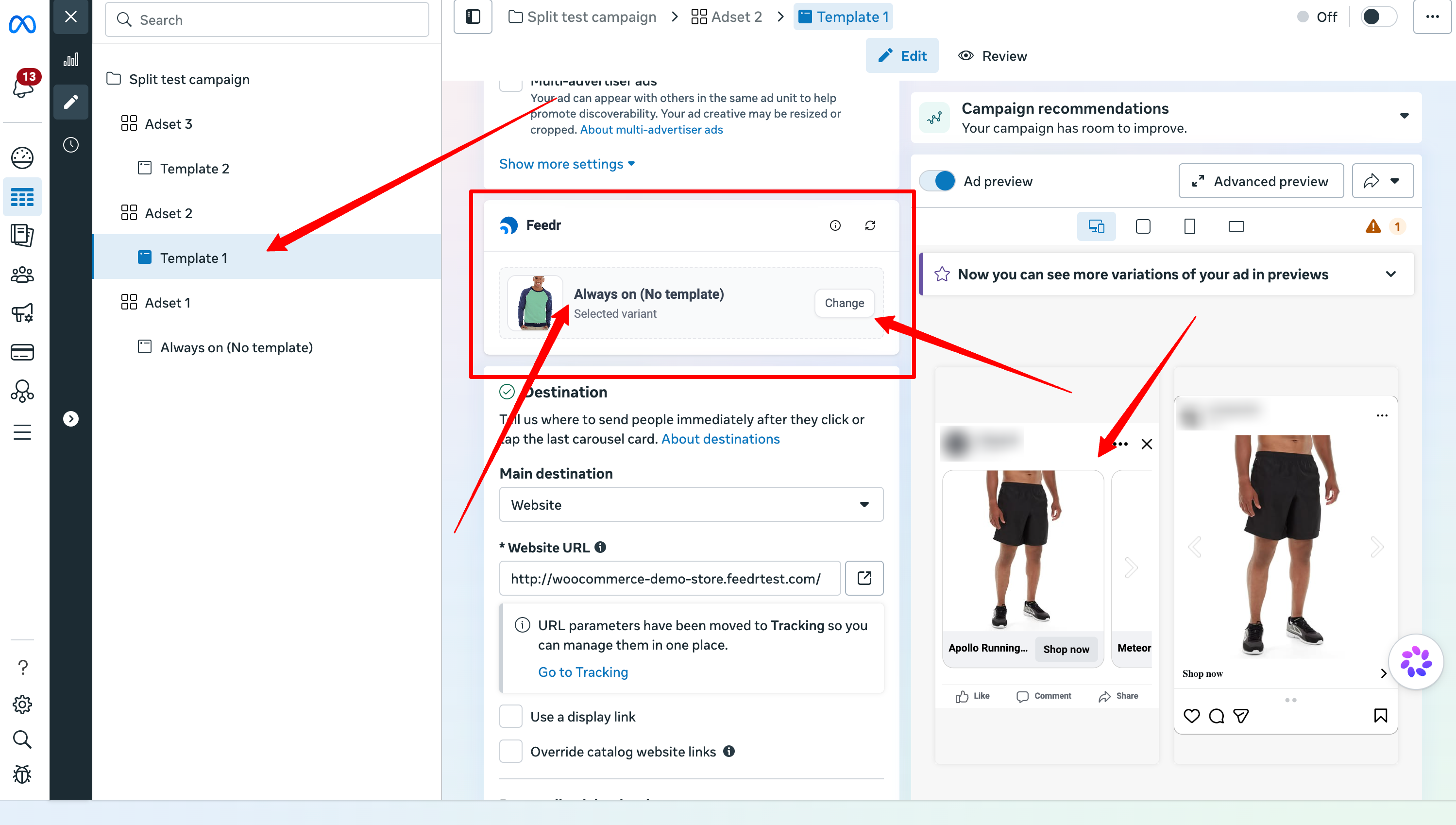
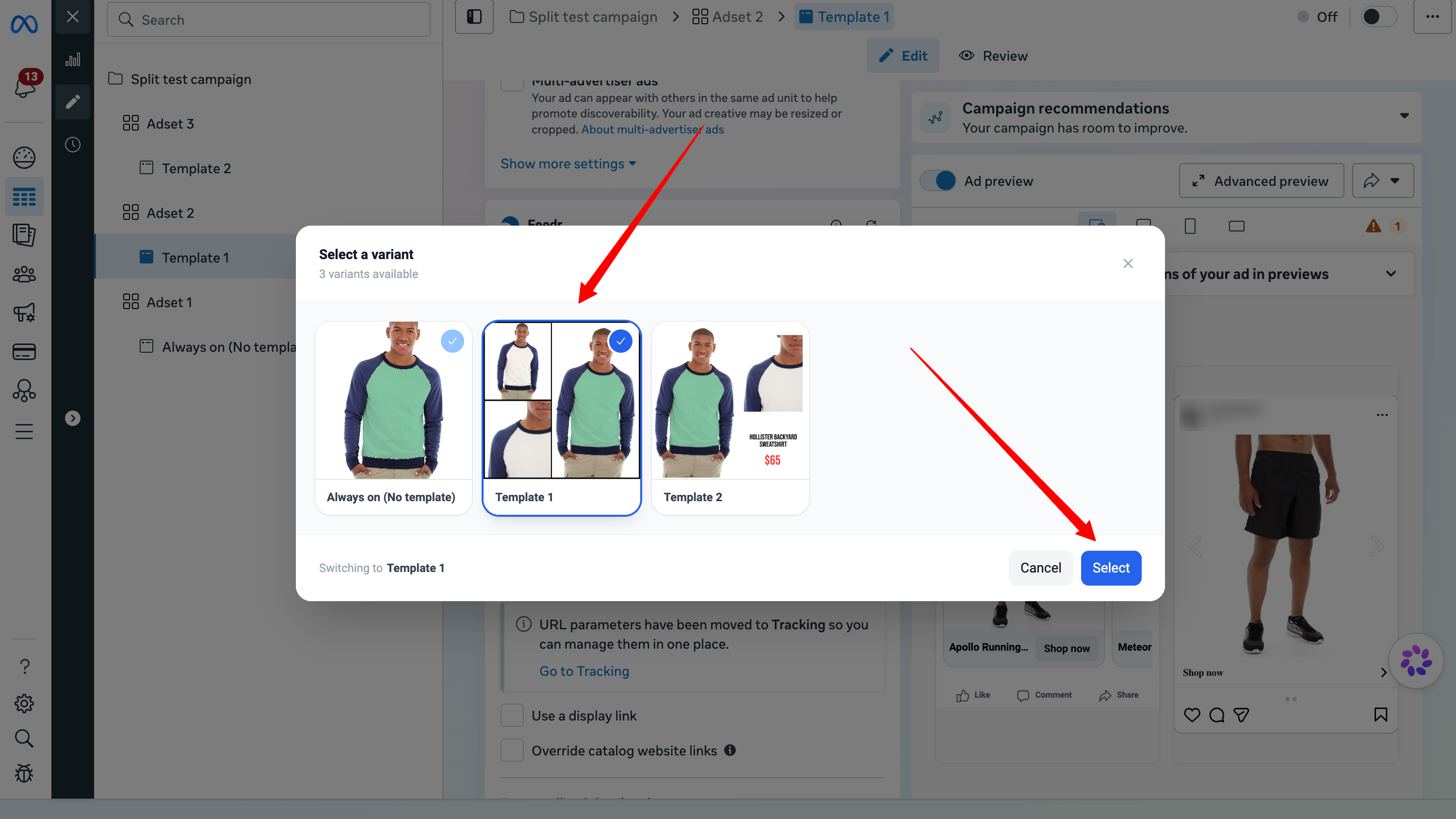
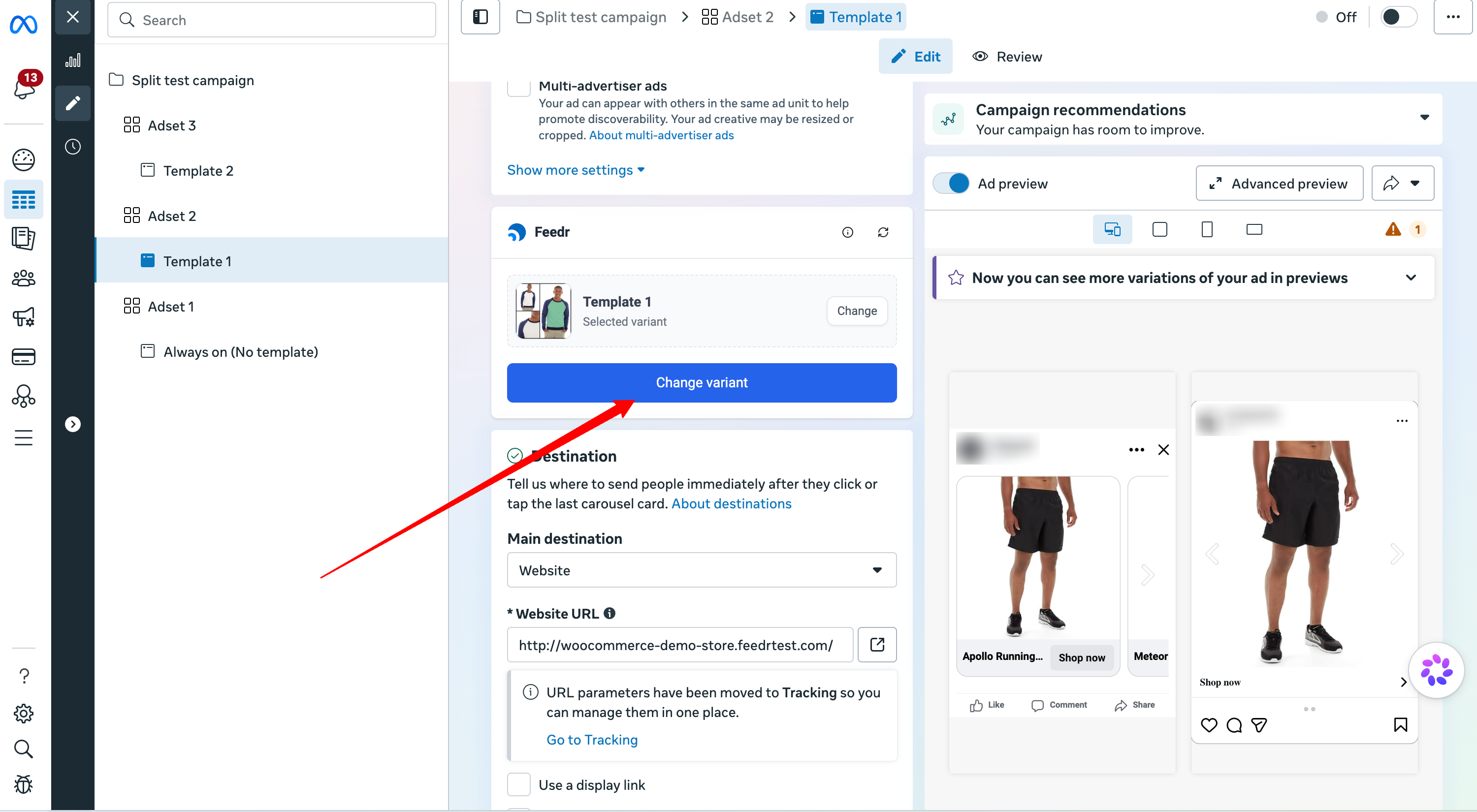
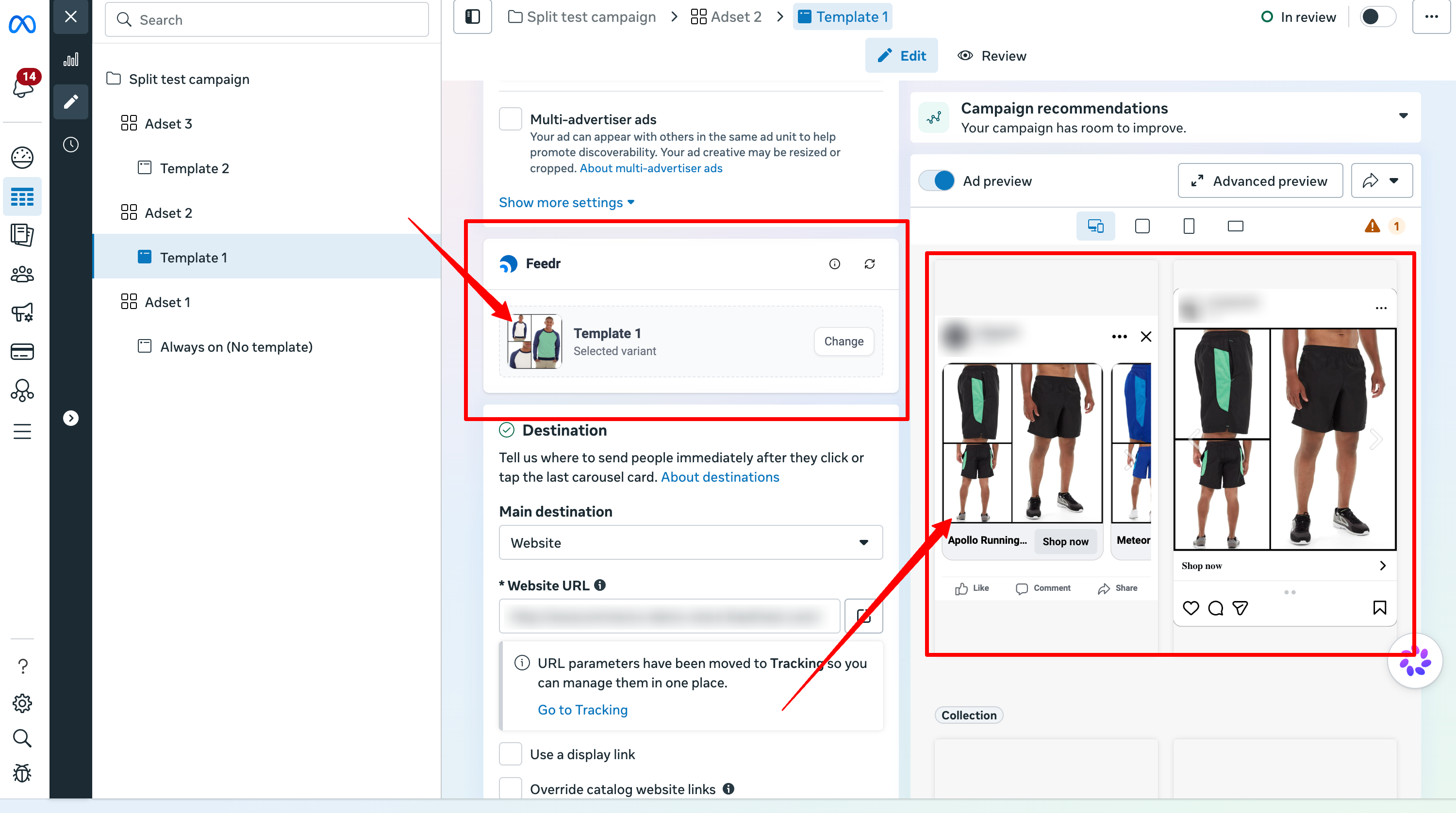
Please perform the same steps for the other ads.
A/B Testing
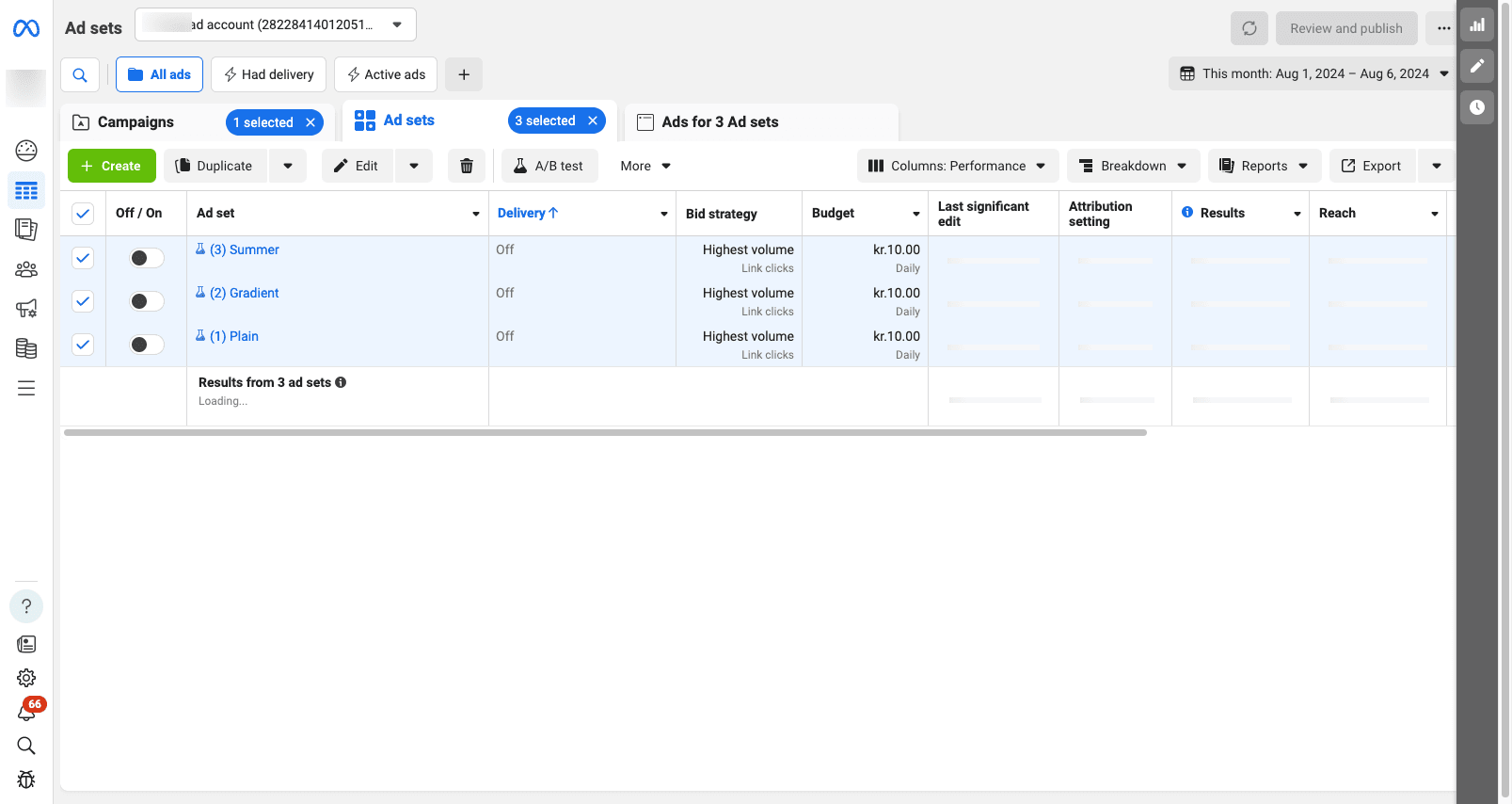
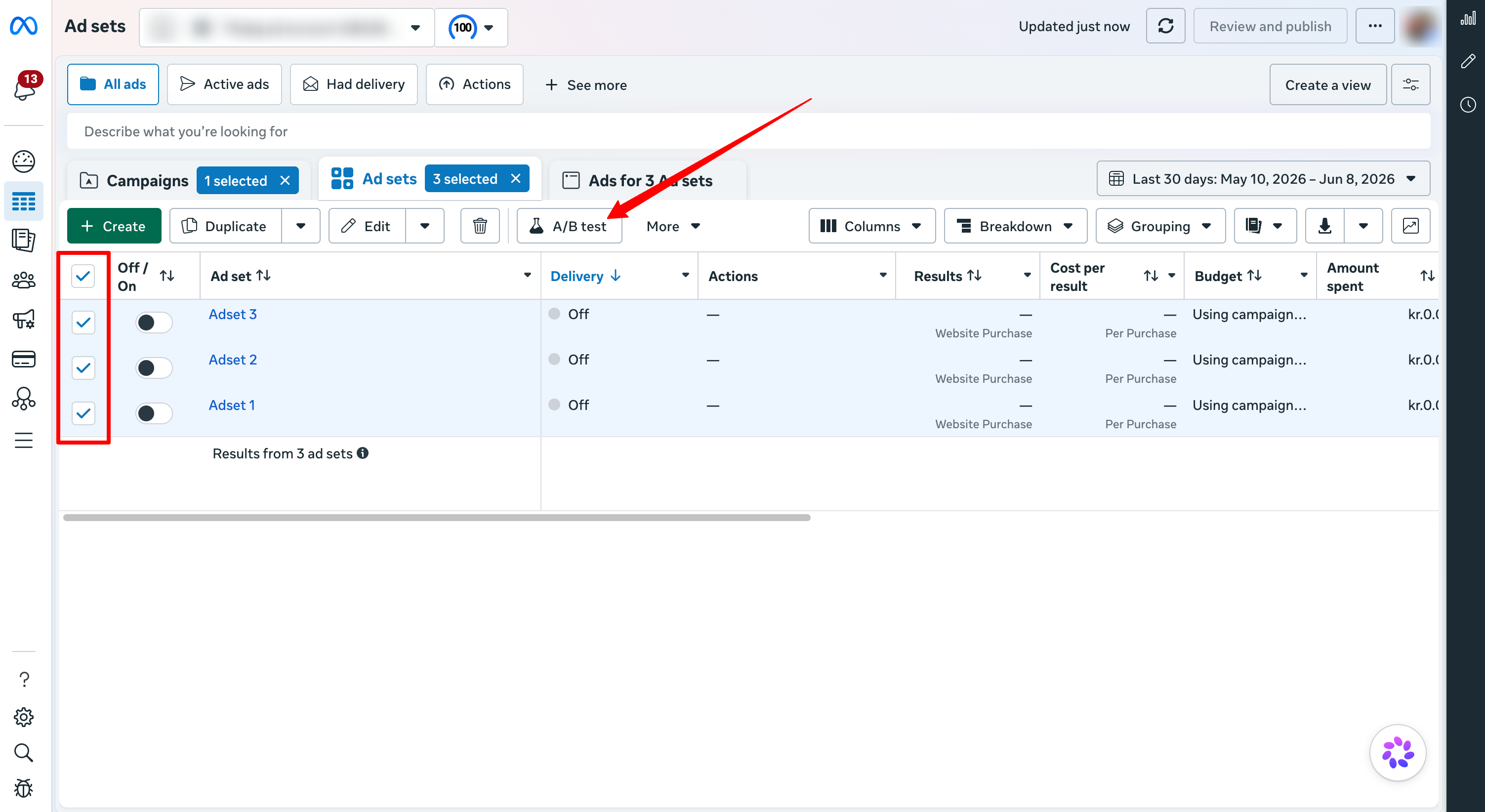
Now you can start A/B testing. To do this go to the overview of the ad sets for the campaign, select them all and click on the A/B test button.
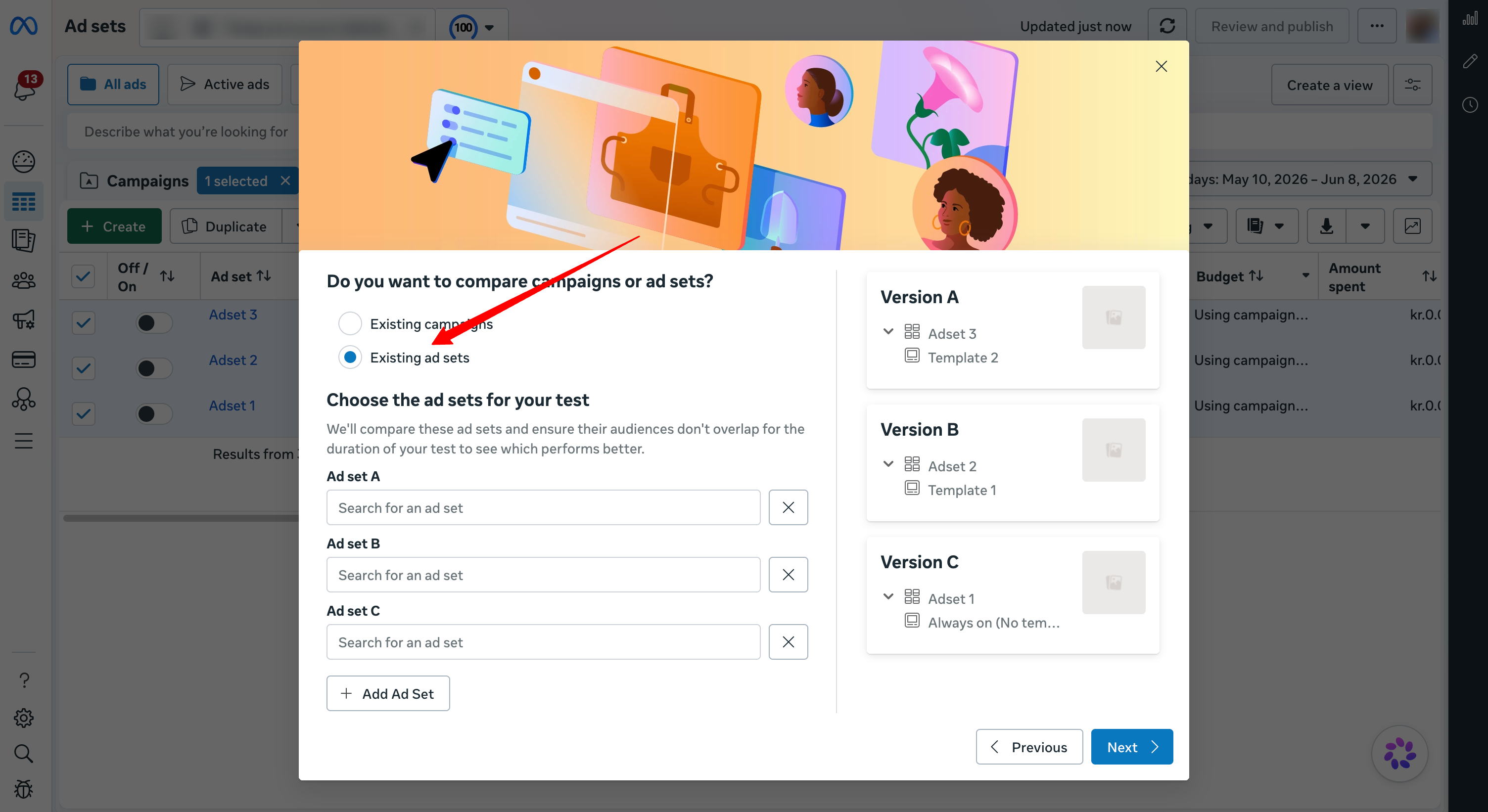
This will open a window where have to make sure the variants you want to test are selected. After you can click Next.
In the next step you have to select options for the A/B test. This includes a name for the test, the metric you want to use and the how long you want the test to run. When you are done click Publish Test.
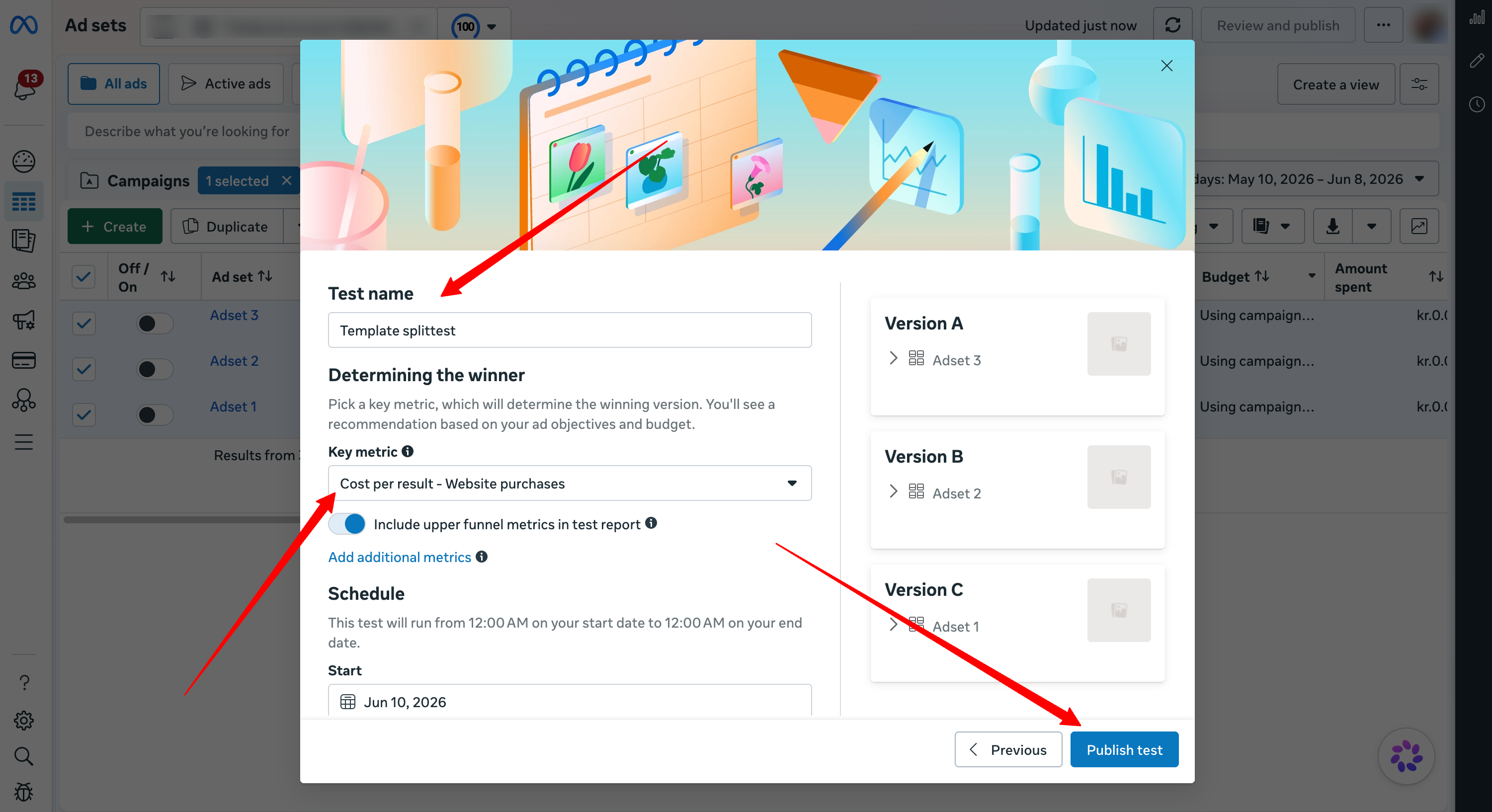
Results
After the test has been published you need to wait for the results to be ready. When the results are ready you can make informed decisions on which template to use.
Try to think about what made the difference between the variants that you have tested. You can use this information to know what resonates with your audience, which you can use to improve your templates.