Variant Merging
Most products in your store have variants — different colors, sizes, or styles of the same product. By default, each variant is included as its own separate entry in your feed. Variant Merging lets you combine all variants of a product into a single entry, which can be useful for certain sales channels or use cases.
If you are using Feedr with Klaviyo, we recommend enabling Variant Merging. Klaviyo does not support product variants, so merging them into one entry gives you cleaner data in your flows.
When to Use Variant Merging
Variant Merging is useful when:
- The sales channel you are sending the feed to does not support product variants (e.g. Klaviyo).
- You want to simplify your catalog by sending one product entry per product instead of one per variant.
- You want to combine values across variants, such as showing the lowest price or all available colors in a single product entry.
If the sales channel supports variants natively (like Meta), you typically do not need to enable this.
How It Works
When Variant Merging is enabled, all variants belonging to the same product are merged into one product entry before the feed is generated. For each field in the output, you choose a merge strategy — this determines how the values from each variant are combined.
For example, a product "Nike Air Max" with a blue variant (€99) and a red variant (€79) could be merged so that:
- The title becomes
Nike Air Max(common part) - The color becomes
blue, red(list all values) - The price becomes
79.00(lowest value)
Merging happens after your product filters have been applied, so filtered-out variants do not affect the result.
Feed Fields vs. Template Fields
Variant Merging has two separate sections of configuration:
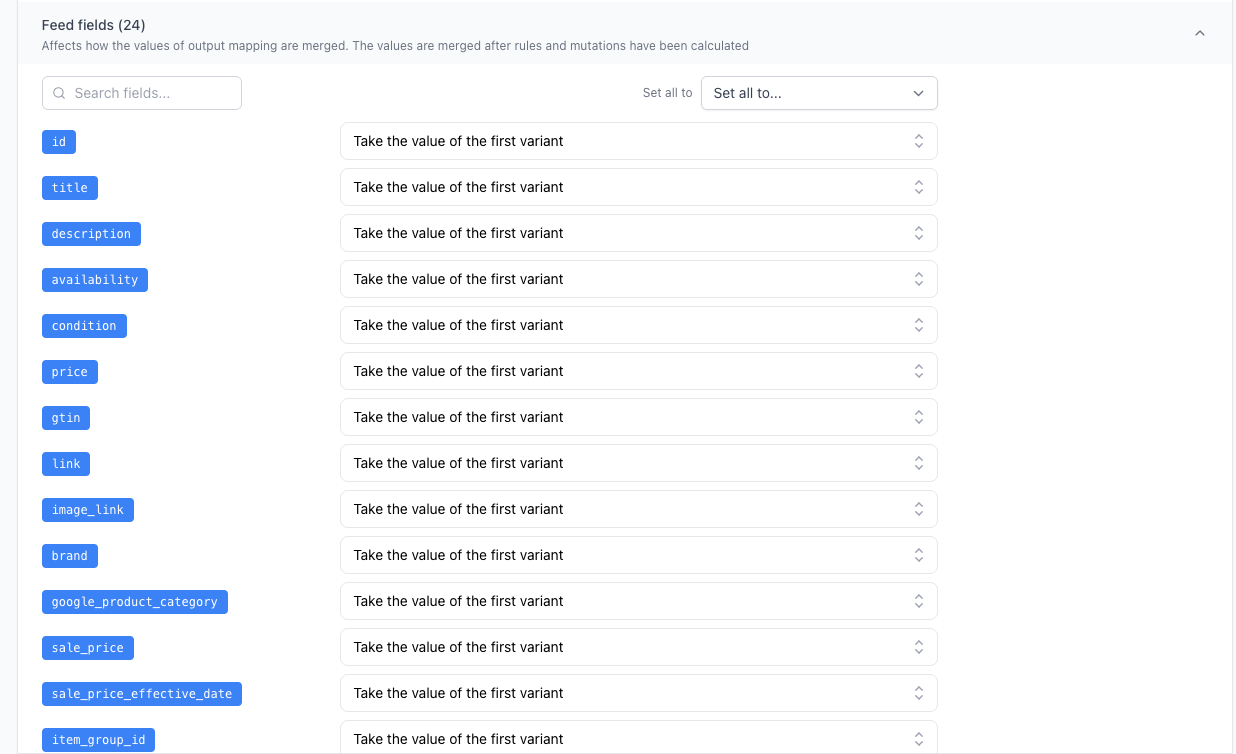
Feed Fields
Feed fields control how values are merged in the actual feed output — the XML file that gets sent to your sales channel. These correspond to the fields you have configured in Output Mapping.
For example, if you have mapped the price field and want the feed to show the lowest price across all variants, you would set the merge strategy for that field to Take the lowest value.
Template Fields
Template fields control how values are merged when they are used inside product image templates. Templates are dynamically generated images where product data — like the product title or price — is rendered directly on the image.
If you have templates enabled for your feed, this section will list the fields used by those templates, and you can configure how those values are merged per field.
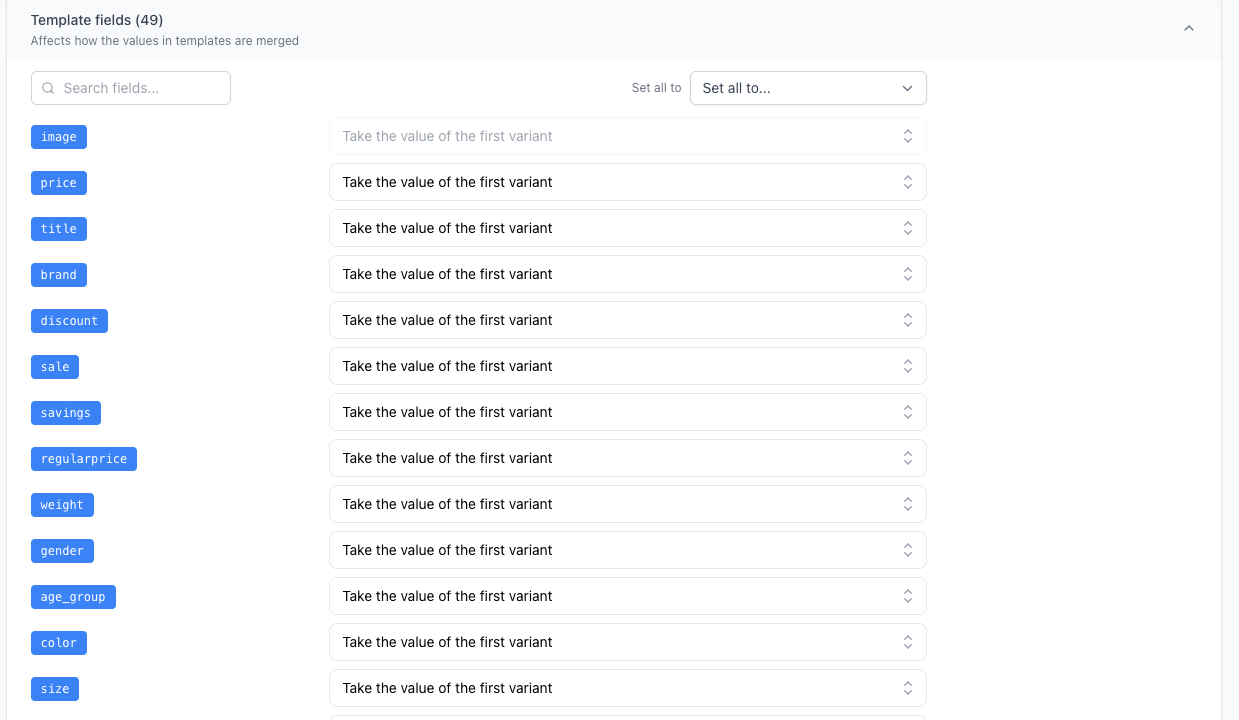
Some template fields are read-only and cannot be changed. These are managed automatically by the system.
Merge Strategies
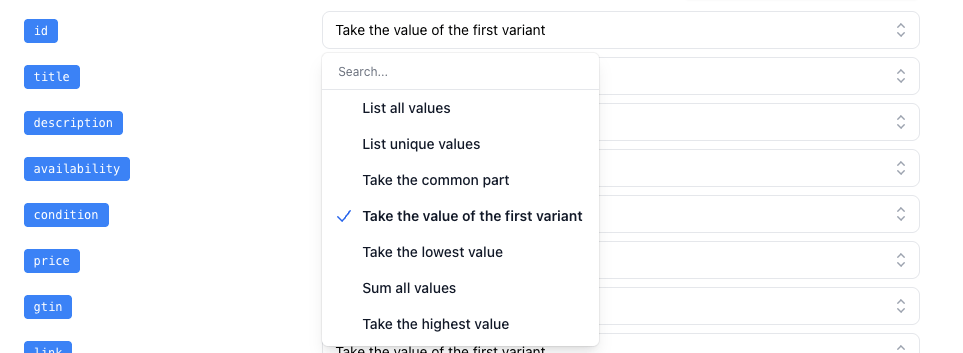
When Variant Merging is enabled, you choose a merge strategy for each field. Here is what each strategy does:
| Strategy | Description | Best for |
|---|---|---|
| List all values | Combines all values from all variants into one comma-separated value, including duplicates | Colors, sizes where you want to list everything |
| List unique values | Same as above, but duplicate values are removed | Colors, sizes where duplicates don't add value |
| Take the common part | Extracts the shared text prefix across all variant values | Titles (e.g. "Nike Air Max Blue" and "Nike Air Max Red" → "Nike Air Max") |
| Take the value of the first variant | Uses the value from the first variant; falls back if it is empty | Fields where variant order matters |
| Take the lowest value | Finds the numerically lowest value | Prices — show the entry price |
| Take the highest value | Finds the numerically highest value | Prices — show the maximum price |
| Sum all values | Adds all numeric values together | Inventory / quantity across all variants |
For numeric strategies (lowest, highest, sum), if the value contains a currency or unit suffix (e.g. 79.95 DKK or 5 pcs), Feedr will preserve it in the output.
If a field contains no numeric values, the strategy falls back to Take the value of the first variant.
How to Enable and Configure
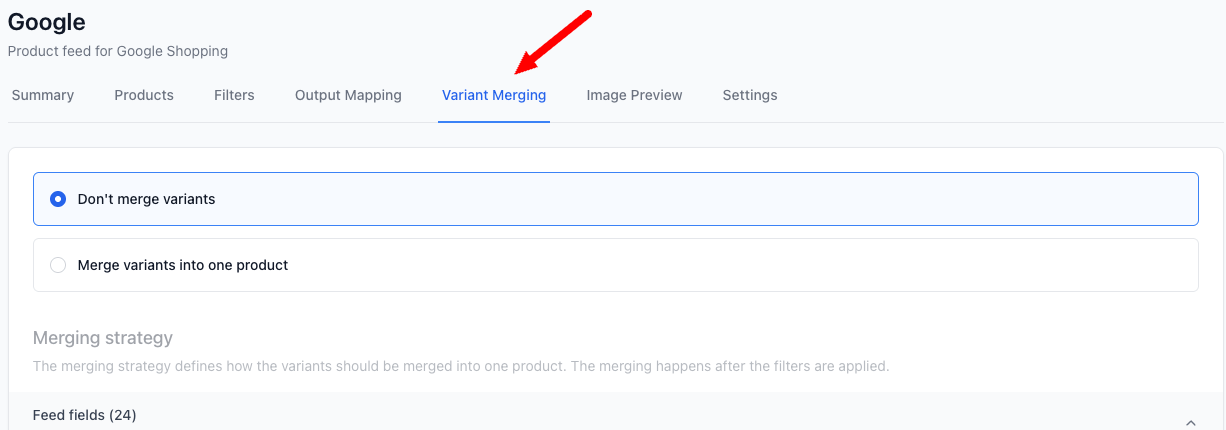
Step 1 — Navigate to the Variant Merging tab
Open the feed you want to configure and click on the Variant Merging tab.
Step 2 — Enable merging
Select Merge variants into one product to enable the feature.

Step 3 — Configure Feed Fields
Expand the Feed fields section. You will see a list of all output fields you have mapped for this feed. For each field, choose the merge strategy that makes sense for the type of data in that field.
You can use the Set all to dropdown to apply the same strategy to all fields at once, which is useful as a starting point.
You can also use the search bar to find a specific field quickly.
Step 4 — Configure Template Fields (if applicable)
If you have templates enabled for this feed, expand the Template fields section and configure the merge strategy for each template field.
Step 5 — Save
Click Save changes to apply your configuration. The next time your feed is generated, variants will be merged according to your settings.