Internal Fields
Internal fields are custom computed fields that you define once at the shop level and reuse across your entire account. They work exactly like output field mappings — you build them from product attributes, static values, and mutations — but instead of writing to a feed output, their computed value becomes available as a named field throughout Feedr.
Once created, an internal field is automatically calculated for every product in your shop. You can then reference it in:
- Output mapping — use the computed value as a source when mapping feed fields
- Product filtering rules — filter products based on the computed value
- Template variant rules — drive which template variant is shown per product
- Templates — inject the computed value into your creative templates
Creating an Internal Field
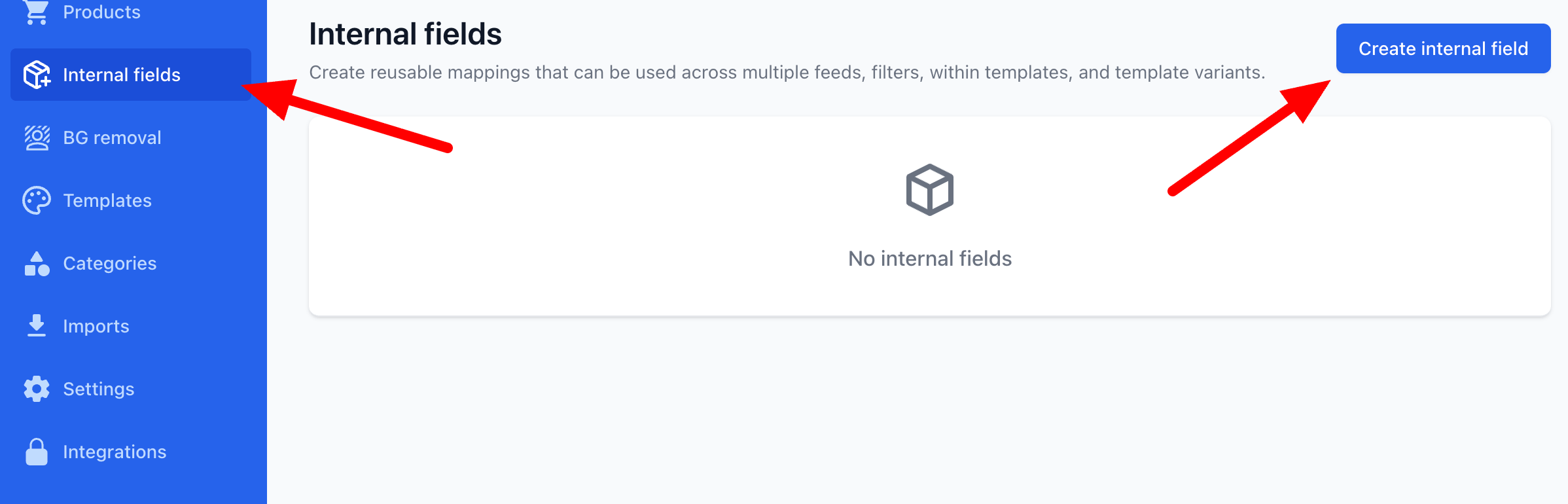
Navigate to your shop and open the Internal Fields tab. Click Add internal field to create a new one.
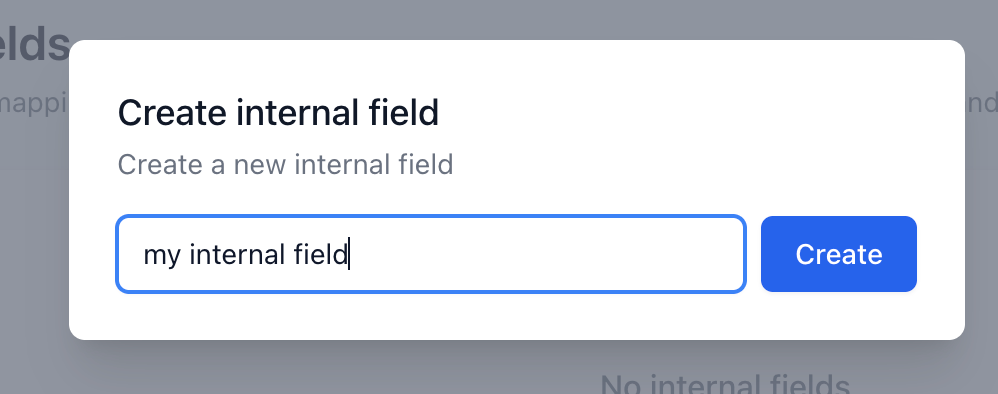
Give the field a descriptive name — this is how it will appear in selectors throughout the platform.
Building the value
The internal field editor uses the same block-based interface as output mapping. You set up a value using product attributes, static values, mutations, and conditional rules.
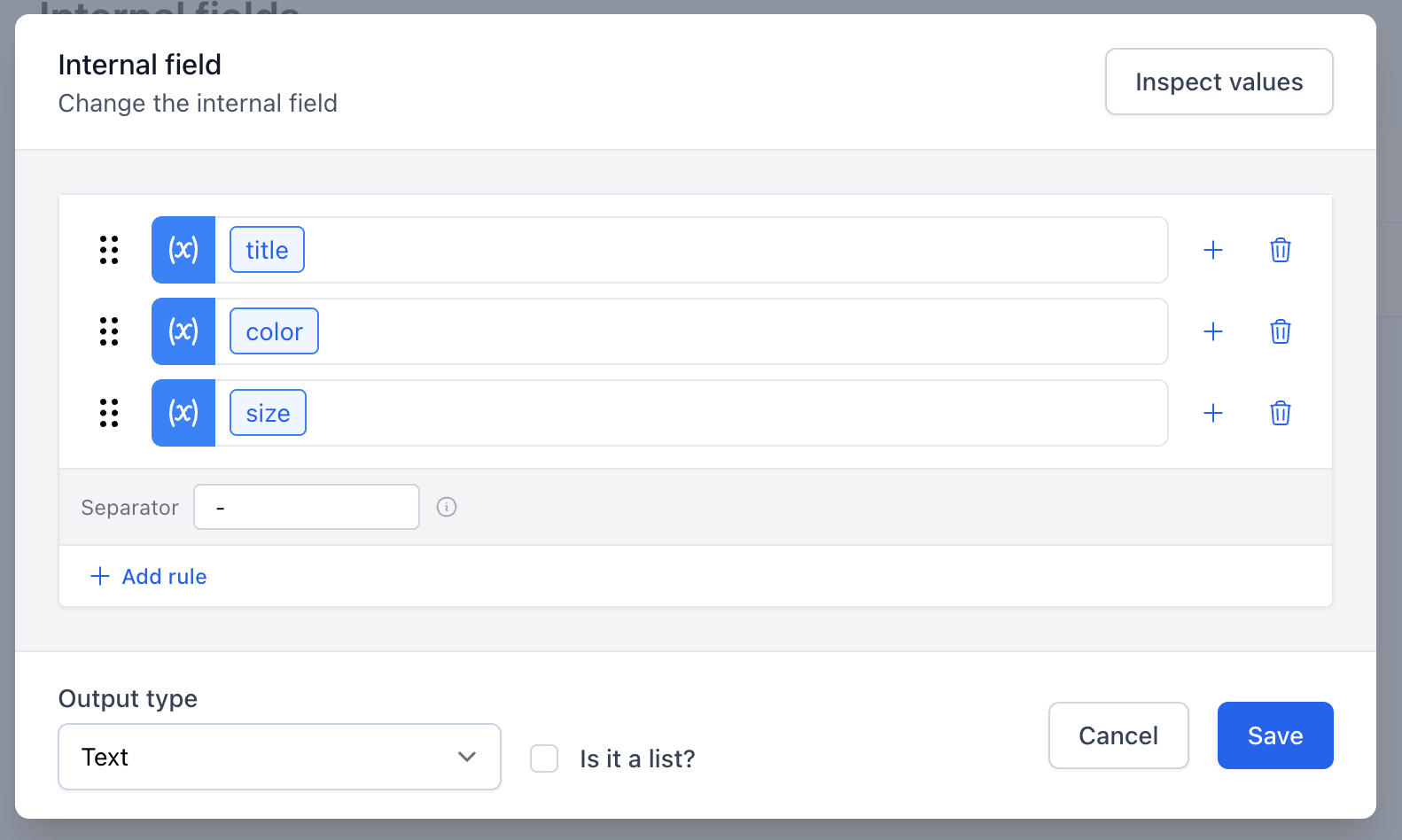
For example, you could create an internal field called Full Title that combines title, color, and size with a - separator, giving you Running Shoe - Red - XL as a reusable computed value.
Once saved, Feedr processes the field for every product in your shop. Whenever the underlying product data changes, the internal field value is recalculated automatically.
Using Internal Fields
In Output Mapping
When configuring a value in output mapping, open the source selector and choose Internal field. You will see a list of all internal fields defined for your shop.
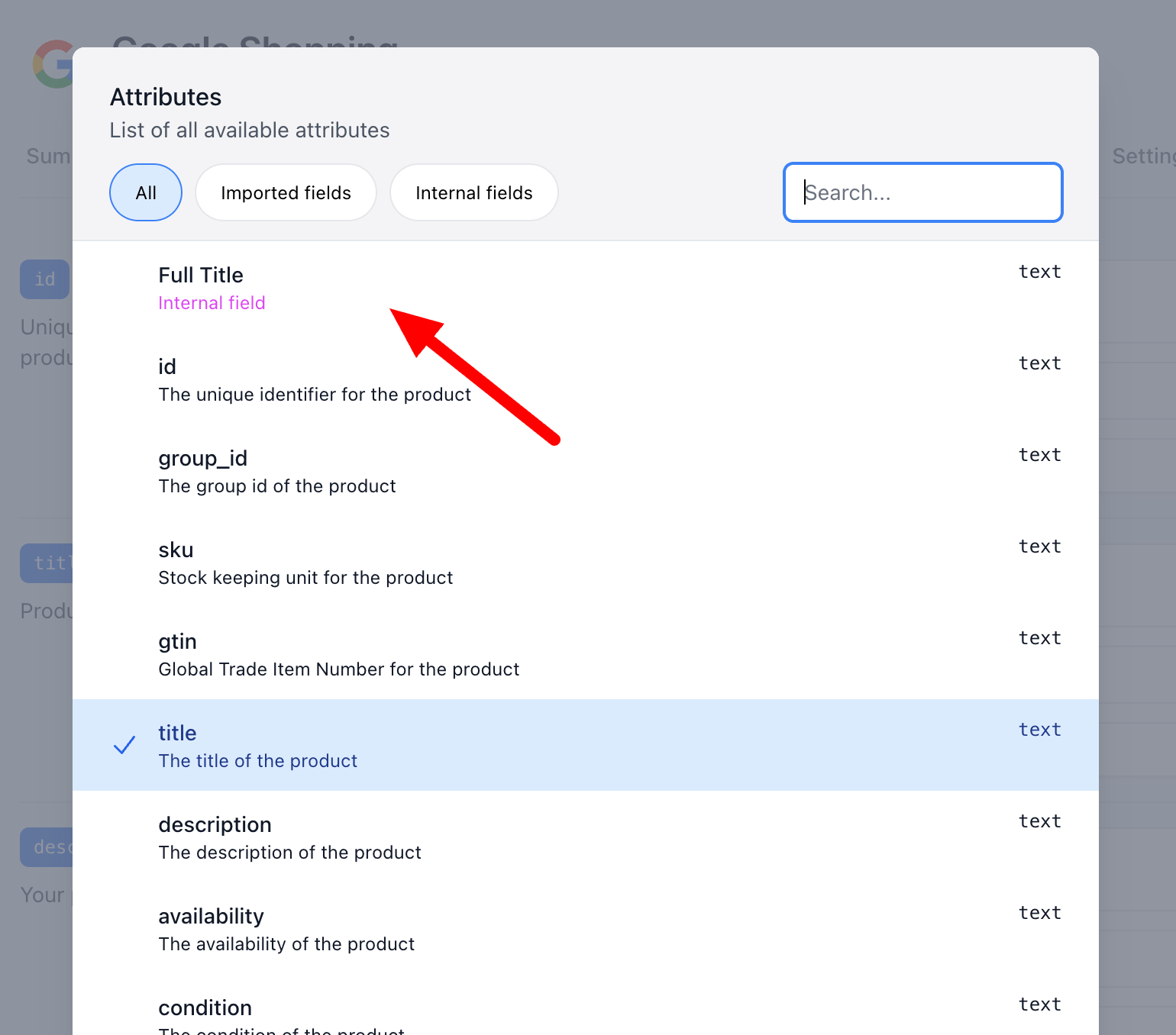
This is useful when the same computed value is needed across multiple feeds or multiple output fields — you define the logic once in the internal field and reference it wherever needed.
In Product Filtering
Internal fields can be used as the left-hand side of a filter rule, the same way any product attribute can. Open a filter rule and select Internal field from the field selector.
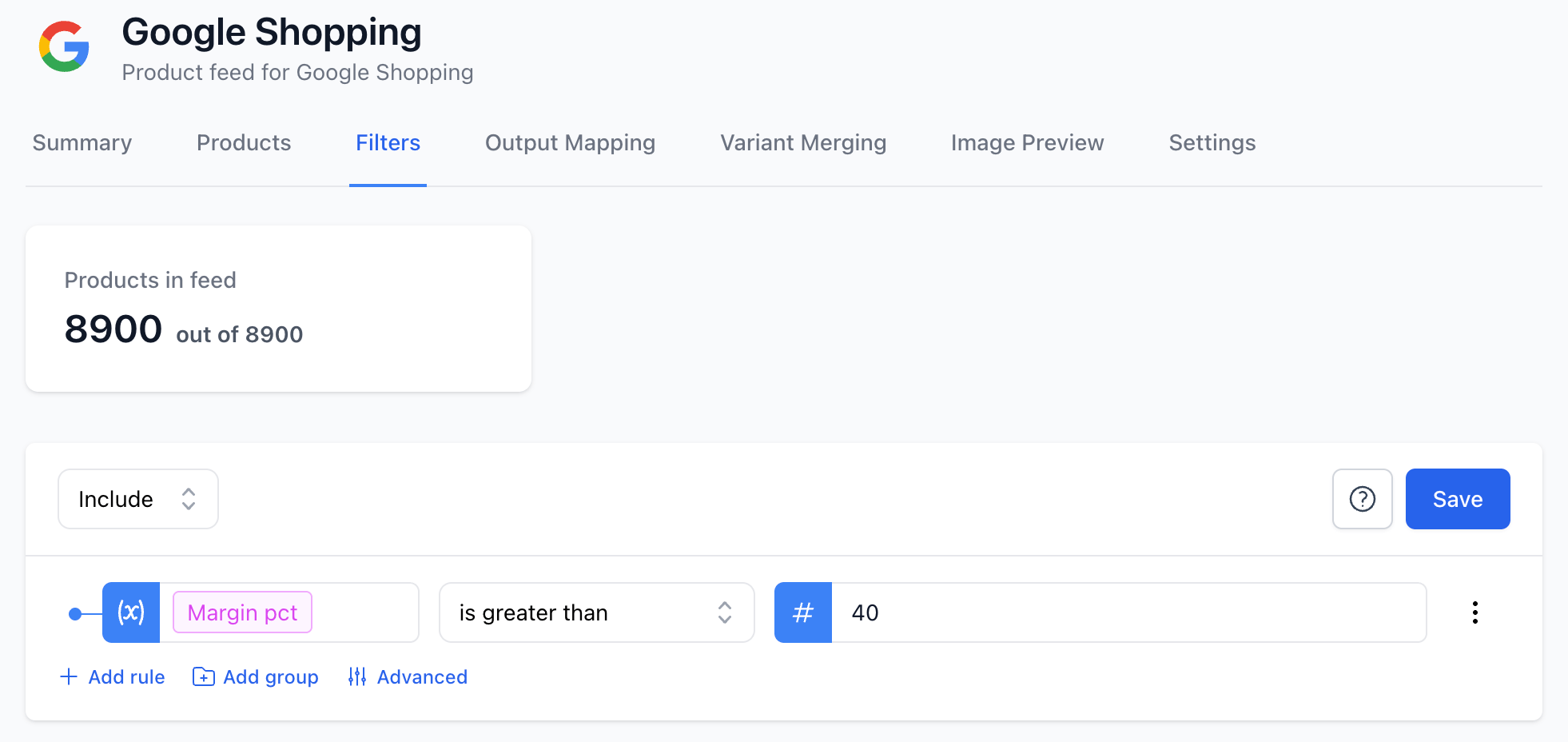
For example, if you have an internal field called Margin pct that computes a product's margin, you can create a filter that includes all products where Margin pct is greater than a threshold.
In Template Variant Rules
Template variant rules determine which template variant is shown for a given product. Internal fields can be used as a condition in these rules, allowing you to route products to different creatives based on computed values.
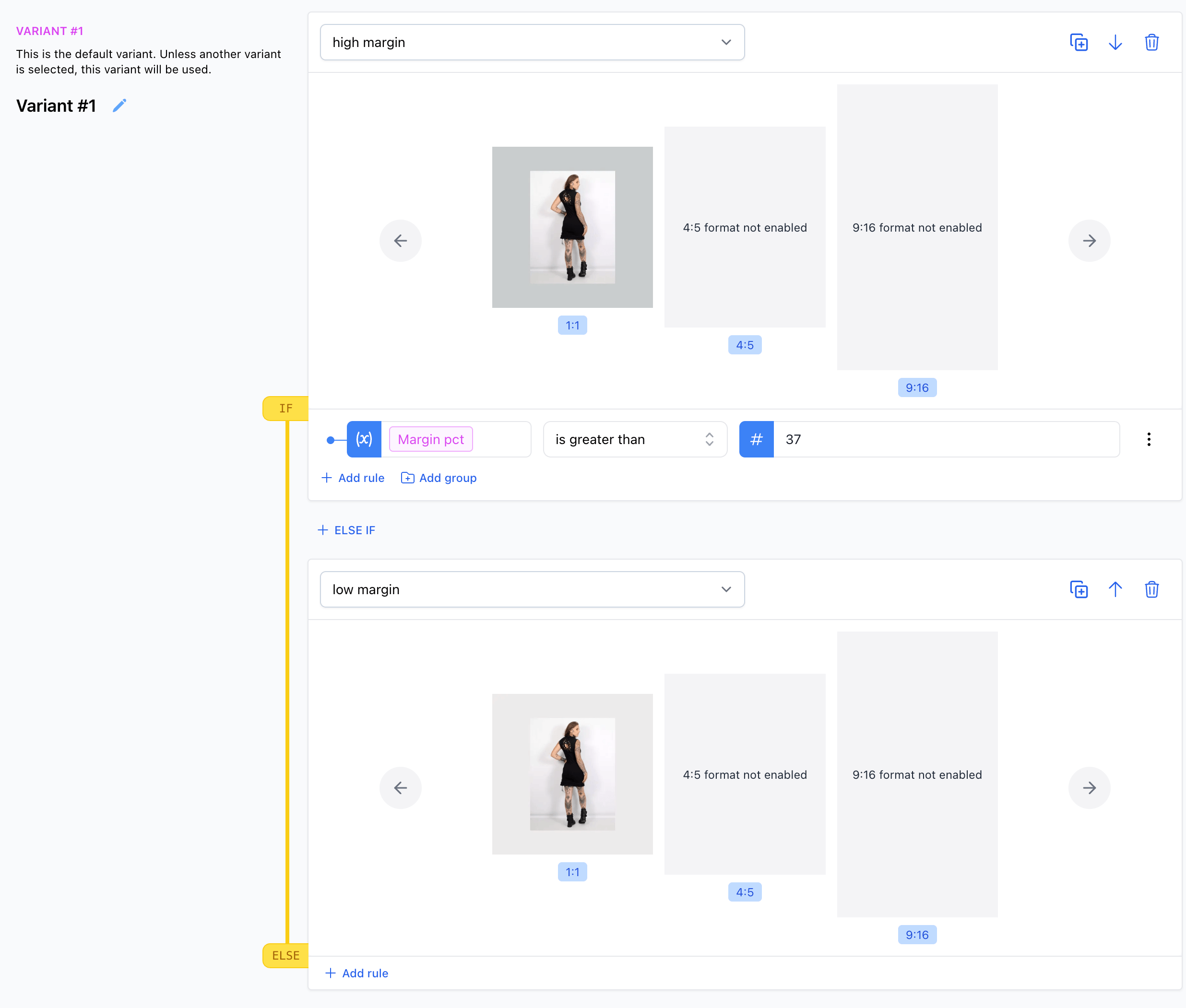
For example, an internal field that computes a product's category segment could be used to show a different template design for each category — all driven automatically from your product data.
In Templates
Internal fields are available as dynamic values inside your creative templates. Select an internal field from the attribute picker when editing a text or data layer in the template editor.
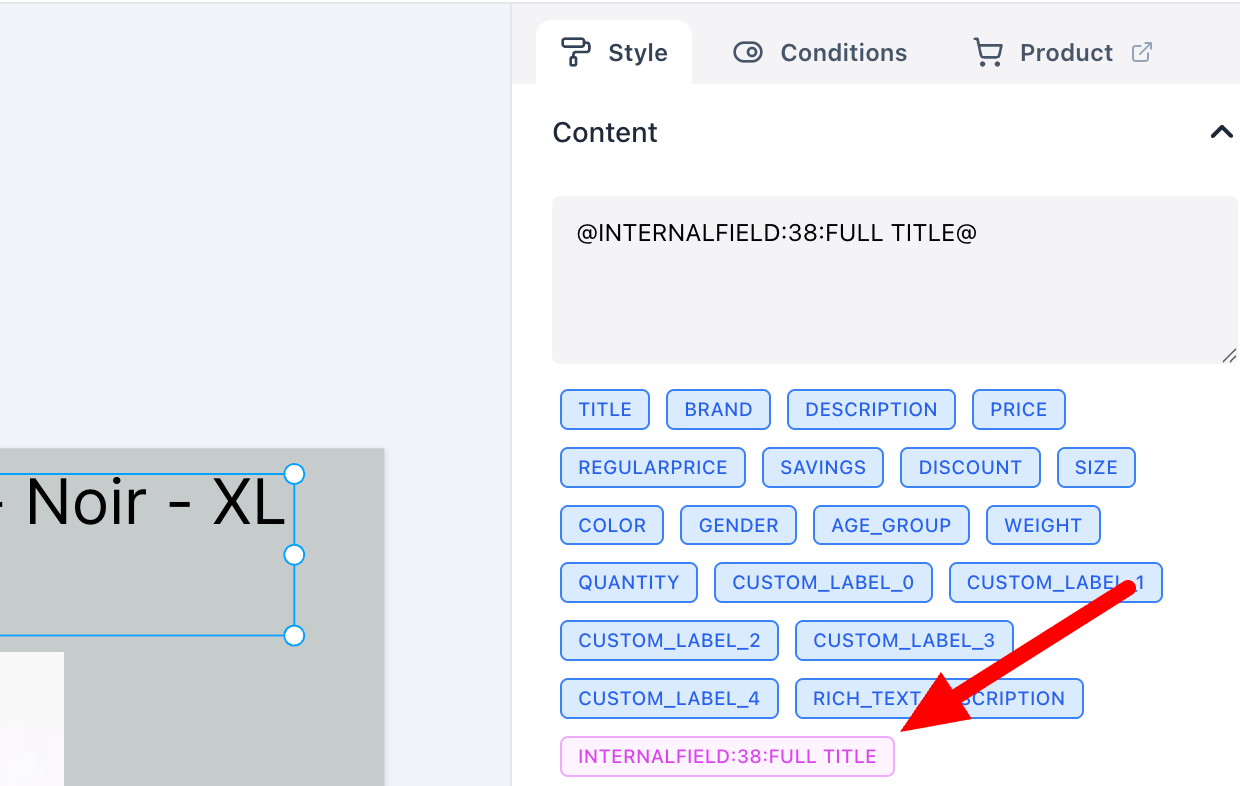
This makes it easy to display computed values — such as a formatted price, a custom label, or a combined title — directly on your ad creatives without duplicating the logic in every template.
Examples
Margin %
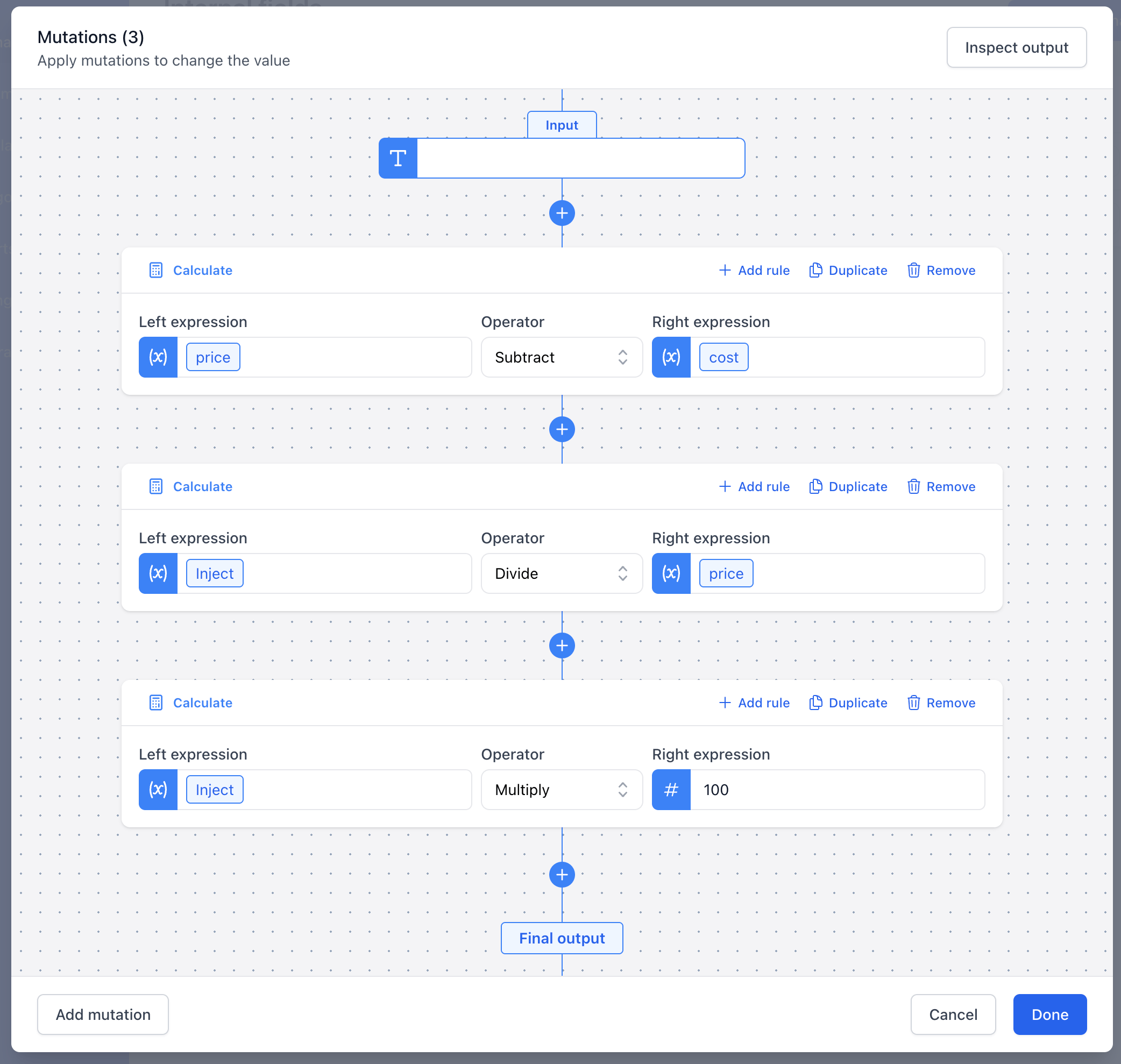
Compute the margin percentage for each product from its price and cost. This is useful for filtering out low-margin products from performance campaigns where every click needs to be profitable.
Setup: Create a number internal field called Margin pct that calculates (price - cost) / price * 100 using the Calculate mutation.
How to use it: Add a filter rule to your feed with the condition Margin pct is greater than 40, and set the filter to include. This will automatically include only products where the margin is above 40% — without you having to maintain a manual exclusion list.
Stock Urgency Label
Generate a short urgency label based on how many units are in stock. Showing "Only 3 left!" on an ad creative creates a sense of scarcity and can improve click-through rates.
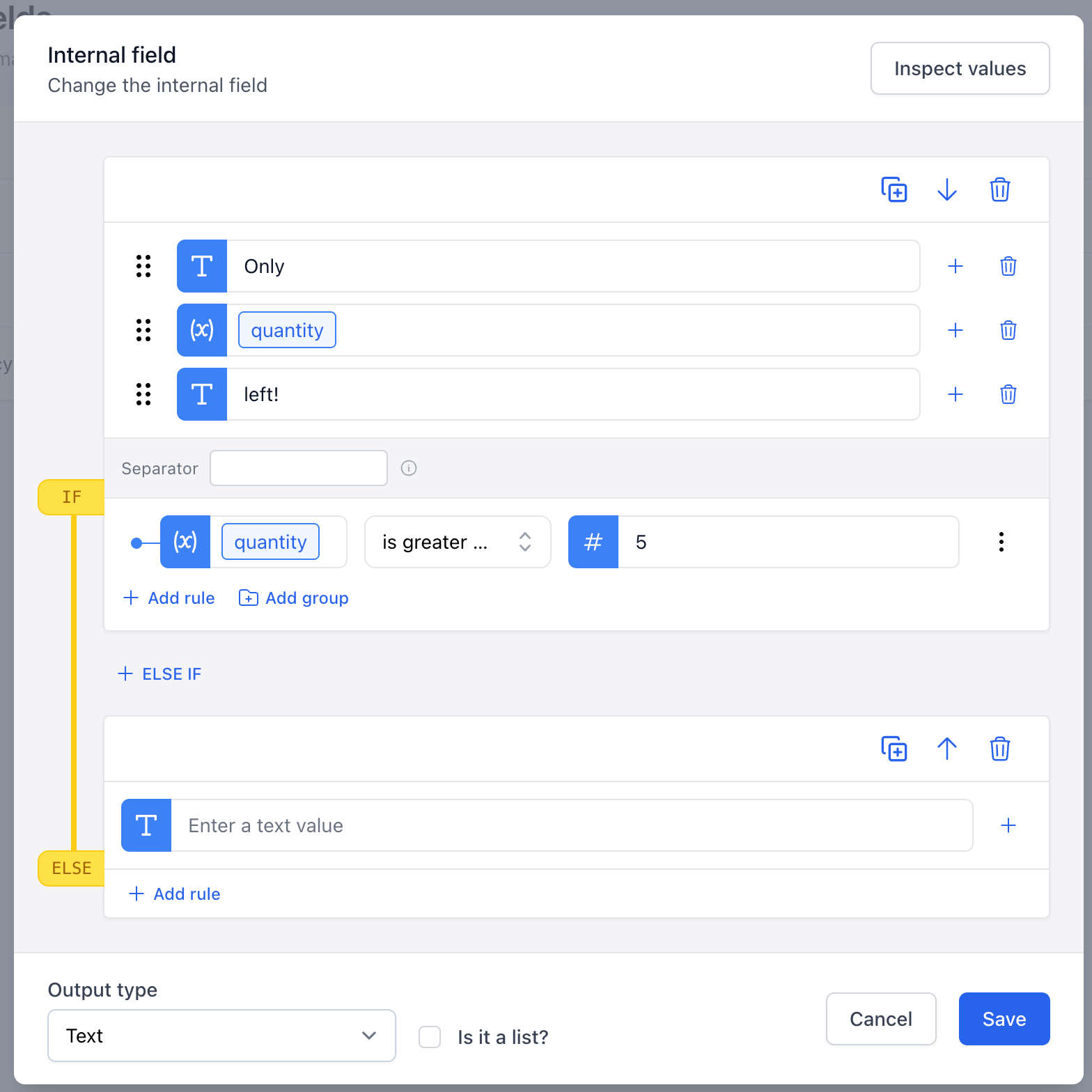
Setup: Create a text internal field called Stock Urgency Label. Use conditional blocks to return different values based on the quantity attribute:
- If
quantityis less than or equal to5→ returnOnly [quantity] left! - Otherwise → leave the field empty
How to use it: Use the field in template variant rules to route low-stock products to a dedicated "urgency" template that includes the label. Products with healthy stock levels fall through to the default template and are unaffected.